Manage your Entra role activations directly from the sapio365 Dashboard:
-
See which of your roles are currently active (directly assigned and through groups).
-
Activate or deactivate your eligible PIM roles.
Limitations:
-
You can only activate or deactivate your eligible roles from sapio365.
-
Expired roles are not listed.
To manage expired roles or perform other actions such as extensions and renewals, use the link in the dialog’s introduction to open your browser directly to the My roles section in Entra.
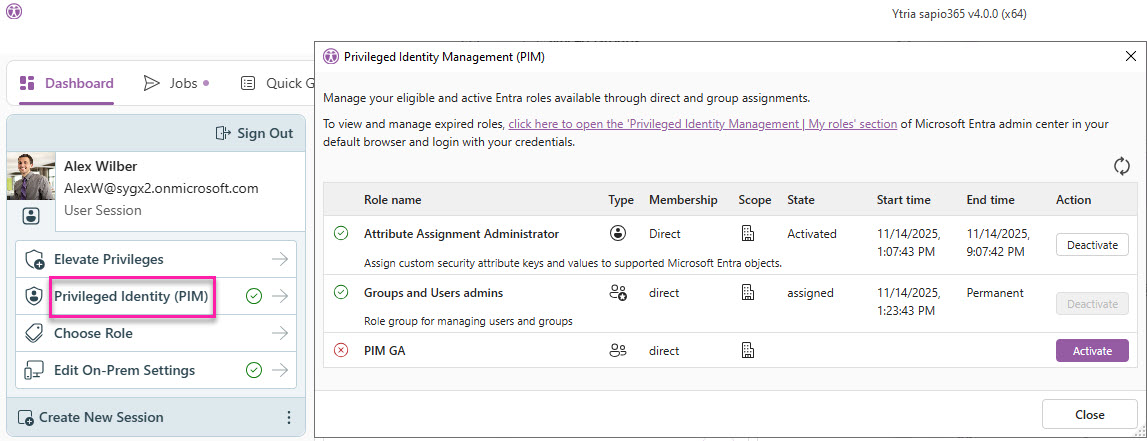
See which of your roles are currently activated
The PIM window in the image above displays the following information:
|
Role name |
The name of the role or the name of the group with the role with the description below it. If a group has roles assigned that are activated for the user, these will be listed separately in addition to the group itself. |
|
Type |
The icons indicate if privileges are granted via a role or through an group membership or group ownership, or neither (role). |
|
Membership |
Indicates whether the assignment is derived from a group assignment. |
|
Scope |
The ‘Resource type’ of the assignment. |
|
State |
Indicates if the role is activated, and thus can be deactivated. |
|
Start time |
When the role has become available. |
|
End time |
The scheduled end of the availability of the role. |
|
Action |
Activate eligible roles or deactivate 'Activated' state roles. Note that the deactivation is disabled for a non-PIM assignments and for roles that have not been activated. |
Activate your eligible PIM role
-
Click on the ‘Activate’ button.
-
Select the time you require to use the role from the dropdown menu and enter a justification or reason, a ticket number and description as required. Click OK.
If you choose a time that is longer than the role permits or if you don’t enter information according to the role requirements, you will get an error when you click OK.
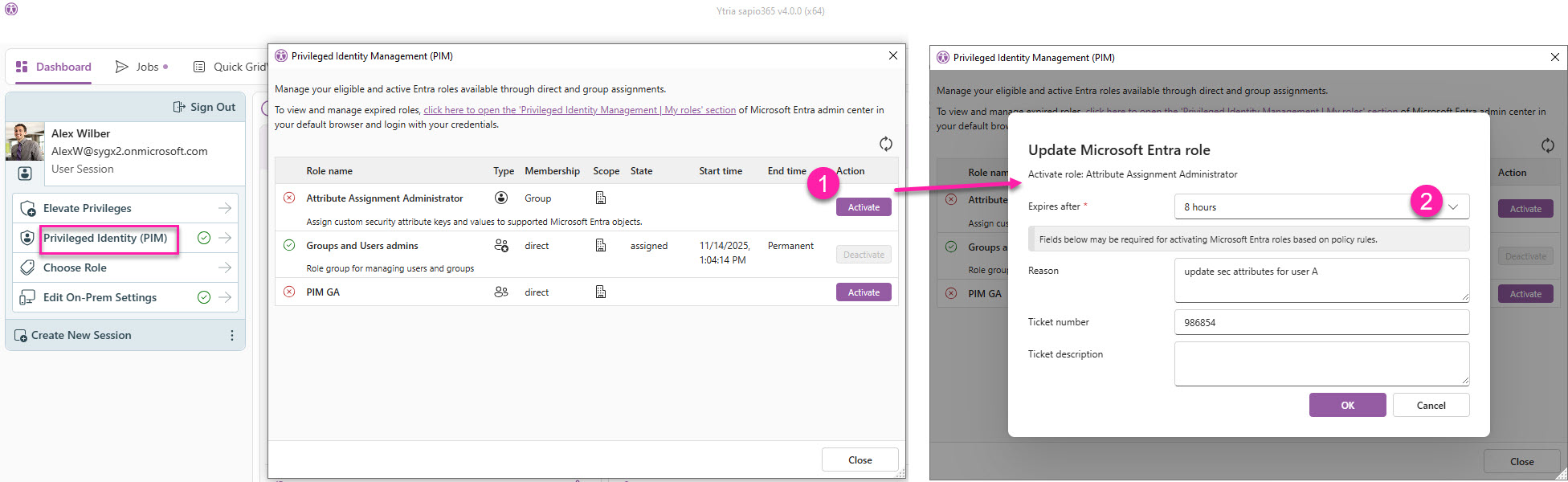
Once activated, you will see it reflected in the status column and a ‘Deactivate’ button becomes available for the role.
Activations requiring approval
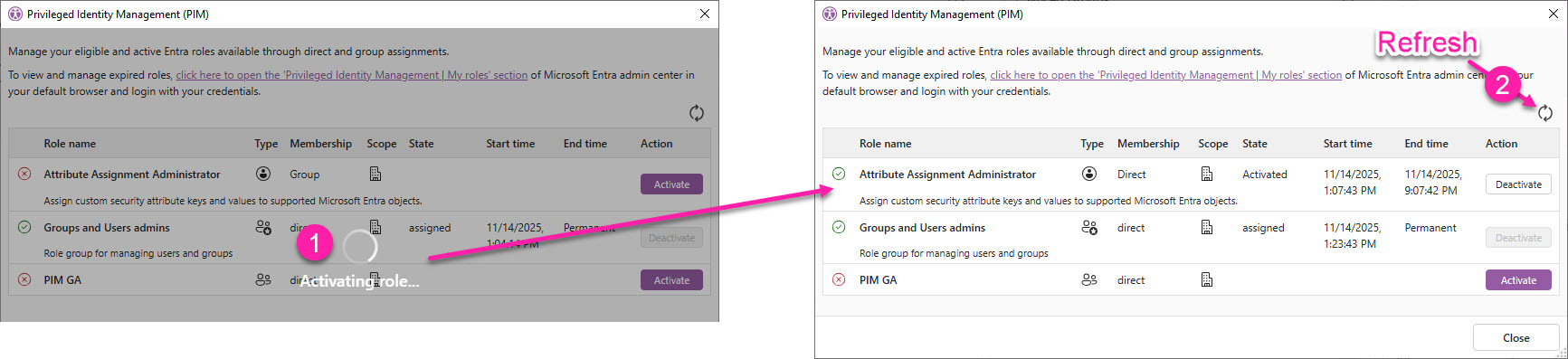
If the role requires approval, the ‘Activating role’ progress message will remain. You can close the window.
Once approval has been obtained, you can reopen this window and refresh the state of the role.
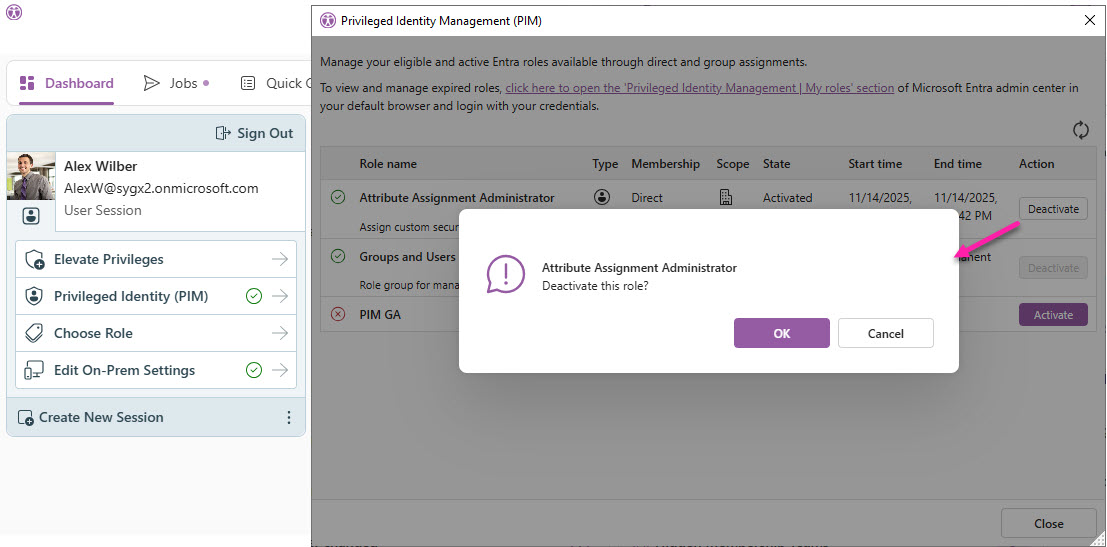
Deactivate your Activated PIM role
To deactivate an activated role, click the ‘Deactivate’ button. Confirm by clicking OK.
There may be a minimum activation time required for newly activated roles.