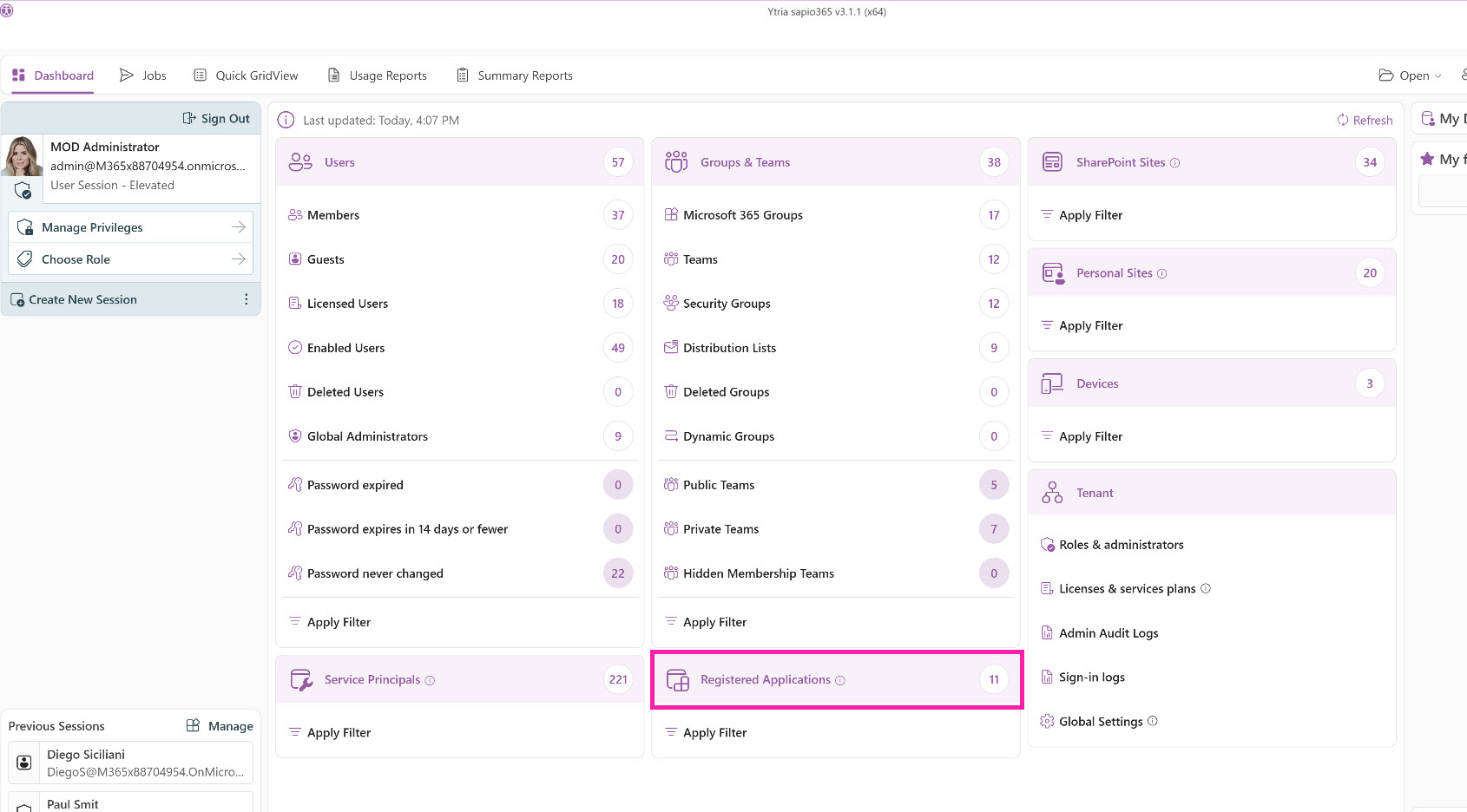
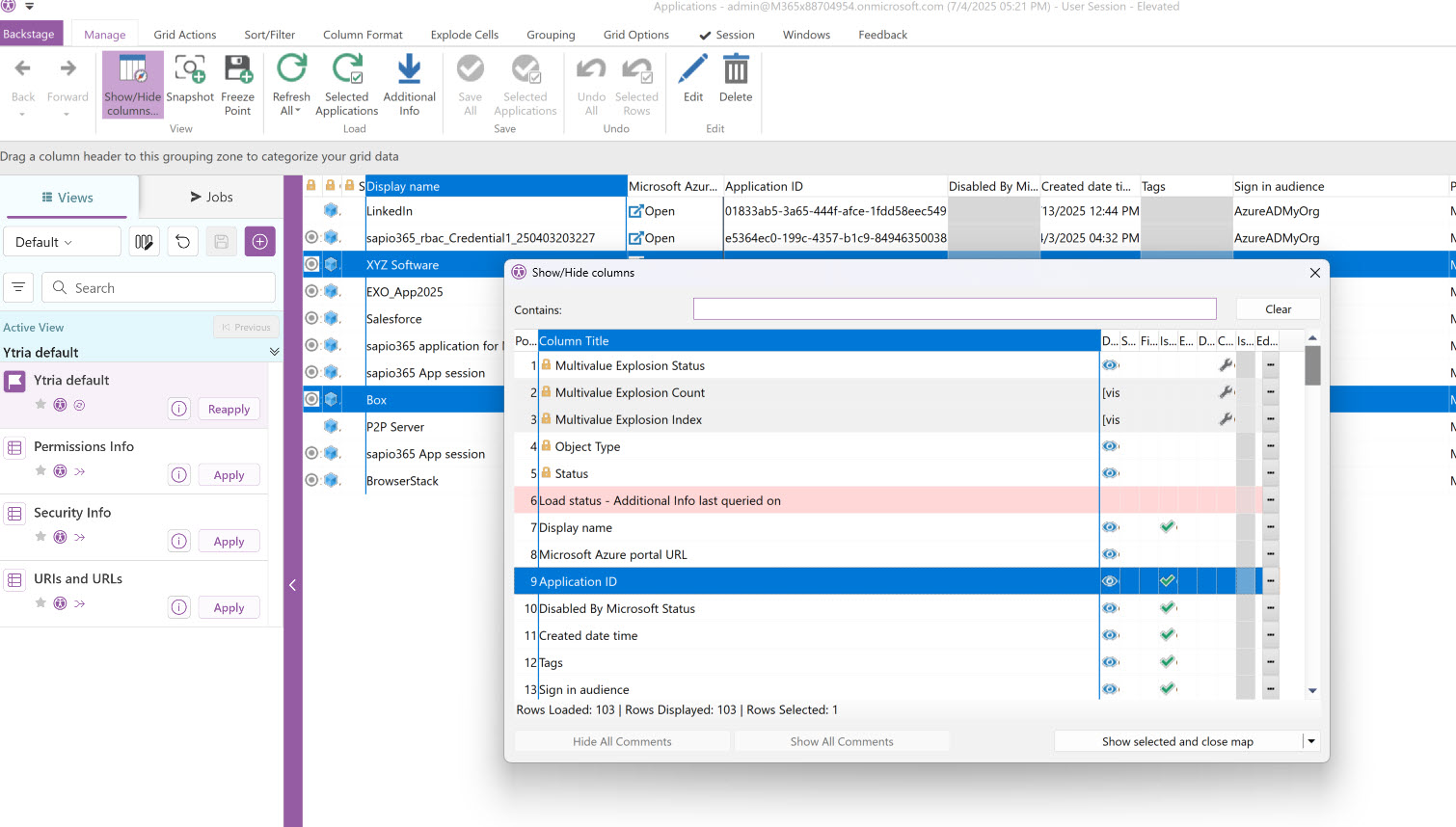
In this module, you can analyze information of all the registered applications in your Entra AD, including settings like domain, certificates, client secrets, permissions, roles, etc. Use the “Show/Hide Columns” option to choose any additional attributes you’d like to see in the view.
Edit registered applications
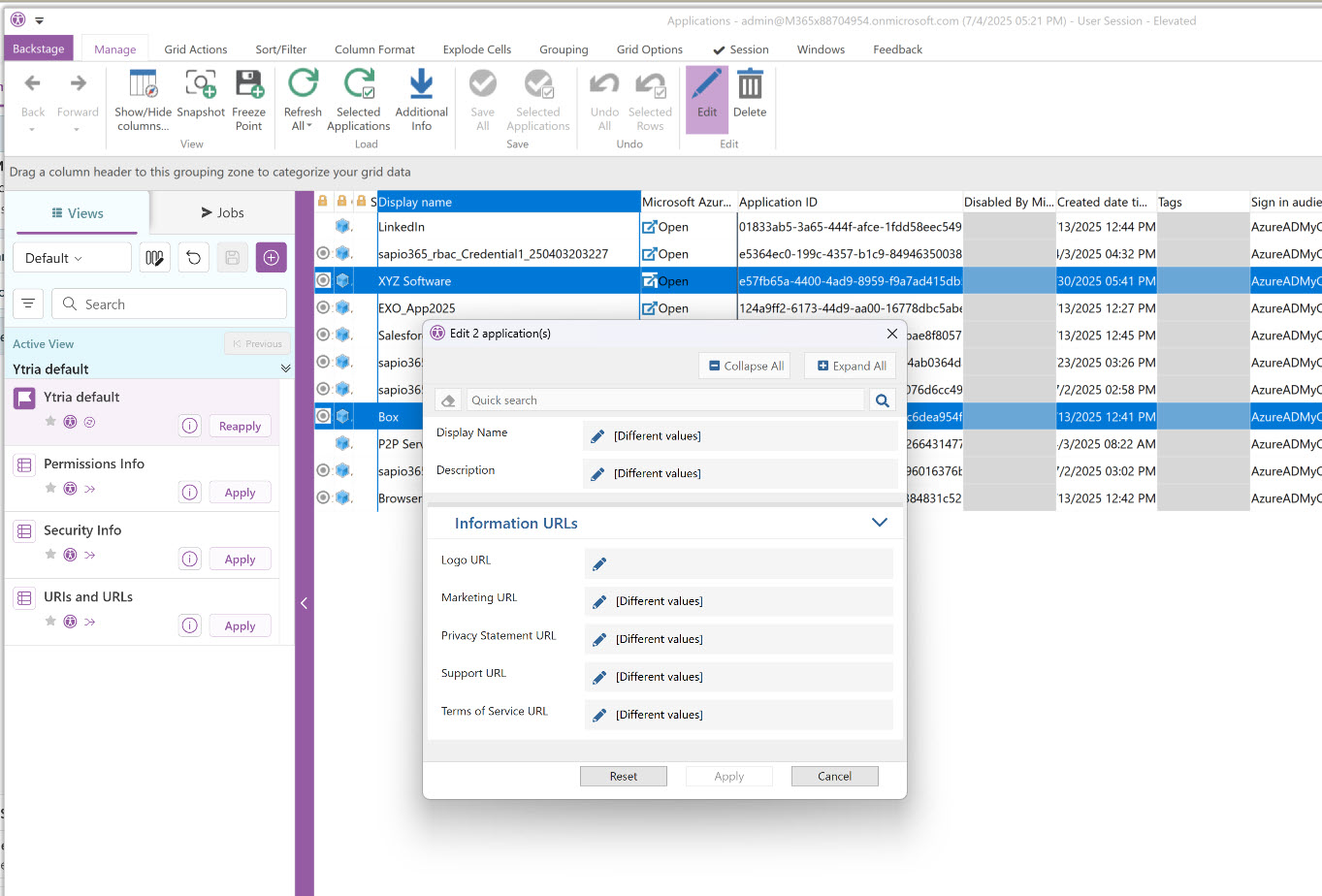
Select several applications to edit their attributes. You will see a preview of the changes before saving them.
-
Display name
-
Description
-
Logo URL
-
Marketing URL
-
Privacy statement URL
-
Support URL
-
Terms of service URL
Delete registered applications
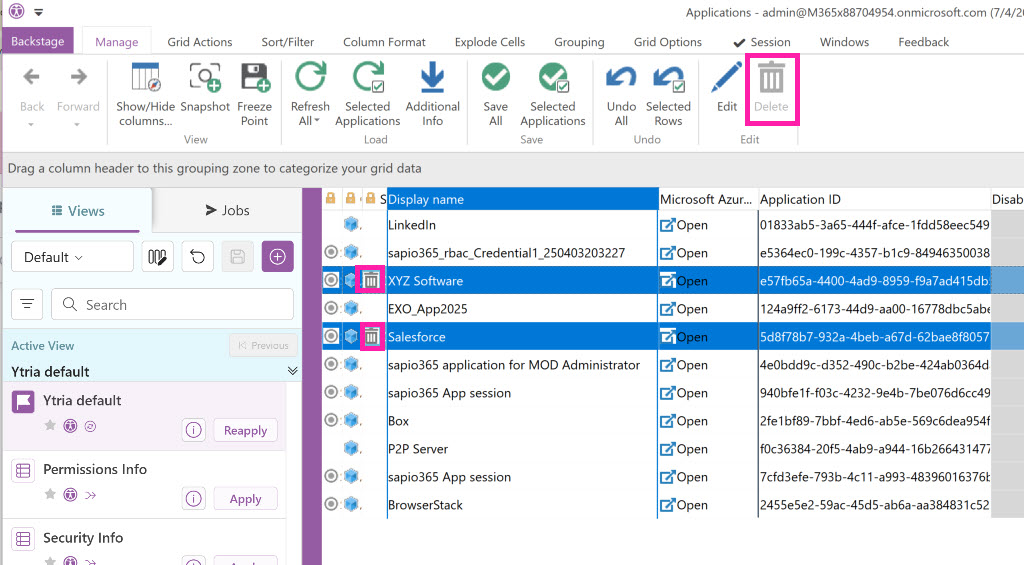
Mark selected applications for deletion using the Delete button. A trashcan icon indicates those you have marked for deletion. Choose “Save All” or “Selected Applications” to confirm. (Or one of the “Undo” options if you changed your mind.)
Obtain owner information
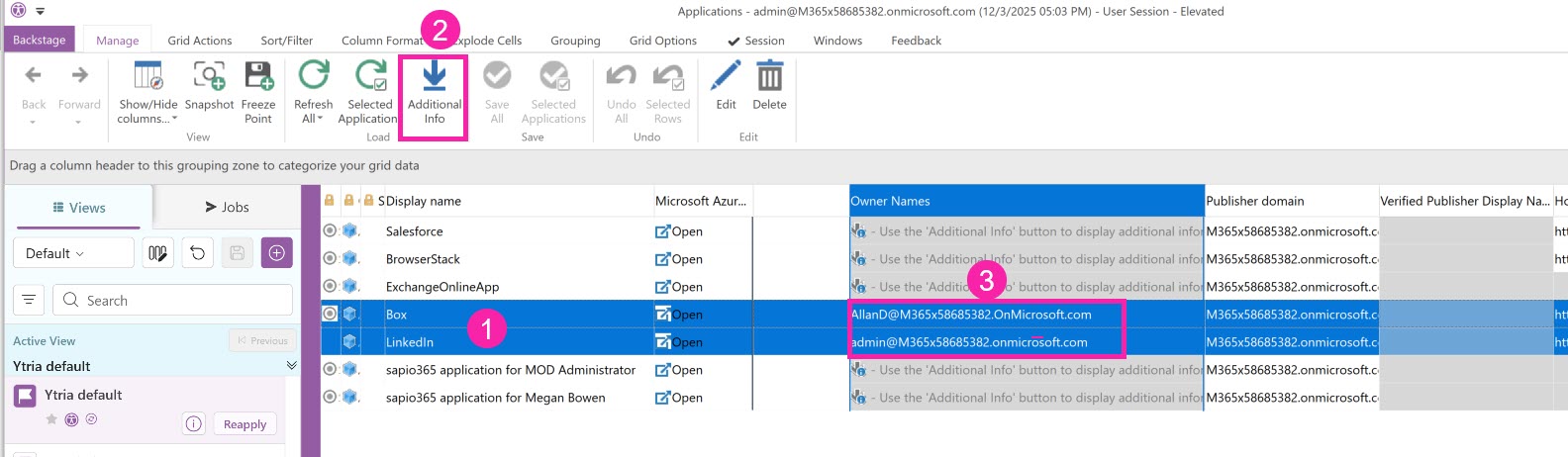
You can obtain additional information for each application, such as owner, by using the “Additional Info” button from the ribbon.
-
Select/highlight the application(s) you are interested in.
-
Choose “Additional Info” from the ribbon bar.
-
Owner information will appear. (The “Owner Name” column may not be immediately visible. You may need to drag to the column over to see it. as shown here.)