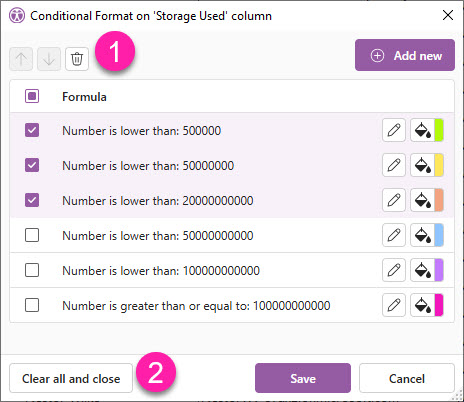
Add colour automatically to column values based on the conditions you set for that column.
This feature is available from (shown in the image that follows):
-
The Data Viewer
-
The Column Format tab of the ribbon
-
The right-click menu of a column title
-
Formatting rules are applied in order, from top to bottom.
-
Conditional formatting is available in all grids.
-
Conditional formatting replaces any previously set colour formatting of a cell.
-
All applied conditional formatting is removed when closing a view or window.
-
Applied conditional formatting can be saved in a custom view.
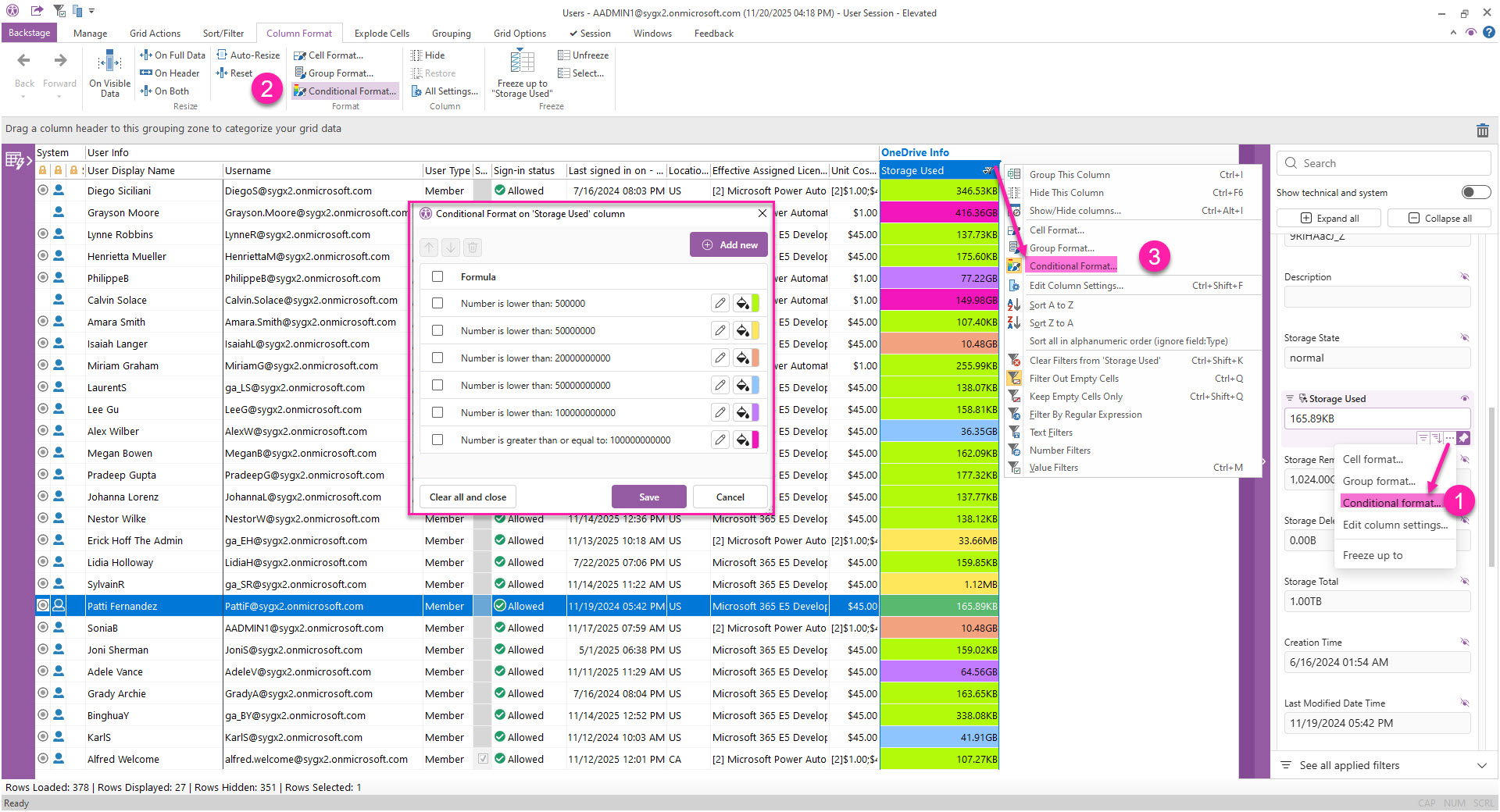
How to add a conditional formatting rule
-
Click Add new to add a new rule. Rule categories depend on the type of column (they are the same as those for filters).
-
Set the colour for the rule with the colour selector. Use a preset option or a custom colour.
Rules are applied in the order they are added, from top to bottom.
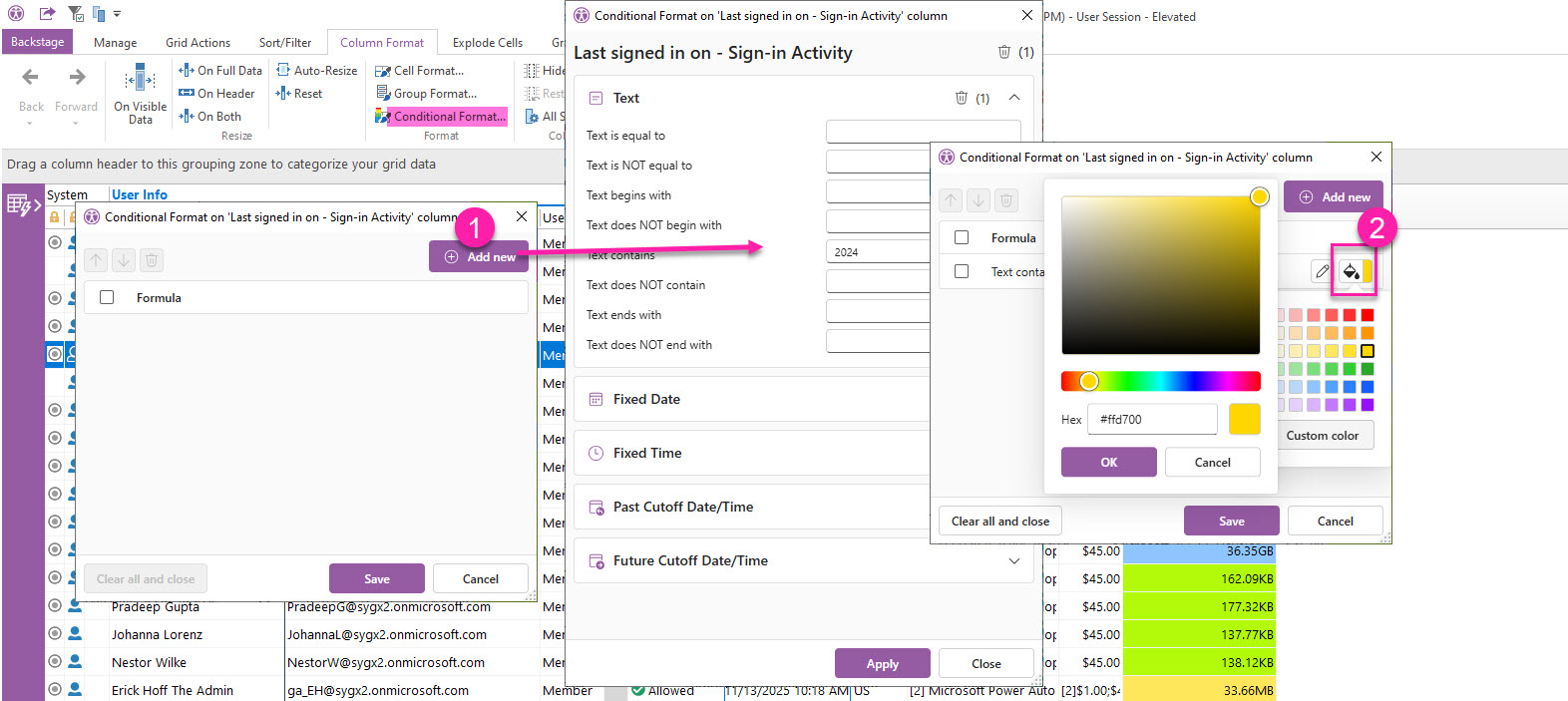
How to edit conditional formatting rules
-
To edit a rule, click the pencil icon of the rule.
-
To change the colour, use the colour selector.
-
Remove rules in a category by clicking the trash icon next to the category.
-
Remove all rules by clicking the top right trash icon.
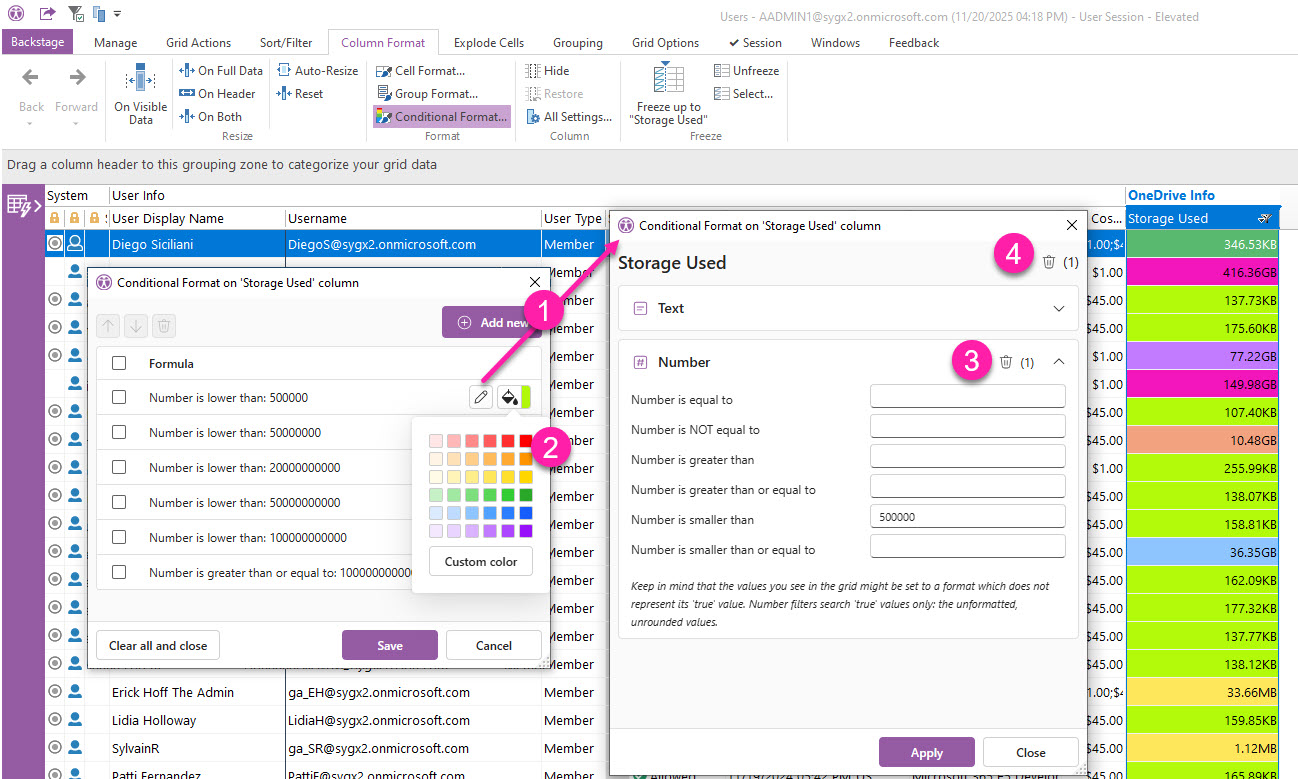
How remove conditional formatting rules
-
To remove specific rules, select them and click the trash icon.
-
To remove ALL rules, click ‘Clear all and close’.