You can use certificate-based authentication in sapio365 instead of secret-based authentication for the registered application configured for your sapio365 Elevated session.
How to switch to Certificate-Based Authentication in your Elevated session
-
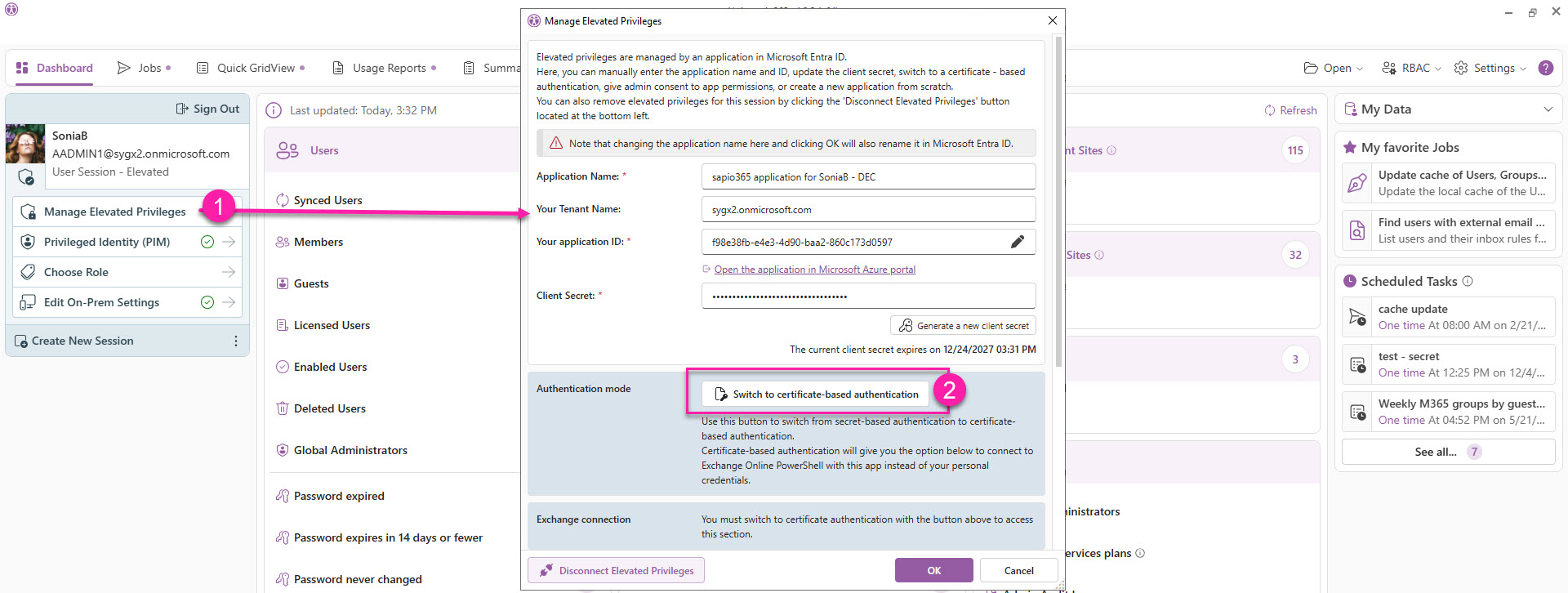
From the Dashboard, click Manage Elevated Privileges in the left-side panel.
-
Click Switch to certificate-based authentication and follow the prompts (expand the section below for step-by-step instructions).
Steps
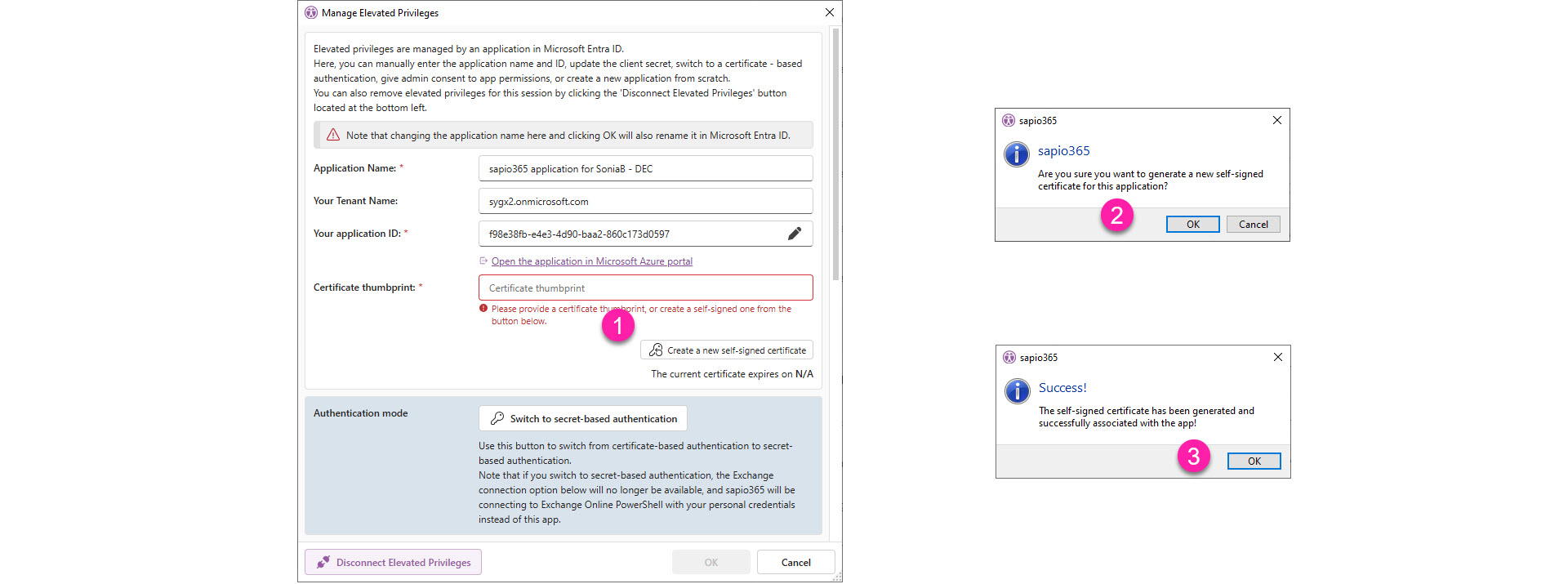
Once you’ve clicked Switch to certificate-based authentication, you’ll be asked to enter a certificate thumbprint.
-
Alternatively, you can generate one by clicking Create a new self-signed certificate.
-
Confirm by clicking OK.
-
You’ll see a success message that the certificate was generated. Click OK to close the message window.
OPTIONAL - Enable application to user PowerShell
This option allows the application to seamlessly connect to PowerShell Exchange, SharePoint and Compliance Search for sapio365 features that require it.
-
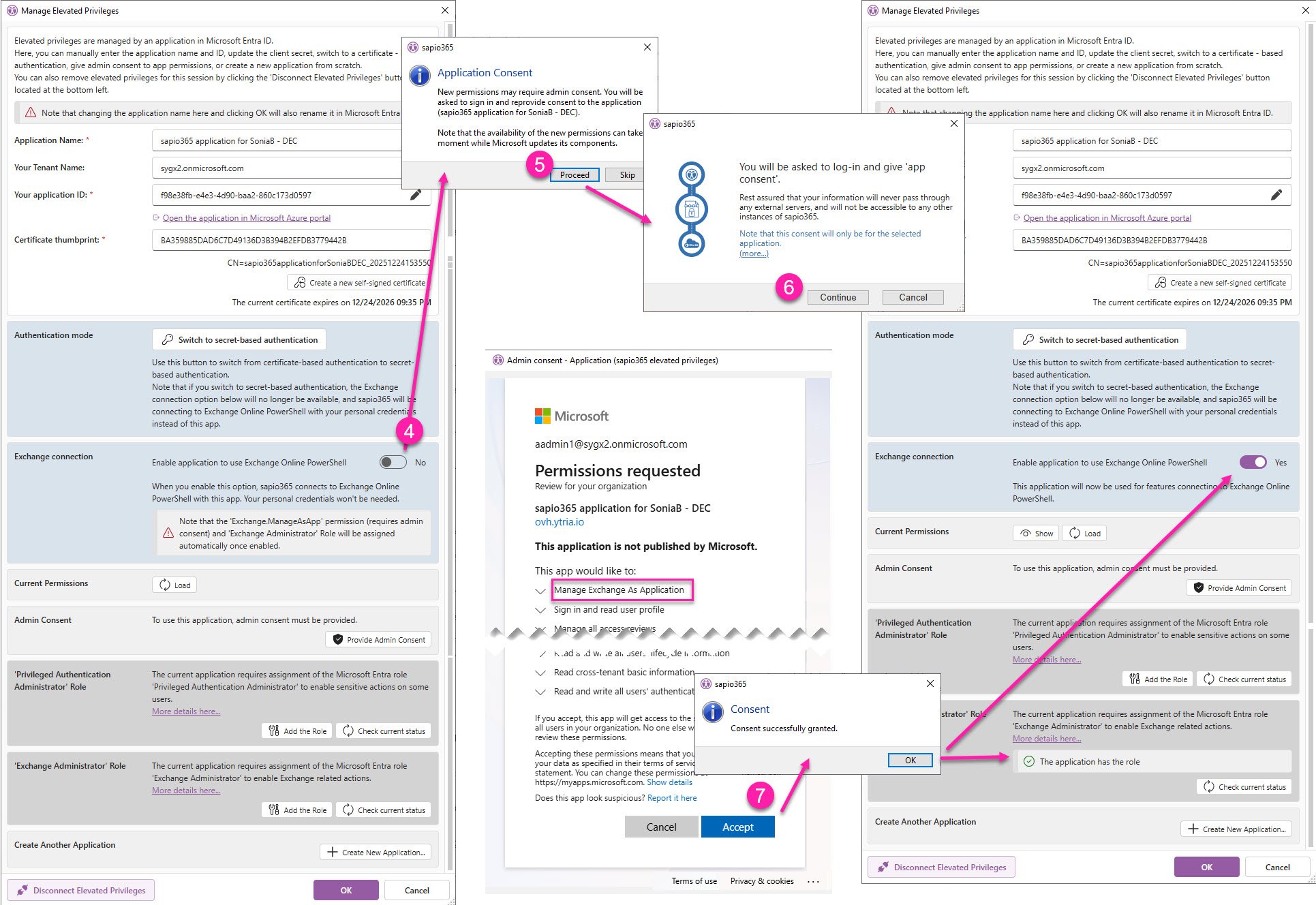
Toggle Enable application to use Exchange Online PowerShell to YES.
Note that the ‘Exchange.ManageAsApp’ permission (requires admin consent) and ‘Exchange Administrator' Role will be assigned automatically once enabled.
-
Click Proceed to sign-in and give consent to the new permission.
-
Click Continue.
-
Click Accept to consent to the updated permissions list. You’ll see the changes in the configuration dialog confirming the use of PowerShell by the application.