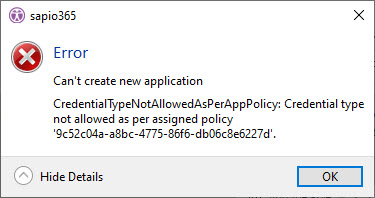
You may encounter the CredentialTypeNotAllowedAsPerAppPolicy error when creating a registered application in sapio365 under the following conditions:
-
You elevate a sapio365 session.
-
You create an App session.
-
You configure sapio365 RBAC credentials (registered app)*
sapio365 RBAC
* Troubleshooting this issue does not apply to sapio365 RBAC credential creation, because specifying an existing registered application in the RBAC credential dialog is currently not supported.
This error may be caused by the Baseline security mode policy “Block new password credentials in apps.”
As a result, a new registered application was created, but it cannot be used because:
-
Consent was not granted for the app’s requested permissions.
-
No client secret was created for the app.
⏬ Follow the steps below to resolve this issue if it is related to this policy.
Add your app to the policy exclusion list
-
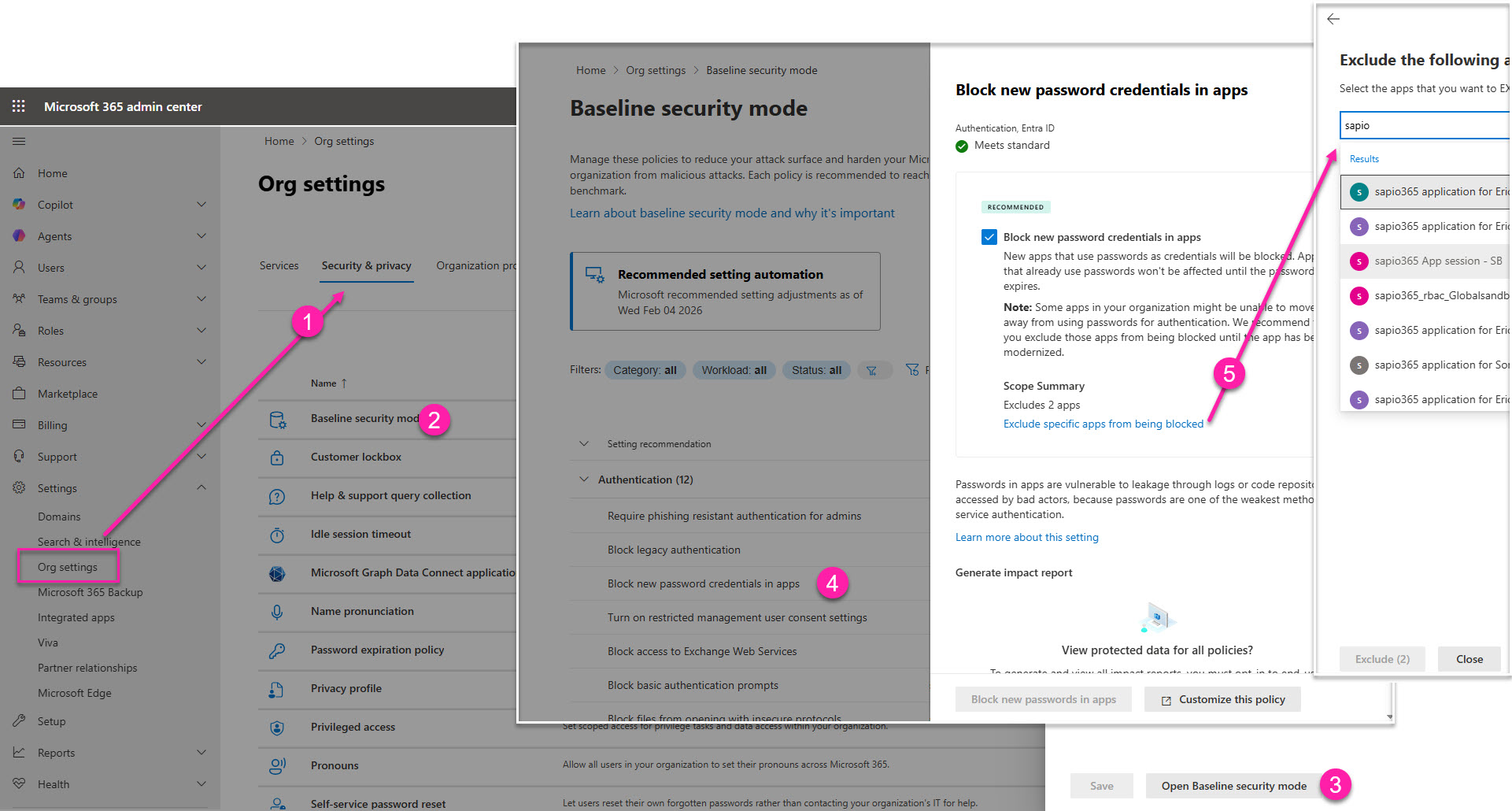
In the Microsoft 365 admin center go to Org settings → Security & Privacy.
-
Click Baseline security mode.
-
Click Open Baseline security mode at the bottom of the panel open on the right.
-
Click Block new password credentials in apps.
-
Click Exclude specific apps from being blocked. Look up and add the newly created sapio365 application.
-
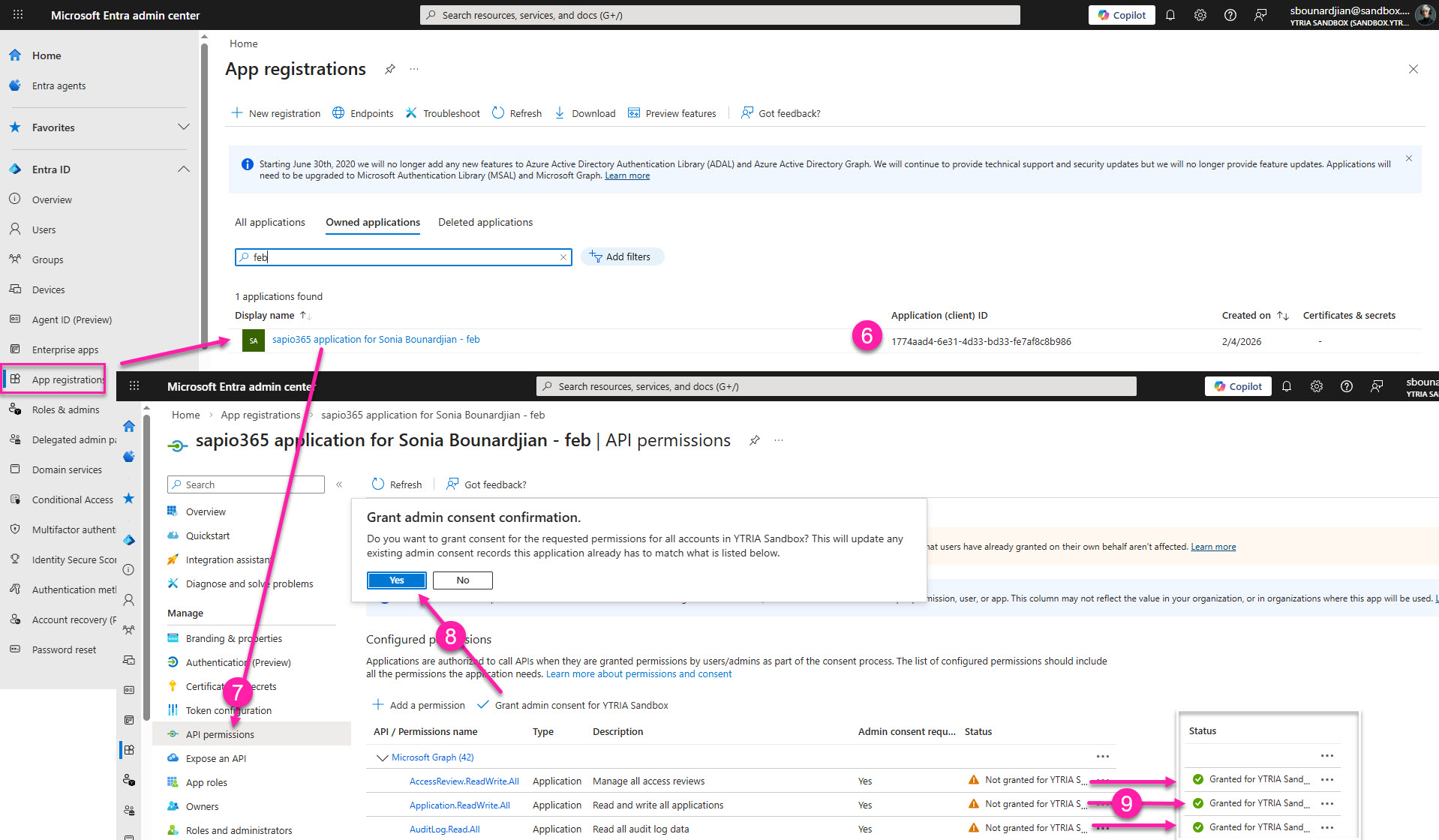
Next, go to Microsoft Entra admin center → the App registrations blade and note down the Application (client) ID of the newly created app.
-
Click on the application and go to API permissions.
-
Click Grant admin consent… and confirm by clicking Yes.
-
Wait until the consent status changes.
Generate secret in sapio365
-
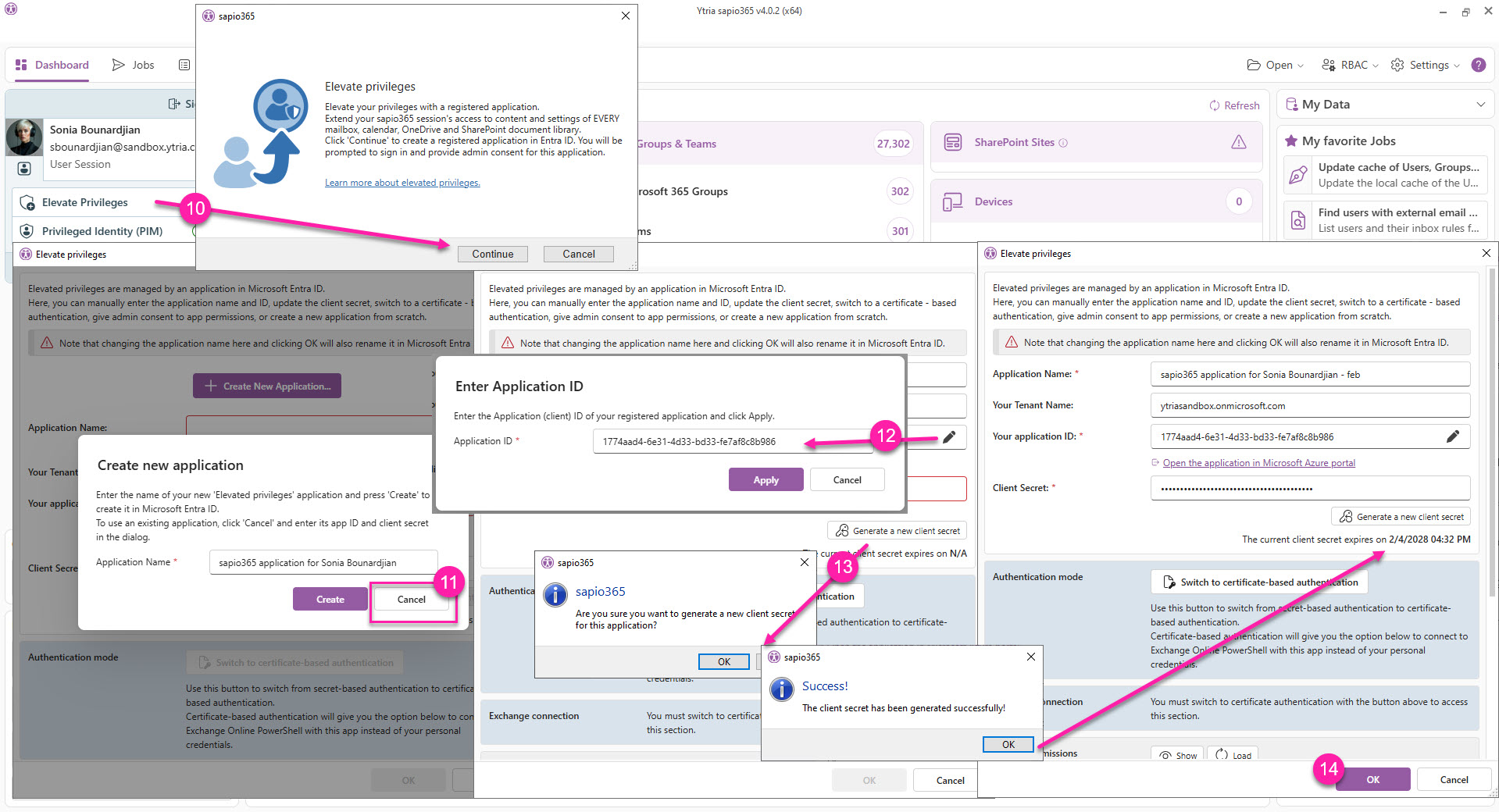
In sapio365, elevate your session again (shown as example in image below) or re-create an app session.
-
Click Cancel in the Create new application dialog.
-
Click the pencil icon to enter the Application ID you copied.
-
Click Generate a new client secret. Confirm and see the expiration date of the secret.
Consider switching to certificate-based authentication when working with sapio365.
-
Finally, click OK.