
How to open Consoles in consoleEZ
-
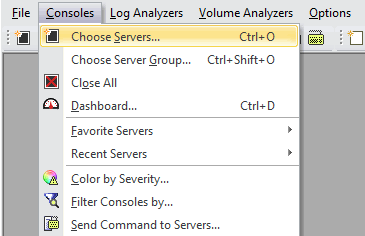
Use the Choose Servers command in the Console menu (Ctrl + O).
-
Click Open New Consoles in the Console actions toolbar.
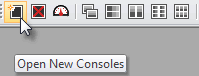
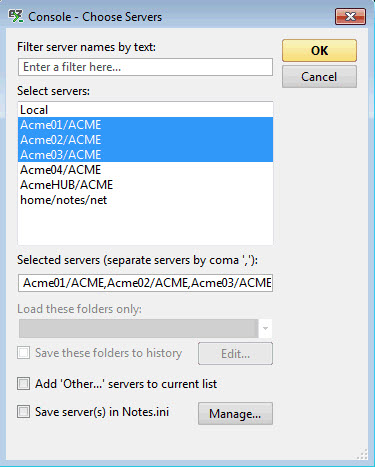
You'll be prompted to select one or more server(s). More information about the Choose Servers window on this page.
-
Use Choose Server Group in the Consoles menu (Ctrl + Shift + O).
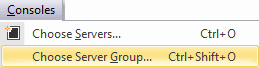
The Choose Server Group option in the Server menu lets you load a server group from a NAB.
Select a group to load its members consoles.
z 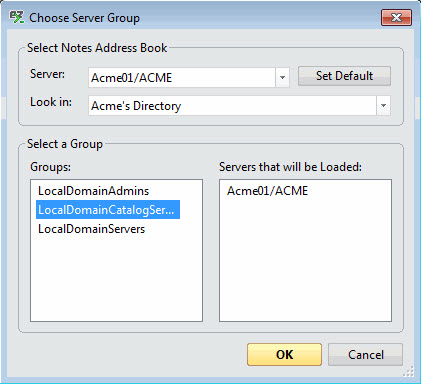
To have more information about the Choose Server Group window options see this page.
-
Use your Favorite Servers list in the Consoles menu.
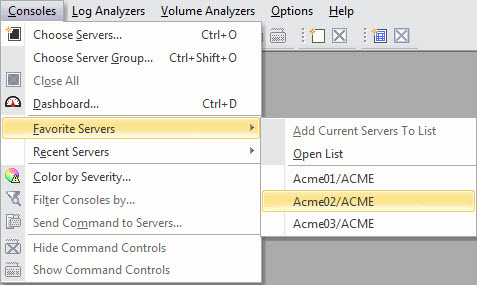
-
Use the Recent Servers list.
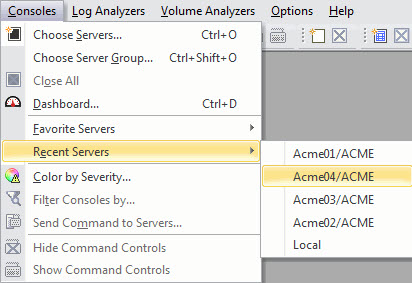
|
NOTE |
The Recent Servers List is populated with the Windows Registry in HKEY_CURRENT_USER\Software\Ytria\Settings\All\RecentServers |
|---|
How to open Consoles in consoleEZ Dashboard
-
Use Open New Consoles in the toolbar icons.
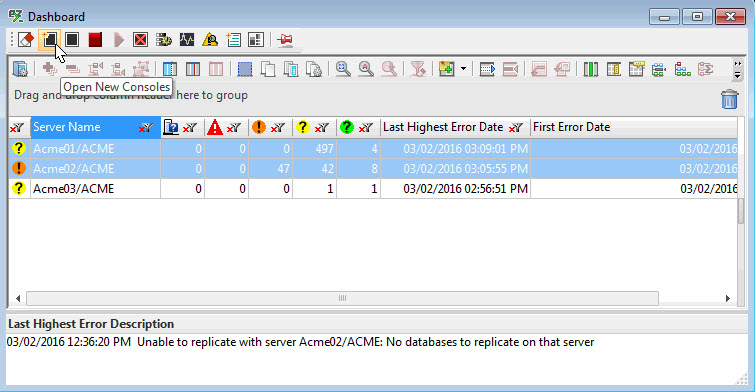
How to open Consoles using Ytria Automation
As most of Ytria Products, consoleEZ uses Automation, you can use it to automatically open your Consoles.
To do so, go to File > Load Automation XML (Ctrl + X).
More information about Choose Servers automation here.