If you have a sapio365 role available, you can only use it with the new version of sapio365 only after:
-
A global admin has consented to the new sapio365 application.
-
Collaboration (if set) migration has been triggered by a global admin or a sapio365 general manager .
You must use an updated sapio365 application in your User session before choosing a role. Learn more here.
Ask your admin to consent to the permissions of the new application.
Role in external tenant
If you have updated sapio365 successfully and select a role in another tenant where consent was not given for the new application, sapio365 will attempt to update when you sign-in.
You will be asked to sign in again since it’s switching applications -> back to the older version.
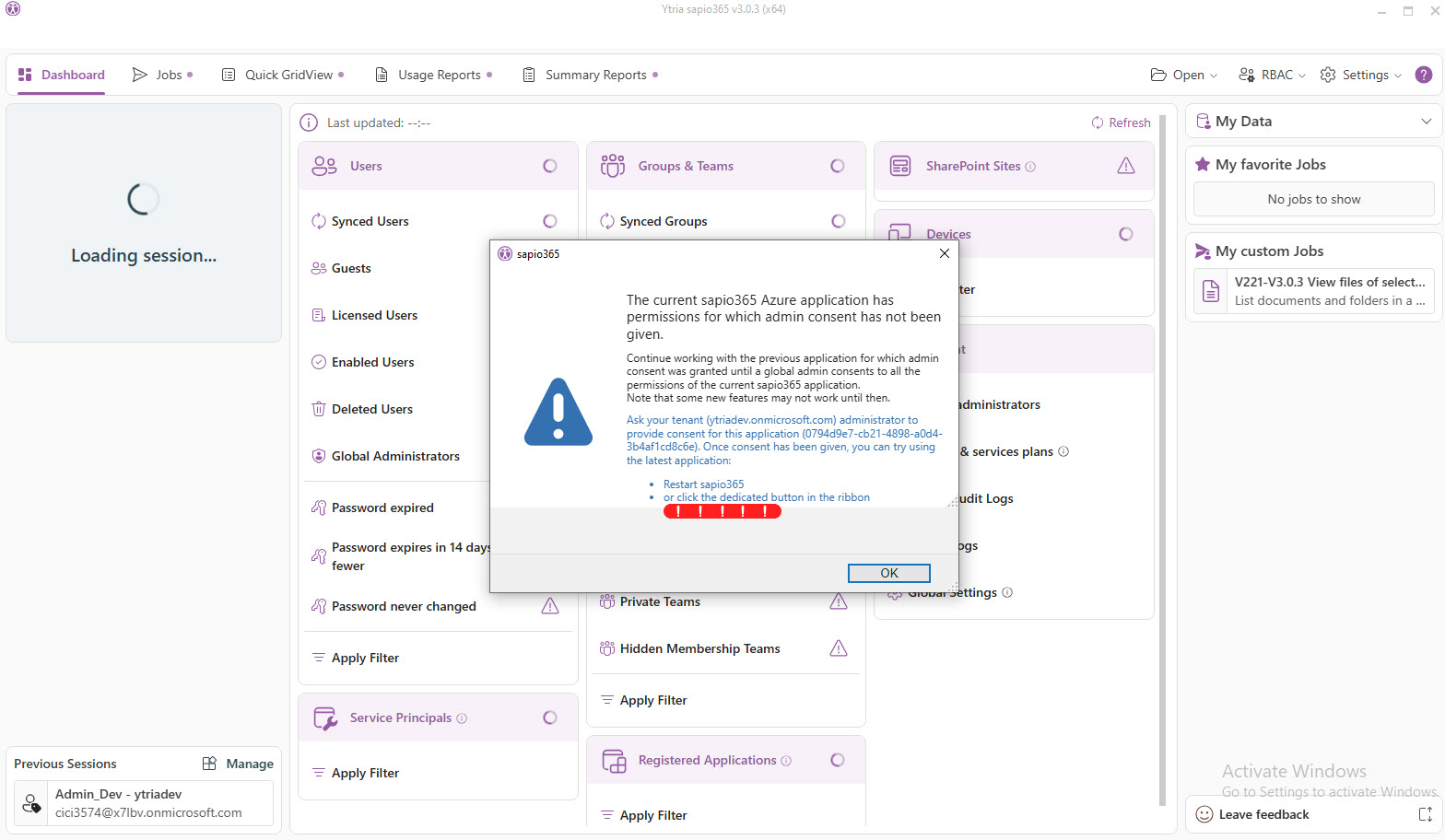
After signing in, you’ll see the message below with 2 options to continue to use the older version:
Click ‘OK’ to be reminded to update.
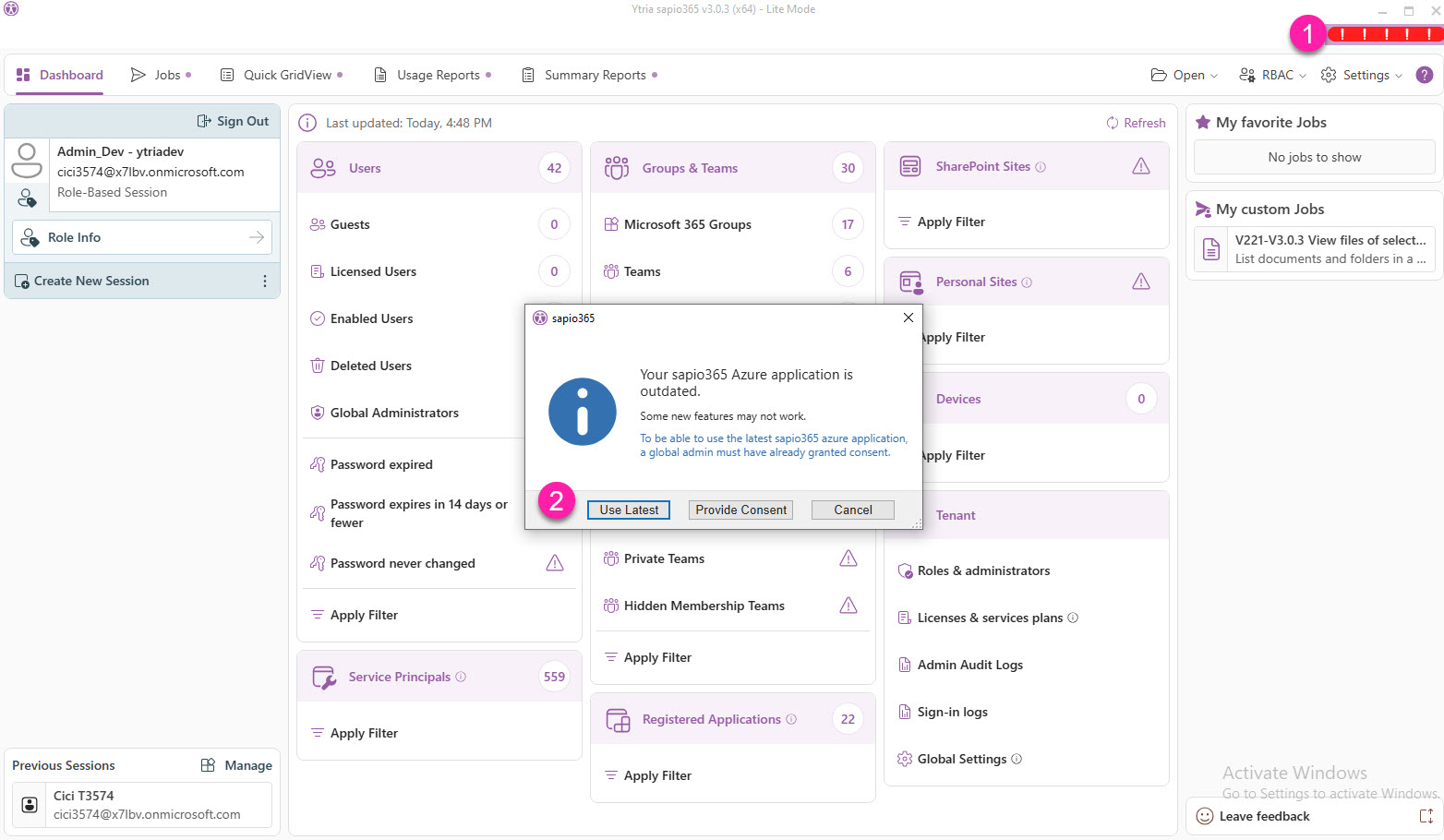
If you click ‘OK’, red bars will be shown in the top right corner to remind you that an update is available. Click on them when you’re ready to update.
Ready to update sapio365
If you had previously decided to continue using an older version of sapio365 but you are now ready to update, or if you know that consent has been given to the new sapio365 application, you can:
-
Click on the red bars at the top right corner.
If you don’t see the bars, switch to the latest version in Preferences.
-
Click ‘Use Latest’. This will switch to the latest sapio365 version.
If you’re a global admin, you can give consent from here by clicking ‘Provide Consent’.