sapio365 supports copying files to another user’s OneDrive, SharePoint Online site, or Teams channel, and lets you specify the destination and file-conflict behavior.
How to copy files and folders to another site, OneDrive, or Teams channel
Copying an entire folder?
Save time by loading only top-level files and folders until you drill down to your folder. You don’t need to load its content hierarchy in order to copy it to a different location.
The steps below show how to copy folders and their contents from the OneDrive of 2 users to a Teams channel.
-
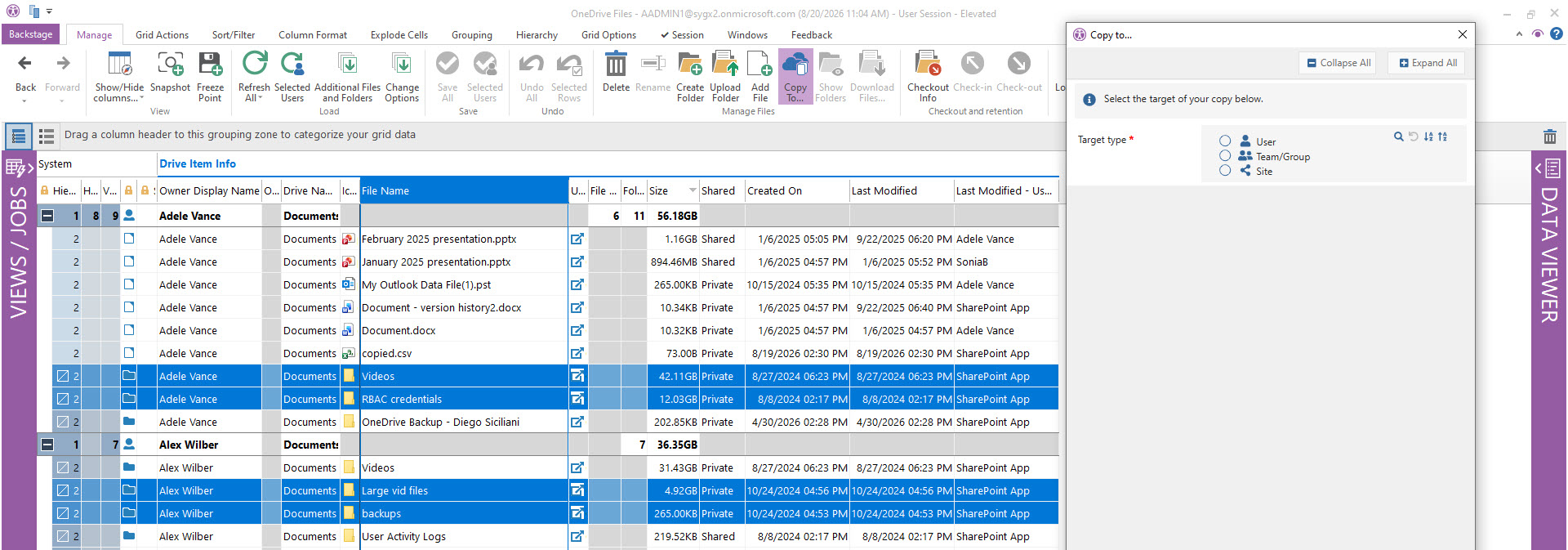
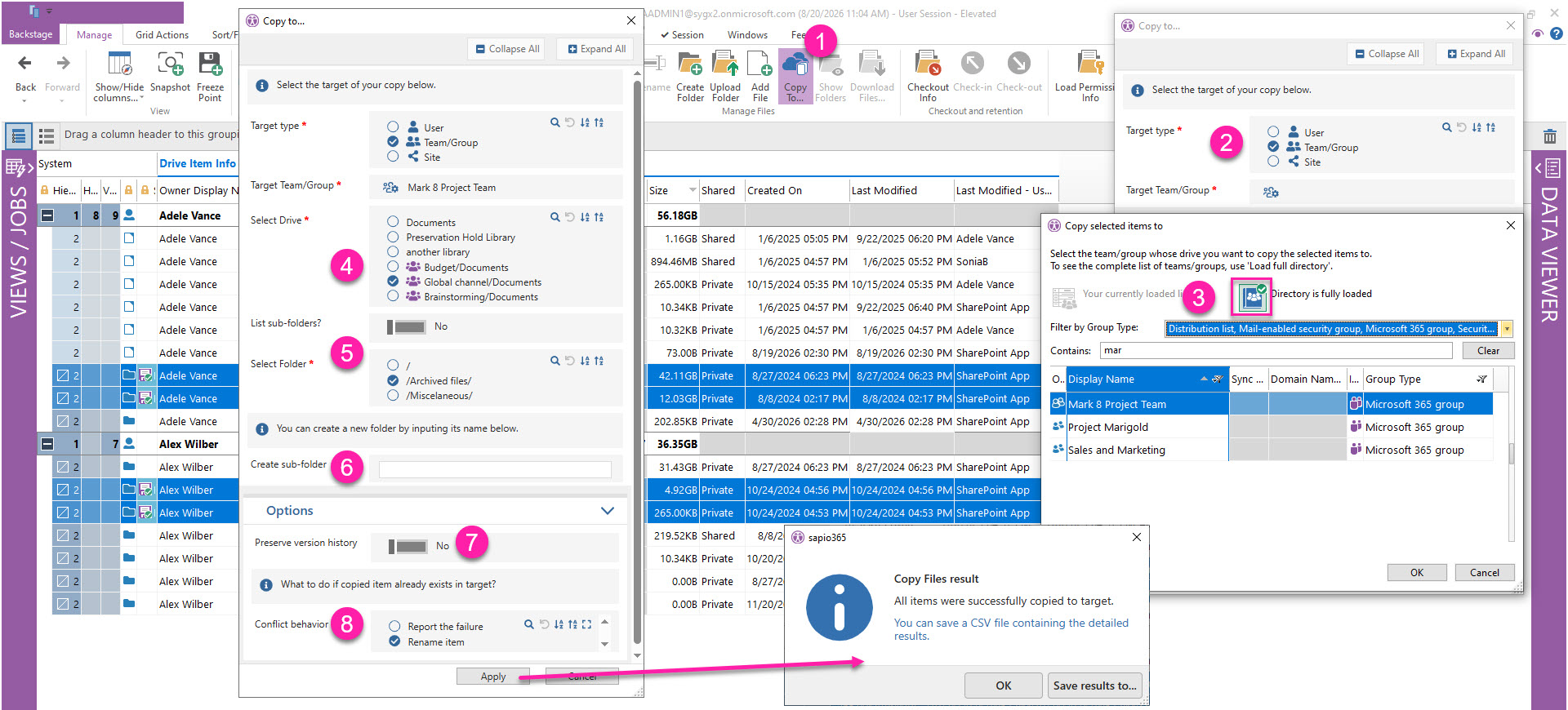
Start by selecting the files and folders you want to copy and click Copy To.
-
Select the target type. The directory opens automatically based on your selection.
-
User (OneDrive)
-
Team/Group (Folder or Teams Channel)
-
Site (Folder)
-
-
Select the Team which will receive the copied items and click OK.
-
If the target type is the same as the source, you may need to fully load the directory.
-
-
Select a drive.
-
If the target is a Team, its private and shared channels/folders will also be listed with an icon .
-
-
Select a top-level destination folder. To choose a subfolder, load and expand the folder list as needed.
-
Optional: Create a new subfolder in the destination folder.
-
If you select the root of a Team drive, it will create a new Public Channel.
-
-
Optional: Set Preserve version history to Yes to include each file’s versions.
-
Choose how sapio365 handles name conflicts when an item with the same name already exists at the destination:
-
Report the failure: Skip the item and report the conflict.
-
Rename item: Copy the item with a number in parentheses appended to its name.
-
After you click Apply, sapio365 starts the copy process. When the process is complete, a dialog indicates whether any errors occurred.
Verify copied files
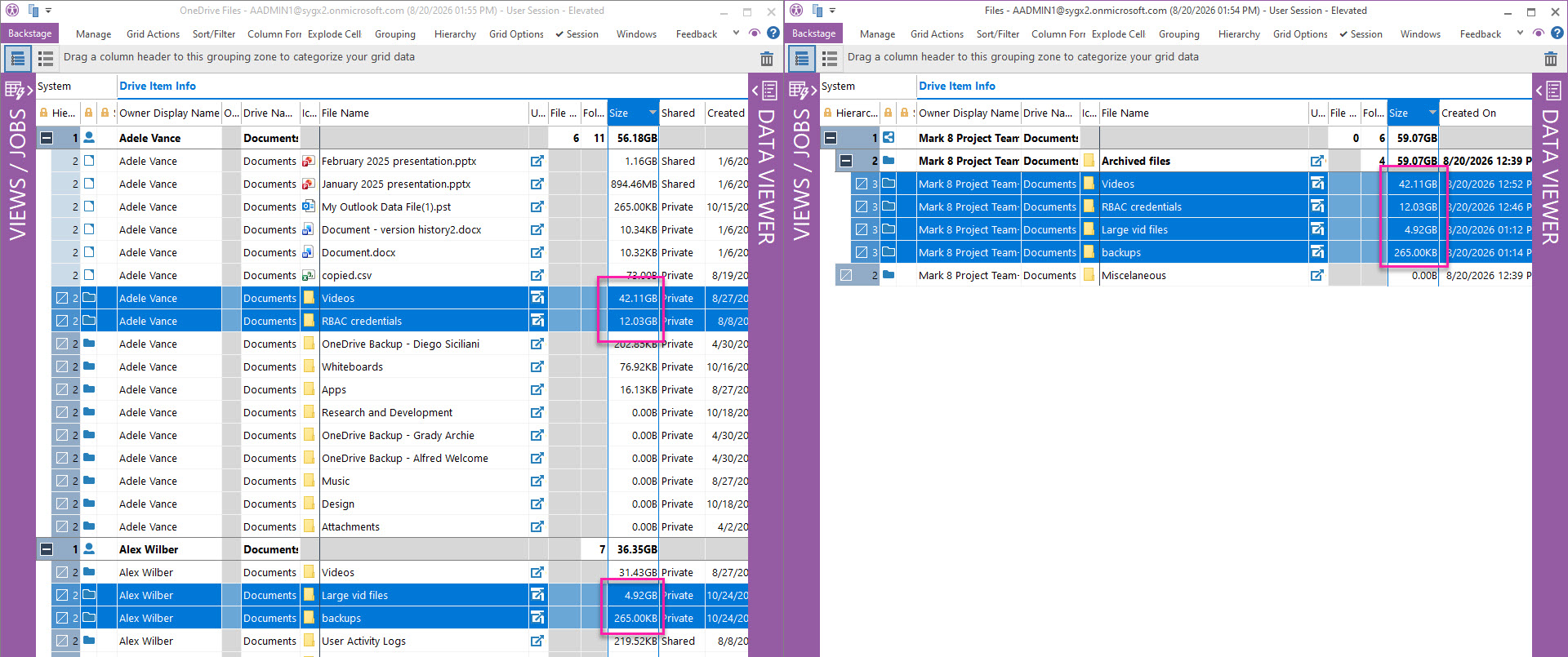
In addition to reviewing the generated error report, you can verify copied folder contents by comparing the source and destination folder sizes directly in sapio365. This method is especially useful when copying entire folders.
If the target type differs from the source
To verify that OneDrive files and folders were copied to a Teams channel, load the files for the destination channel.
If the target type is the same as the source
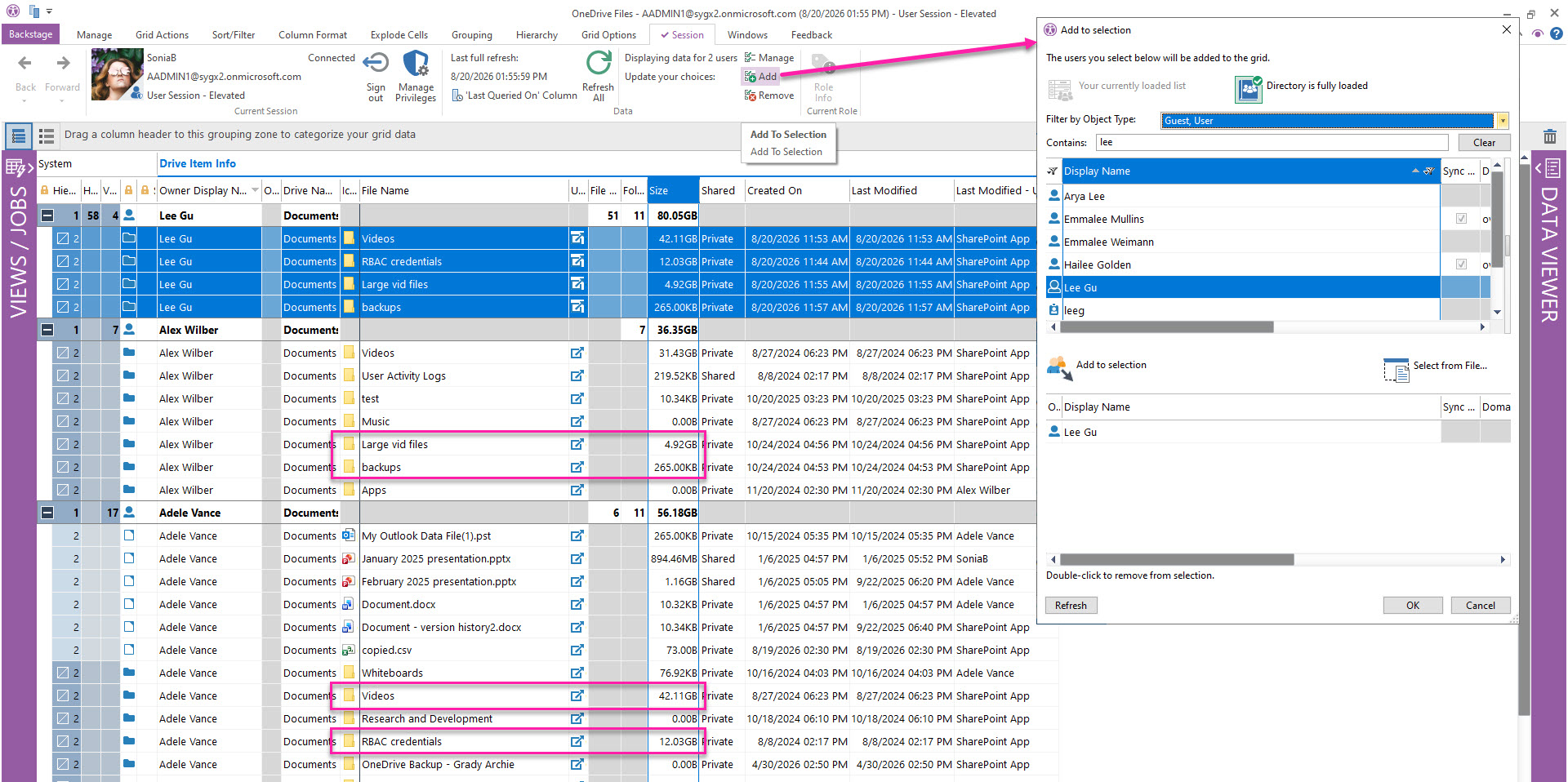
For example, if folders from Adele’s and Alex’s OneDrive are copied to Lee’s OneDrive, add Lee to the same OneDrive Files view from the Session tab.