
sapio365 lets you analyze how files and folders are shared and manage their permissions.
To change or remove permissions, first load the permission information for the selected items.
A file or folder can be shared multiple times and through different sharing methods. As a result, sharing information can appear as multiple values in a single GridView cell.
You can explode multivalue cells into separate rows to change each sharing permission individually. Alternatively, you can view a single multivalue and its related column properties in a pop-up mini grid. Exploding a multivalue also explodes its associated related-property cells.
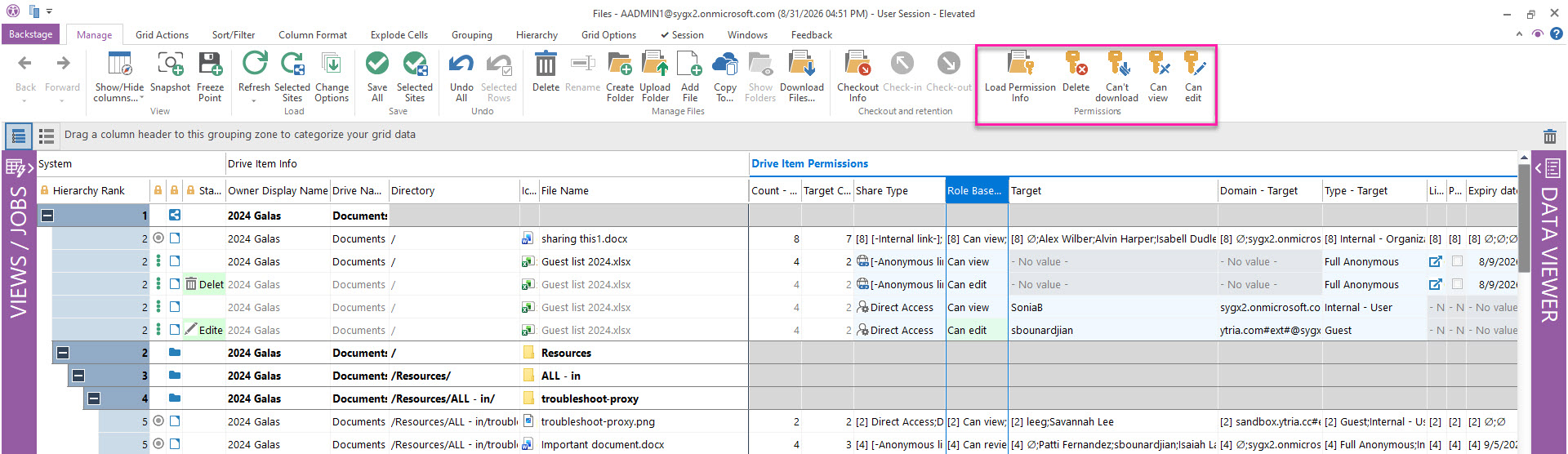
Load File and Folder Permissions
To retrieve sharing information, select one or more files or folders, then click Load Permission Info.
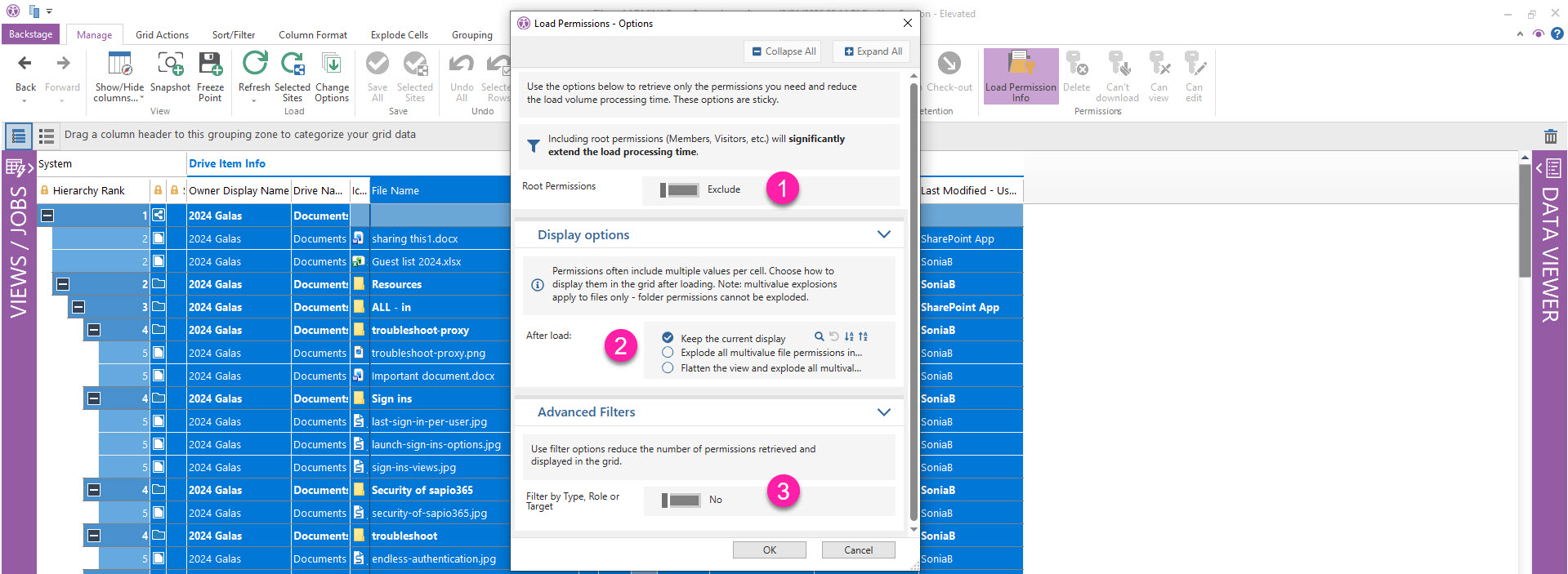
Use the available options to retrieve only the permissions you need and reduce processing time. Your selected options are sticky and remain selected for future loads.
|
Load Permissions - Option |
Description |
|
|---|---|---|
|
1 |
Root Permissions |
Includes inherited root-level permissions, such as Members and Visitors. For OneDrive items, this also includes Owners. Loading root permissions can significantly increase processing time, so exclude them when you want to identify nonstandard or item-specific sharing. |
|
2 |
Display options |
Choose how permission values appear in the grid after loading. Permissions can contain multiple values in a single cell.
Multivalue explosion applies to files only. Folder permissions cannot be exploded. |
|
3 |
Use filters to limit the permissions retrieved and displayed in the grid. You can filter by:
Get more information on using Advanced Filters for file permissions. |
Change or Remove File and Folder Permissions
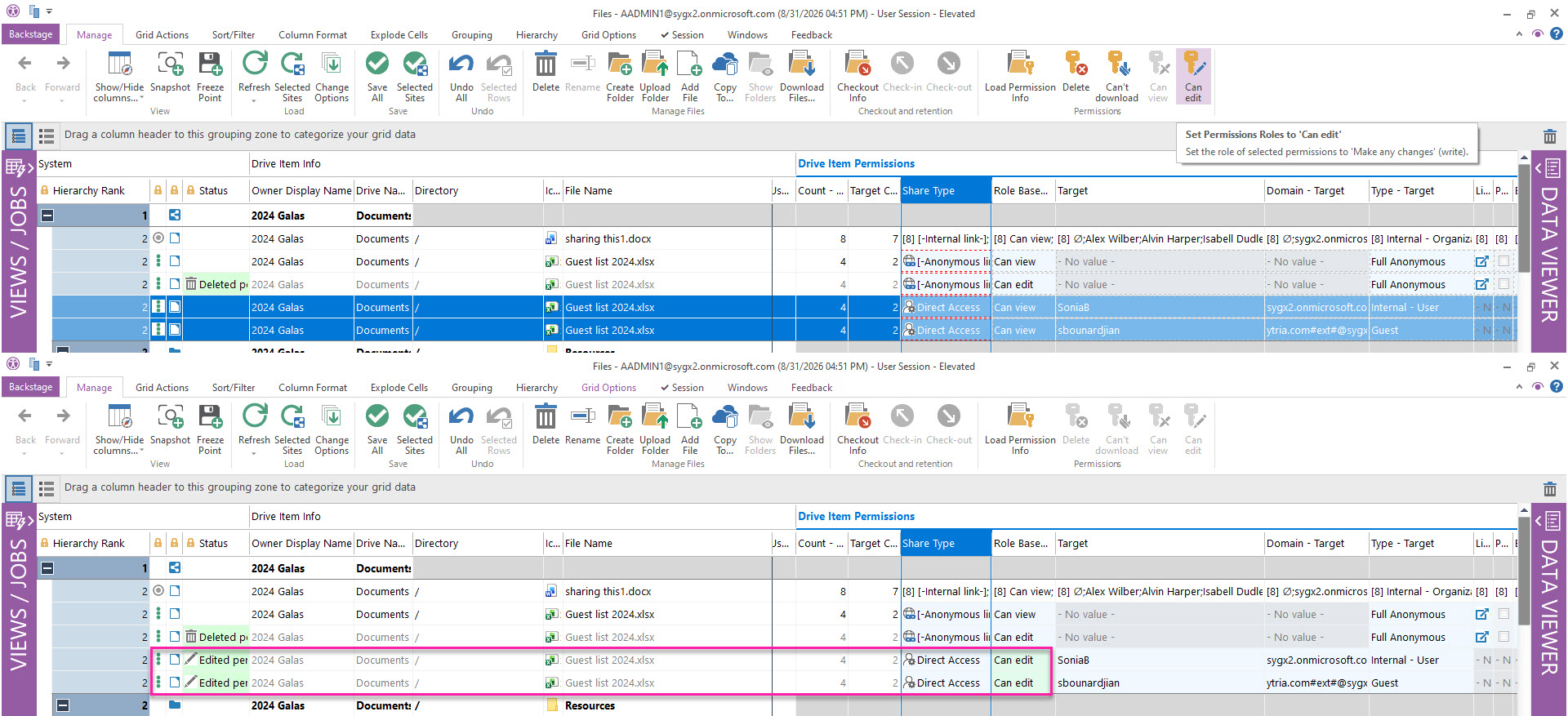
Use the relevant buttons in the ribbon to change or delete permissions for selected files and folders. You can change permissions to:
-
Can’t download
-
Can view
-
Can edit
Permission links can only be deleted. They cannot be changed.
If you apply a change to a GridView cell that contains multiple permissions, sapio365 applies the change to all permissions in that cell.
All changes and deletions appear as previews in the GridView. Click Save to apply the changes to Microsoft 365, or click Undo to discard the pending changes and restore the original values in the grid.
Important: After you save changes, they cannot be undone.