
When loading permissions for files and folders, use Advanced Filters to limit which permissions sapio365 retrieves and displays in the grid. This can reduce processing time and help you focus on the sharing information that matters to you.
You can filter permissions by:
-
Type: The type of permission, such as an anonymous link or direct access.
-
Role: The level of access granted, such as can view or can edit.
-
Target: The users or groups with whom the item is shared.
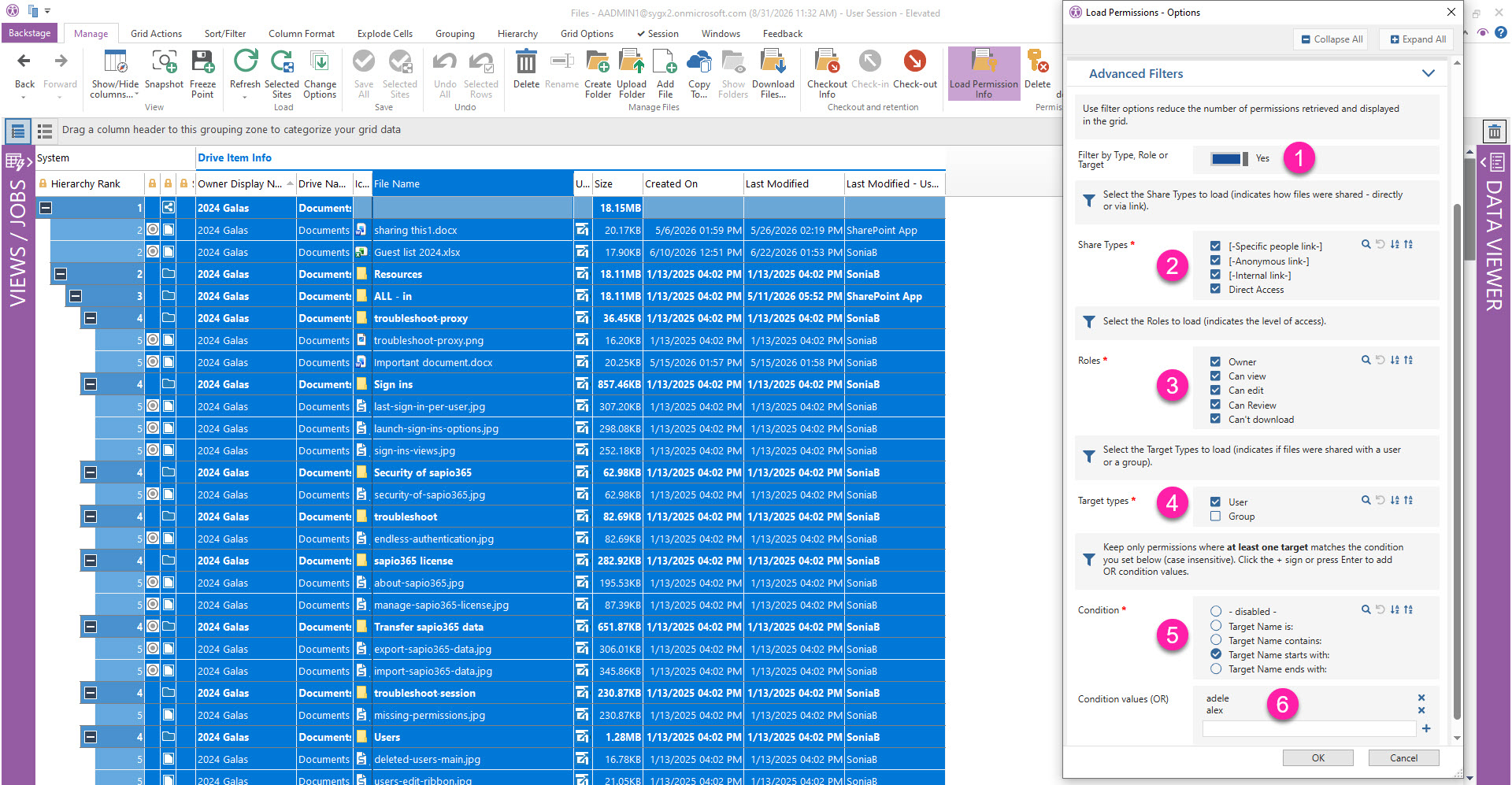
Advanced Filters to Load File and Folder Permissions
-
Set the option Filter by Type, Role or Target to Yes.
-
Select the Share Types to load. These indicate how the item was shared:
-
Specific people link
-
Anonymous link
-
Internal link
-
Direct access
-
-
Select the Roles to load. These indicate the level of access granted:
-
Owner
-
Can view
-
Can edit
-
Can review
-
Can’t download
-
-
Select the Target Types to load. These indicate whether the item was shared with a user or group:
-
User
-
Group
-
-
To filter by a specific user or group, enter a condition under Target. sapio365 keeps permissions for which at least one target matches the condition. Target matching is not case-sensitive. Available conditions include:
-
Target Name is: Matches the target name exactly.
-
Target Name contains: Matches target names that contain the specified text.
-
Target Name starts with: Matches target names that begin with the specified text.
-
Target Name ends with: Matches target names that end with the specified text.
-
-
Click the + button or press Enter to add additional values as ‘OR’ conditions.