This job is available in the Groups view.
Use the Email owners of selected groups job to send a customized email to the owners of one or more selected Microsoft 365 groups. This job is useful for owner attestations, governance reminders, cleanup campaigns, or communications about changes affecting the groups they manage.
You can compose the message in HTML and personalize it with variables that insert the number of groups owned by each recipient and a list of those groups.
Owners that are groups, service principals, or guests are skipped
Only owners with the Member user type receive email notifications.
How to run the job
-
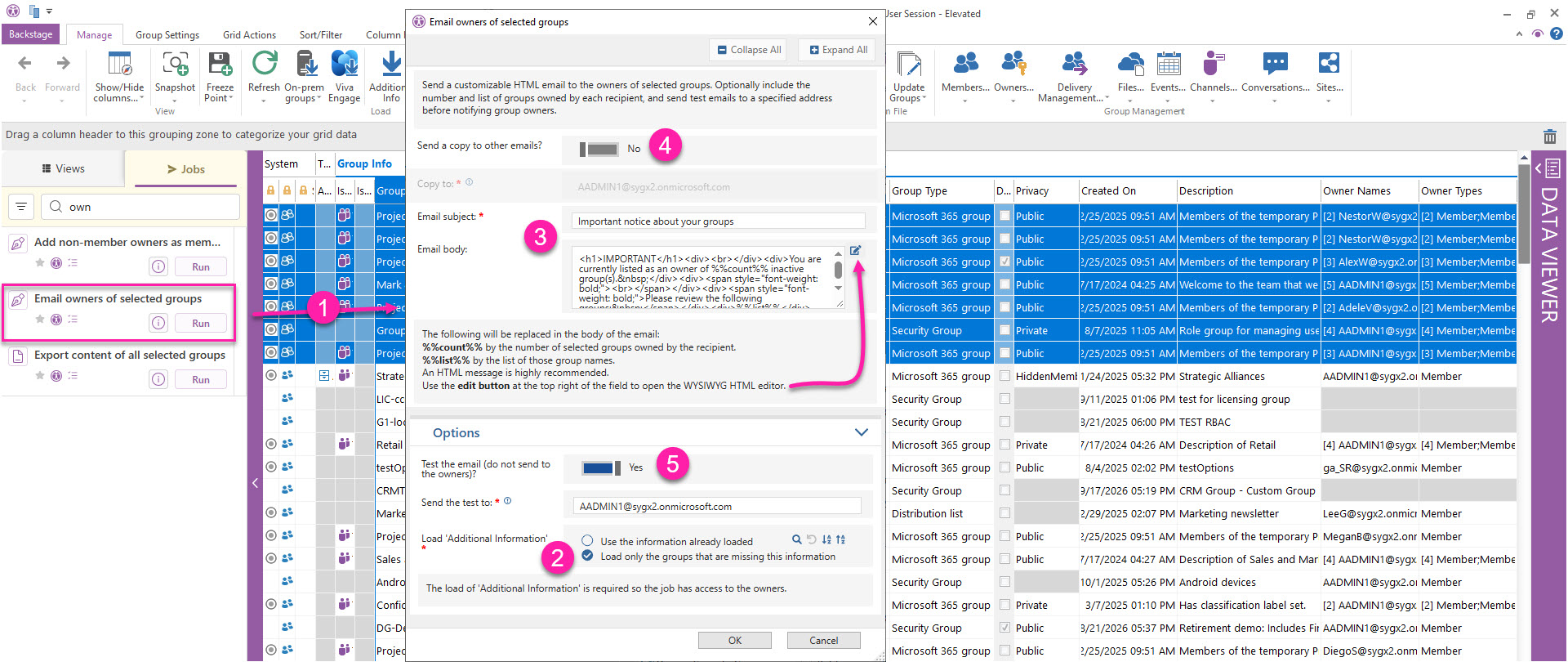
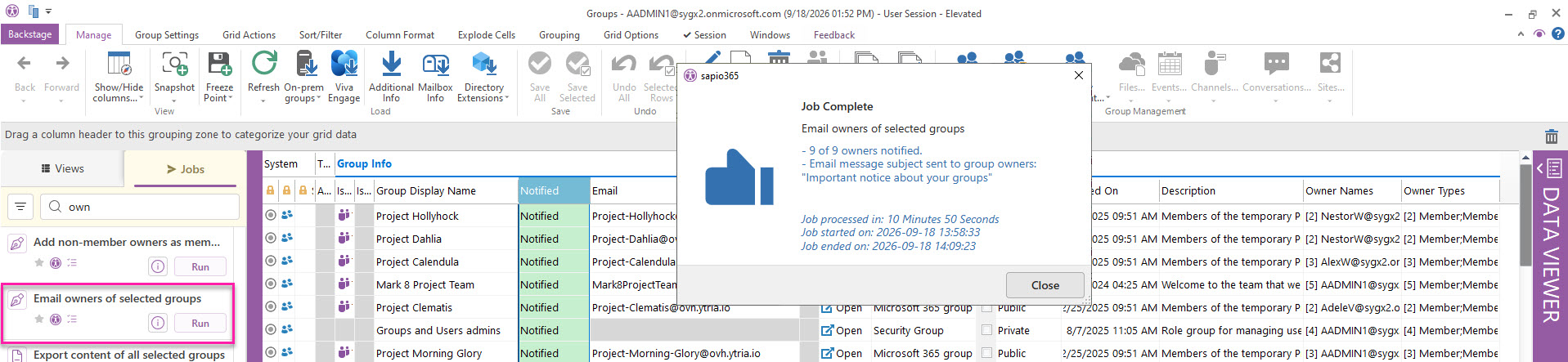
In Groups, select the groups whose owners you want to email and run Email owners of selected groups from the Jobs panel on the left.
-
If you haven’t loaded the owners of the selected groups, it’s important to set Load only the groups that are missing this information in Options.
-
Enter the subject (required) and text body.
Use HTML formatting
The email body supports HTML formatting, allowing you to improve readability and apply your organization’s email style. Select the Edit icon in the upper-right corner of the field to open the WYSIWYG HTML editor.
You can use HTML to add headings, paragraphs, bold or italic text, hyperlinks to internal documentation or review forms, action lists for group owners, and your organization’s standard email styling.
When the job runs, the following variables are replaced in the email body. Both variables apply only to the groups selected for the job. They do not include all groups owned by the recipient:
-
%%count%%is replaced with the number of selected groups owned by the recipient. -
%%list%%is replaced with the names of the selected groups owned by the recipient.
Example
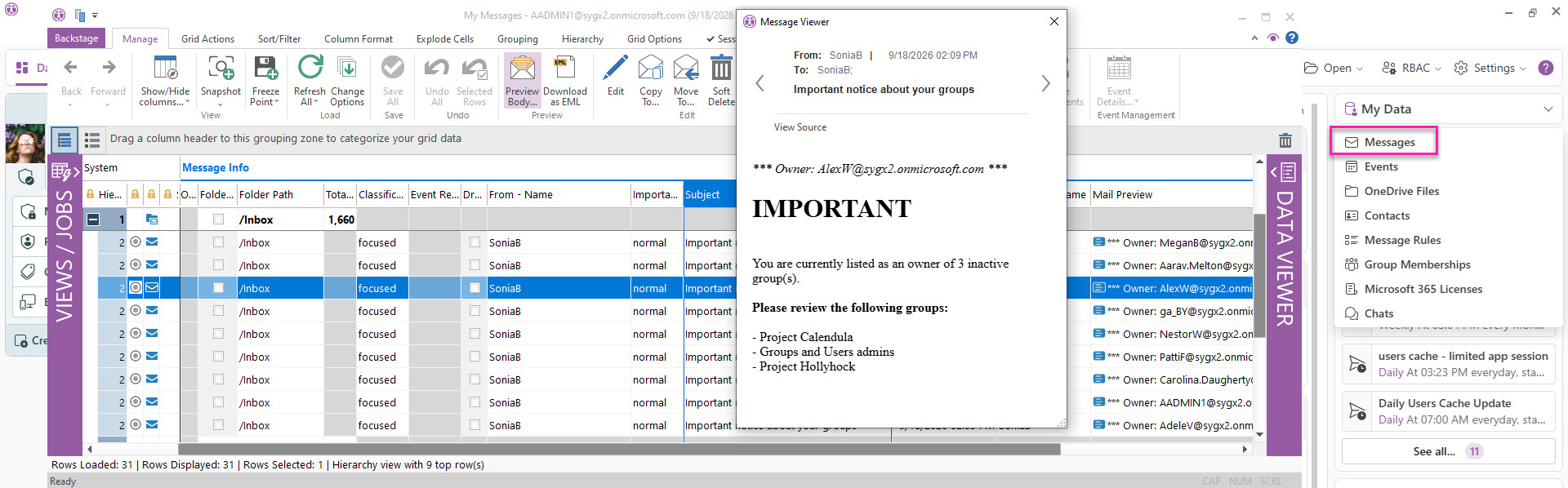
You are currently listed as an owner of %%count%% inactive group(s).
Please review the following groups:
%%list%%
-
Set Send a copy to other emails? to Yes if you want to send a copy of each email to additional recipients. Enter the recipient email addresses, separated by commas.
-
To send test emails only, open Options and set Test the email (do not send to the owners)? to Yes. Then, enter the test recipient email addresses, separated by commas.
Expand to see more details about testing the email
When test mode is enabled, sapio365 sends the generated emails only to the addresses you specify. Group owners do not receive them. You may receive multiple emails, one for each owner represented in the selected groups, so you can verify the subject, HTML formatting, and %%count%% and %%list%% values.
You can view these in sapio365 from My Data → Messages.