-
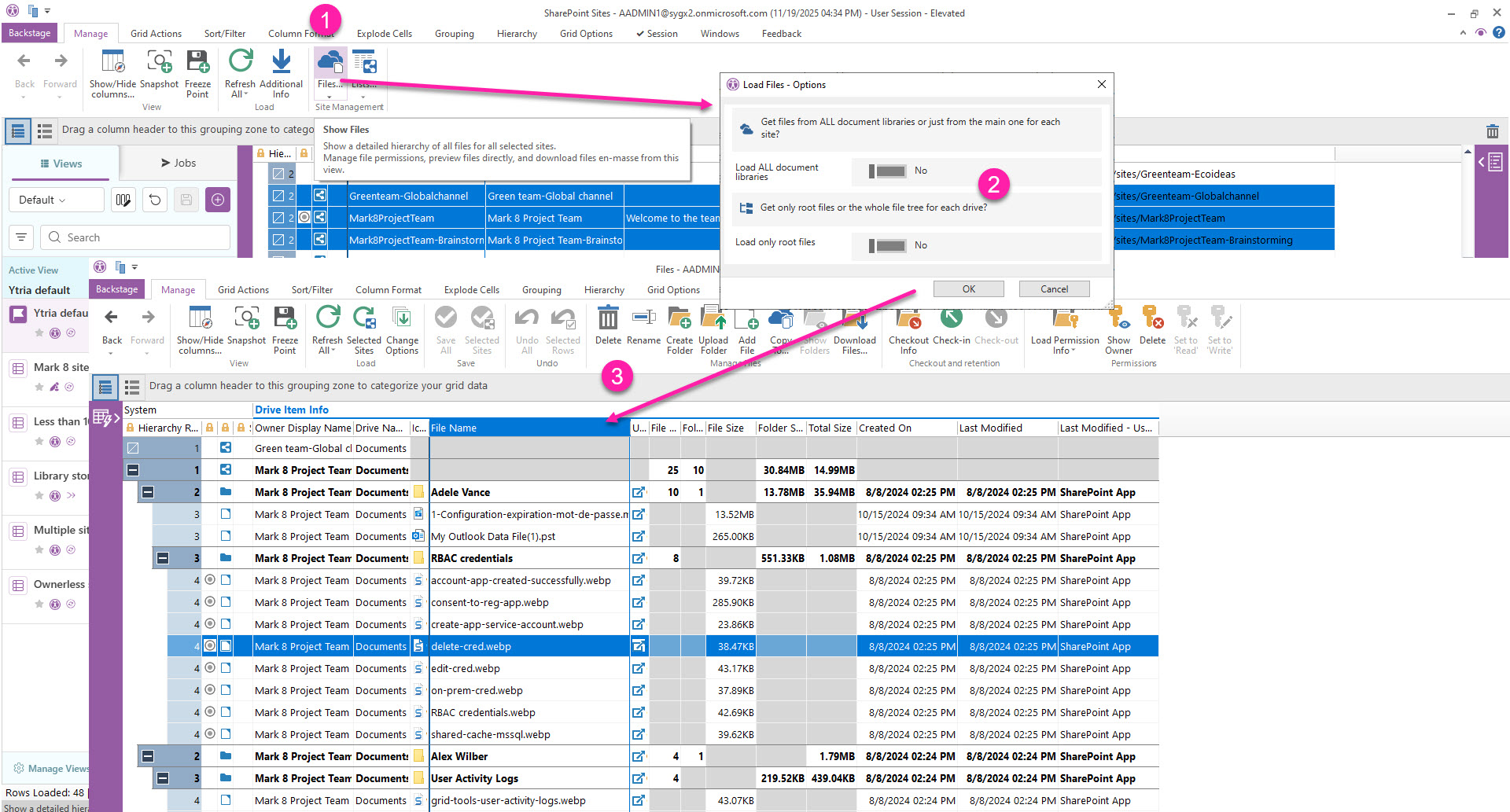
From the SharePoint Sites view, select sites and retrieve information about their document library content by clicking on the "Files" button.
-
You can choose to:
-
Load ALL drives (including the Preservation Hold Library if available)
-
Load only root files (ie. only first-level files and folders for a faster summary view)
-
If you Load only root files, you’ll be able to further load files and folders on the folders you select, including whether to load only their first-level items or the entire folder tree.
-
In the resulting Files view, you will see each sites' files listed in within their folder hierarchy where you can expand or collapse folders.
From there, you can select documents or folders to rename, download, or to delete them from their respective libraries. You can also see applied retention labels, check files out or manage how they are shared (permissions).
See how to manage files and folders in sapio365.