
Click Set Collaboration Connection Info to configure connection parameters enabling collaboration for your current sapio365 license.
Once you enable a collaboration method, it will be associated to your sapio365 license.
-
Subsequently, all collaboration data will be collected from sapio365 users who use that license.
-
You can update or change the set collaboration method.
What you’ll need
To set or to manage your collaboration connection, you’ll need your sapio365 subscription code. This can be found on your Cleverbridge invoice.
-
This is to ensure only authorized users have access to these settings.
-
If you don't have one, reach out to our support team.
4 options to store collaboration information
All containers are hosted in your environment, remaining totally in your control.
Click on each for more details:
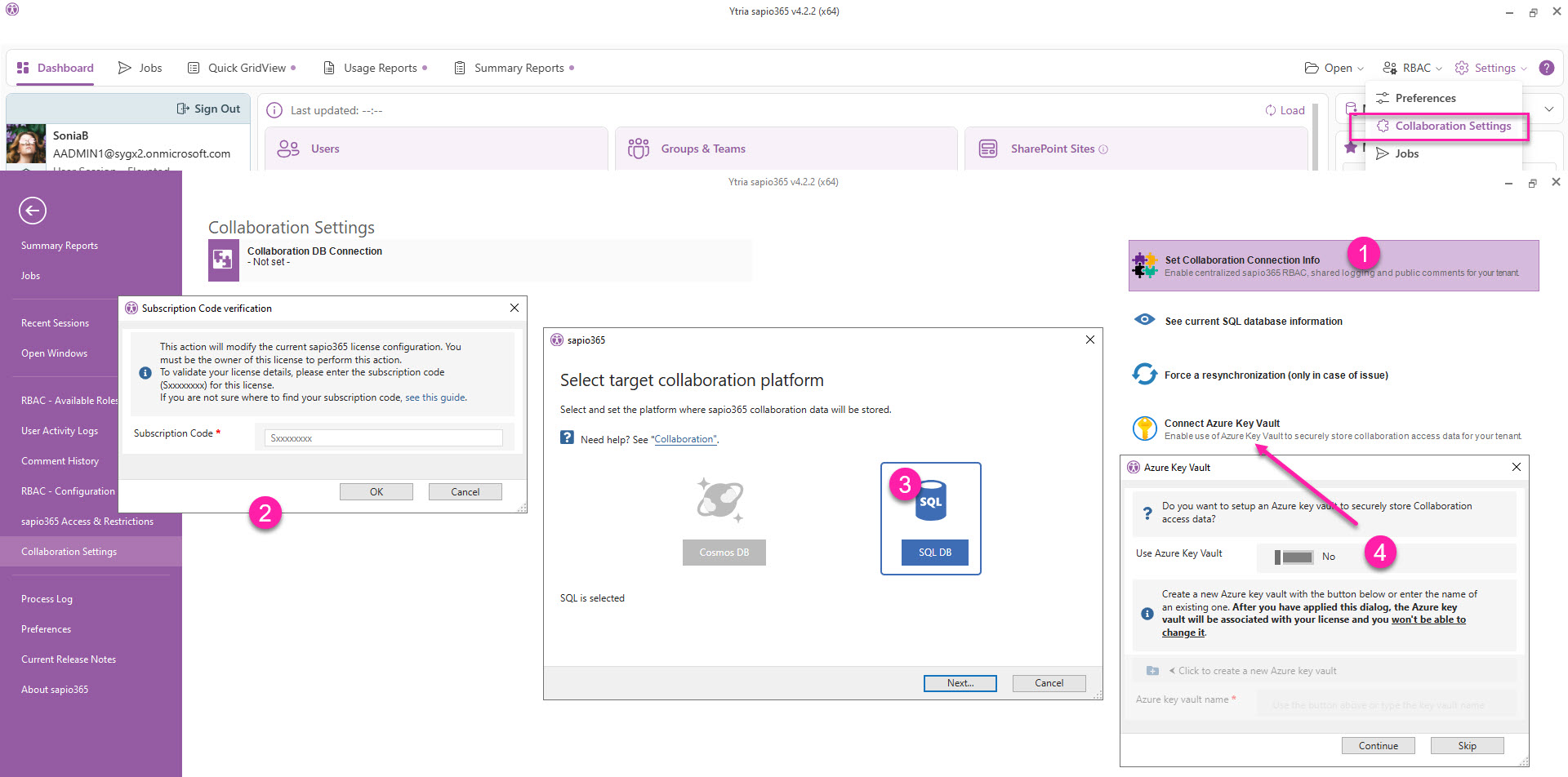
How to configure sapio365 collaboration
From the top-right or the Dashboard, go to Settings → Collaboration Settings:
-
Click Collaboration Settings.
-
Enter your subscription code.
-
Select your collaboration platform to enter connection parameters (click on each one for details):
-
SQL DB. This includes the following options:
-
(Optional) You’ll be asked if you want to set up an Azure Key Vault to securely store Collaboration access data. You can do this at a later time directly from the Collaboration Settings section.
How to disable collaboration in sapio365 for your current license
To disable collaboration for you sapio365 license, click through to your current collaboration connection and click Disconnect.