
This page explains how to add your computer to the TrustedHosts list using PowerShell, which may help resolve communication errors that occur when using sapio365 features relying on PowerShell to connect to your on-premises Active Directory.
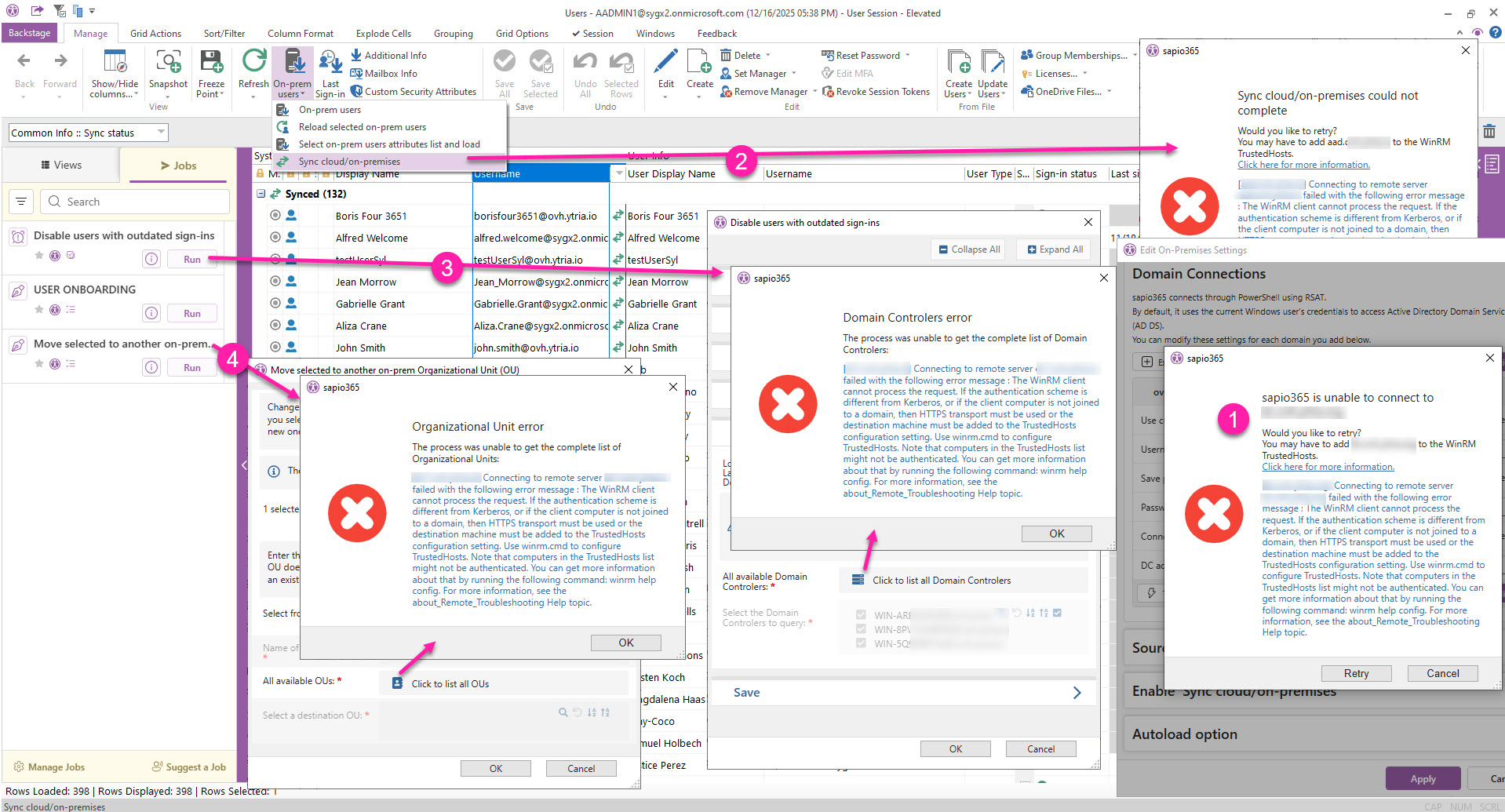
You may encounter this error during:
-
On-prem configuration
-
Force Sync
-
Loading the list of Domain Controllers
-
Loading the list of Organizational Units (OU)
How to add your computer to the TrustedHosts list using PowerShell
You must run PowerShell as an administrator.
-
Check the updated list of TrustedHosts to verify that WinRM is the cause of the issue by pasting and entering the following script.
Get-Item WSMan:\localhost\Client\TrustedHosts
-
If you don’t see your server in the list, go to step 3 to add it.
-
If you get the error below after entering 'Y', you can enable the service (see step 2).

-
Enable WinRM (default configuration) with the following command. Enter 'y' when prompted (if WinRM was not enabled).
winrm quickconfig

-
Add each computer to the existing list of TrustedHosts with the following script. Note the option -Concatenate, which is required if you need to add new servers or address to an existing configuration, else the Set-Item will replace any existing values.
Set-Item wsman:localhost\client\trustedhosts -Concatenate -Value "my.d1server.name,my.d2server.name,my.d3server.name" -Force
Add all DC servers and the Entra Connect server.
Alternatively, you can use * to add ALL the computers in a given domain to the existing TrustedHosts list (less secure).
Set-Item wsman:localhost\client\trustedhosts -Concatenate -Value *.servers.name -Force
-
Check the updated list of TrustedHosts. Using this command will let you see that all required domains or computers are effectively set.
Get-Item WSMan:\localhost\Client\TrustedHosts
