
To collaborate in sapio365 using your Azure Cosmos DB database, you must configure how sapio365 connects to it.
Before you start, you’ll need to create a Cosmos DB account which requires that:
-
Your current tenant must have an Azure account with an active subscription and an admin account.
-
You must be signed into your sapio365 session with a Microsoft 365 global admin role.
How to create an Azure Cosmos DB Account
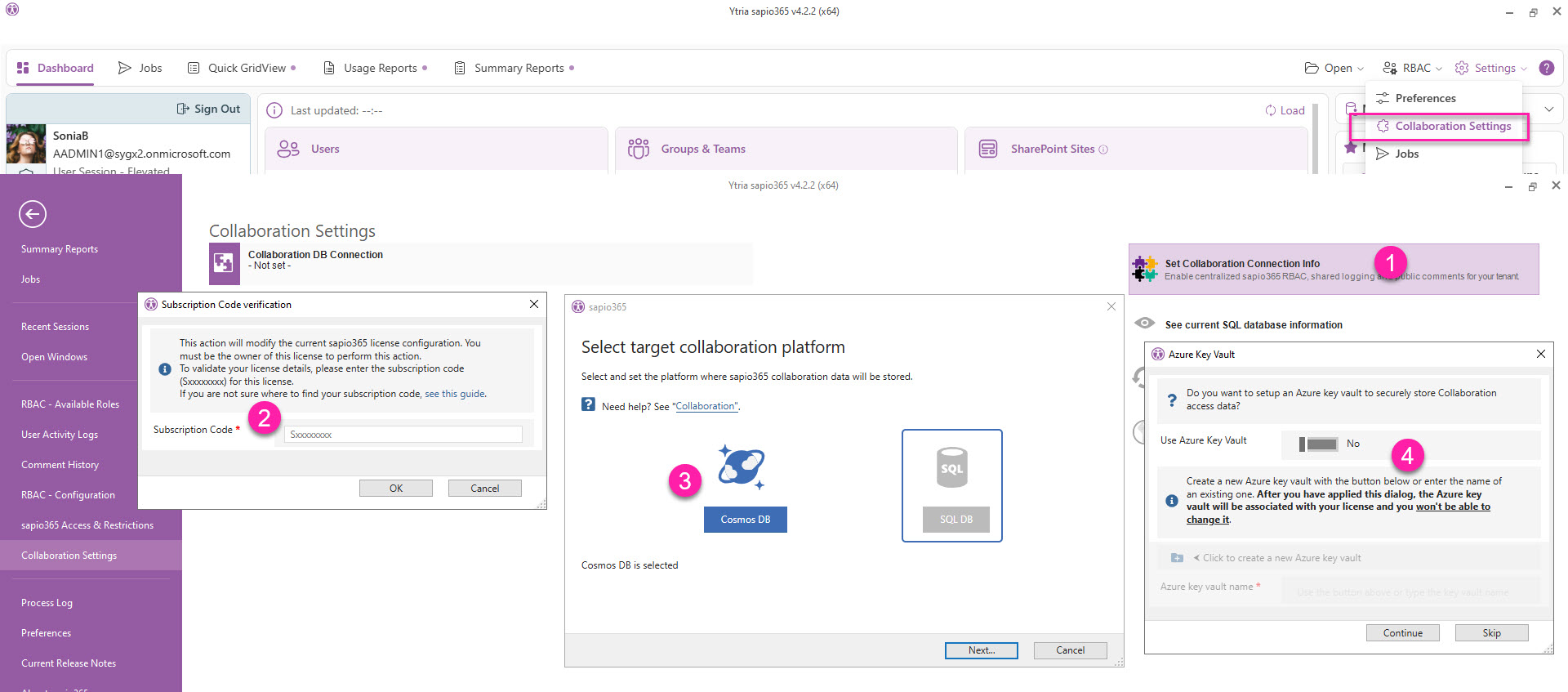
From the top-right of the Dashboard, go to Settings → Collaboration Settings:
-
Click Collaboration Settings.
-
Enter your subscription code.
-
Click Cosmos DB and then Next.
-
(Optional) You’ll be asked if you want to set up an Azure Key Vault to securely store Collaboration access data. You can do this at a later time directly from the Collaboration Settings section.
-
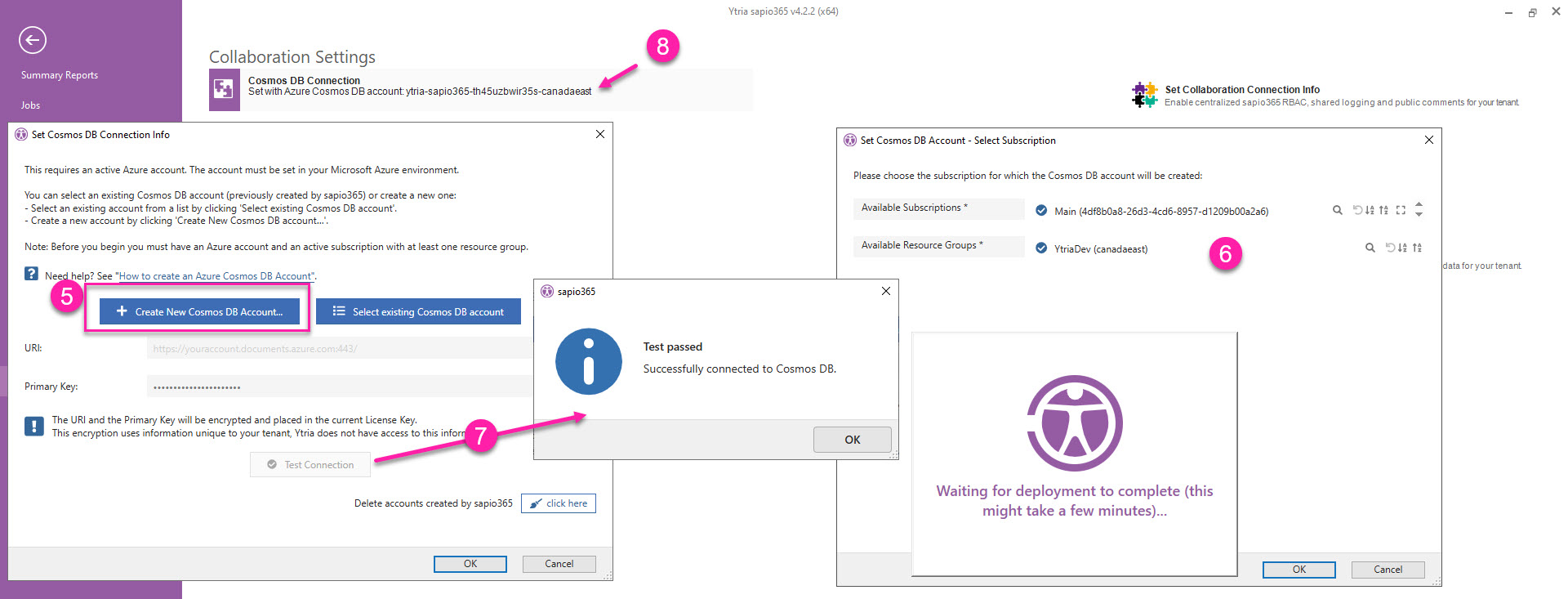
Click Create New Cosmos DB Account.
-
Select your subscription and resource group, and click OK. It may take a few minutes to create it.
-
You can test the connection.
-
You’ll see connection information on the left side.
How to delete Cosmos DB accounts created by sapio365
You can easily delete any Cosmos DB account that was created by sapio365. Learn more on this page.