
This page describes the available target destinations when you run the USER OFFBOARDING job with the OneDrive Download option.
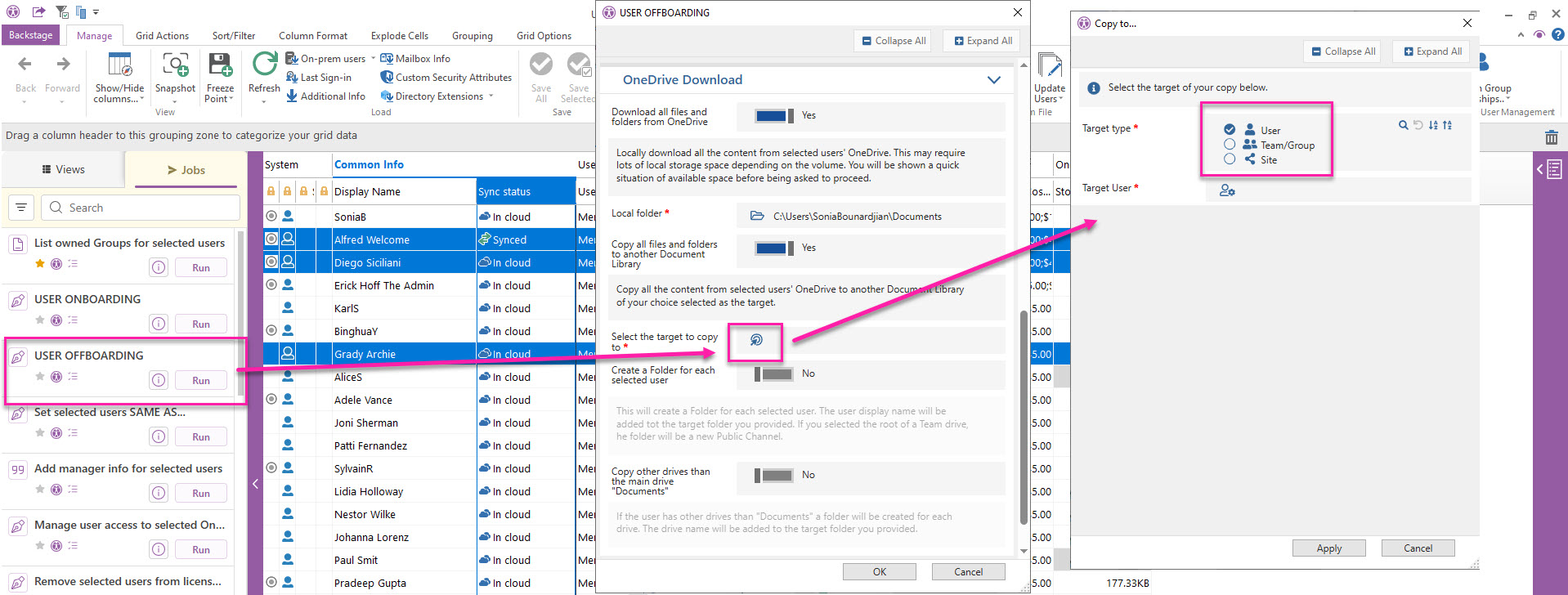
OneDrive Download options
Select the destination by clicking the picker icon, then choose to copy files to one of the following:
-
A user’s OneDrive
-
A team/group (Teams-connected site)
-
A SharePoint site
Click > See step-by-step instructions in each section that follows for details.
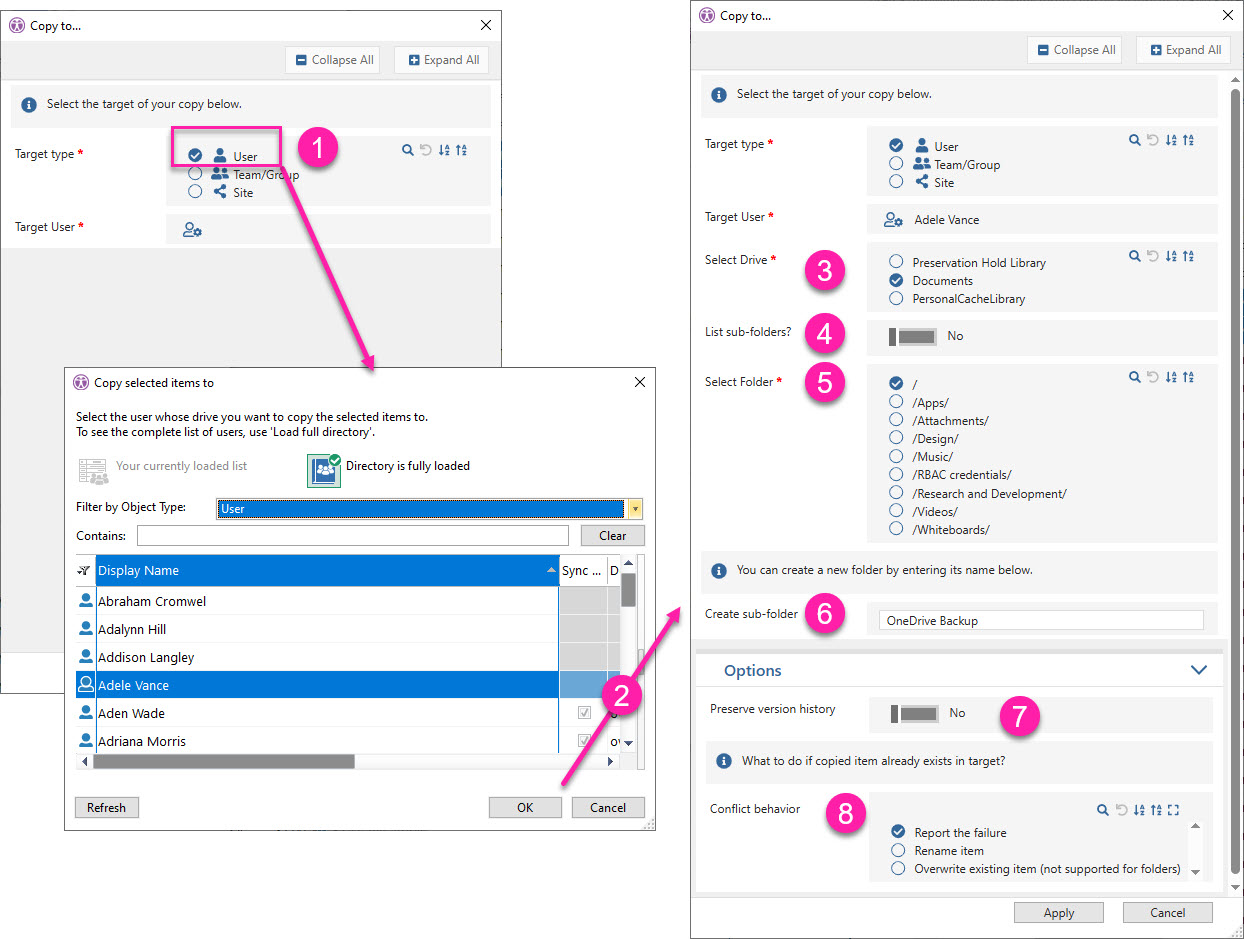
1 - Copy to another user’s OneDrive
Select the OneDrive that will receive the offboarded users’ files, choose the folder structure, and specify how to handle file versions and conflicts.
See step-by-step instructions
-
Select User as the target type.
-
Choose the user from the directory whose OneDrive will be used as the destination, then click OK.
-
Select the target drive. If this OneDrive has more than the default document library, all available libraries are listed.
-
Set Select specific subfolder to Yes if you want to target a particular subfolder. These subfolders will then appear in the folder list with their full paths.
-
Select the destination folder path.
-
To create a new destination folder, enter a subfolder name.
-
If you later choose to store each offboarded user’s files in separate folders (in the step after closing this dialog), a new folder will be created for each user, with the user’s name appended to the folder name you entered here.
-
-
Set Keep all versions to Yes only if you want to preserve the complete version history of all files.
-
Choose how you want sapio365 to handle conflicts when files with the same name already exist in the destination.
2 - Copy to a SharePoint site document library
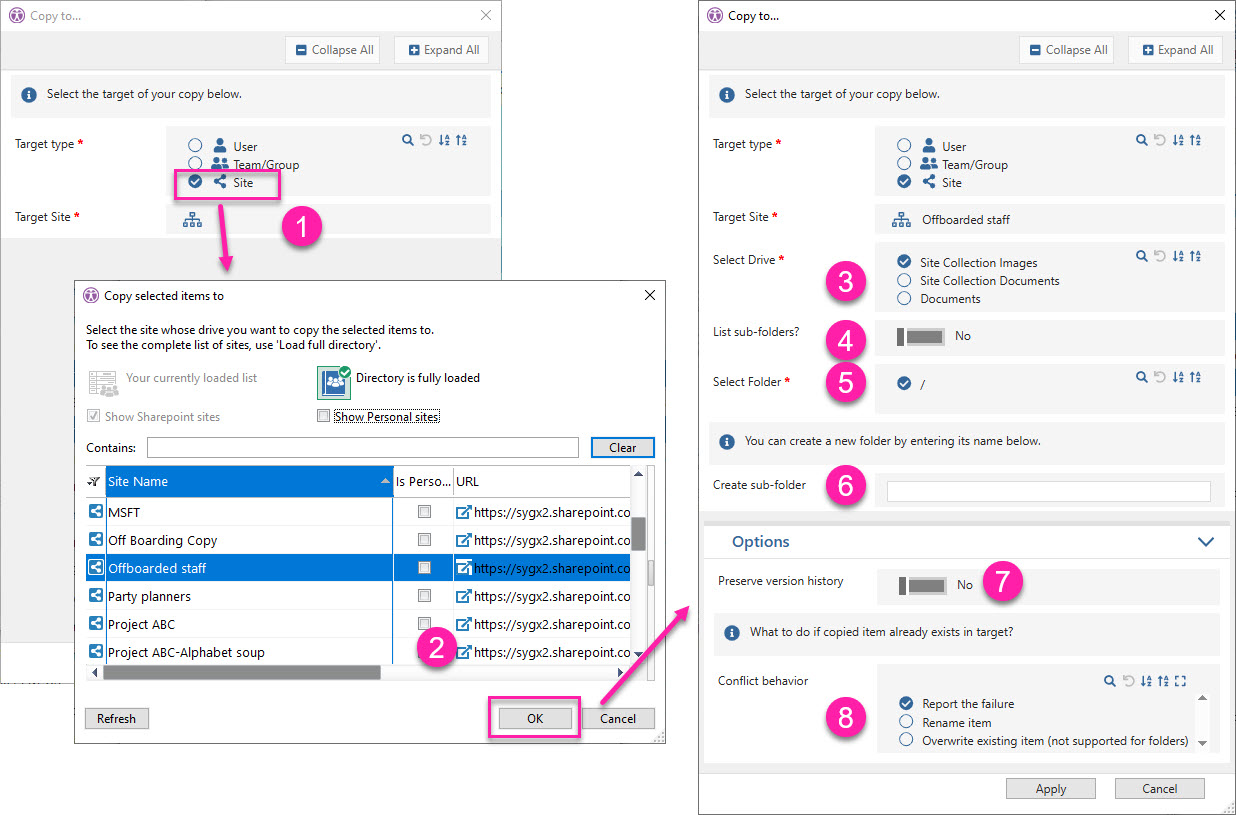
Select the SharePoint Online site that will receive the offboarded users’ files, choose the folder structure, and specify how to handle file versions and conflicts.
See step-by-step instructions
-
Select Site as the target type.
-
Choose the SharePoint Online site from the directory whose document library will be used as the destination, then click OK.
-
Select the target drive. If this site has more than the default document library, all available libraries are listed.
-
Set Select specific subfolder to Yes if you want to target a particular subfolder. These subfolders will then appear in the folder list with their full paths.
-
Select the destination folder path.
-
To create a new destination folder, enter a subfolder name.
-
If you later choose to store each offboarded user’s files in separate folders (in the step after closing this dialog), a new folder will be created for each user, with the user’s name appended to the folder name you entered here.
-
-
Set Keep all versions to Yes only if you want to preserve the complete version history of all files.
-
Choose how you want sapio365 to handle conflicts when files with the same name already exist in the destination.
3 - Copy to a Team/Group
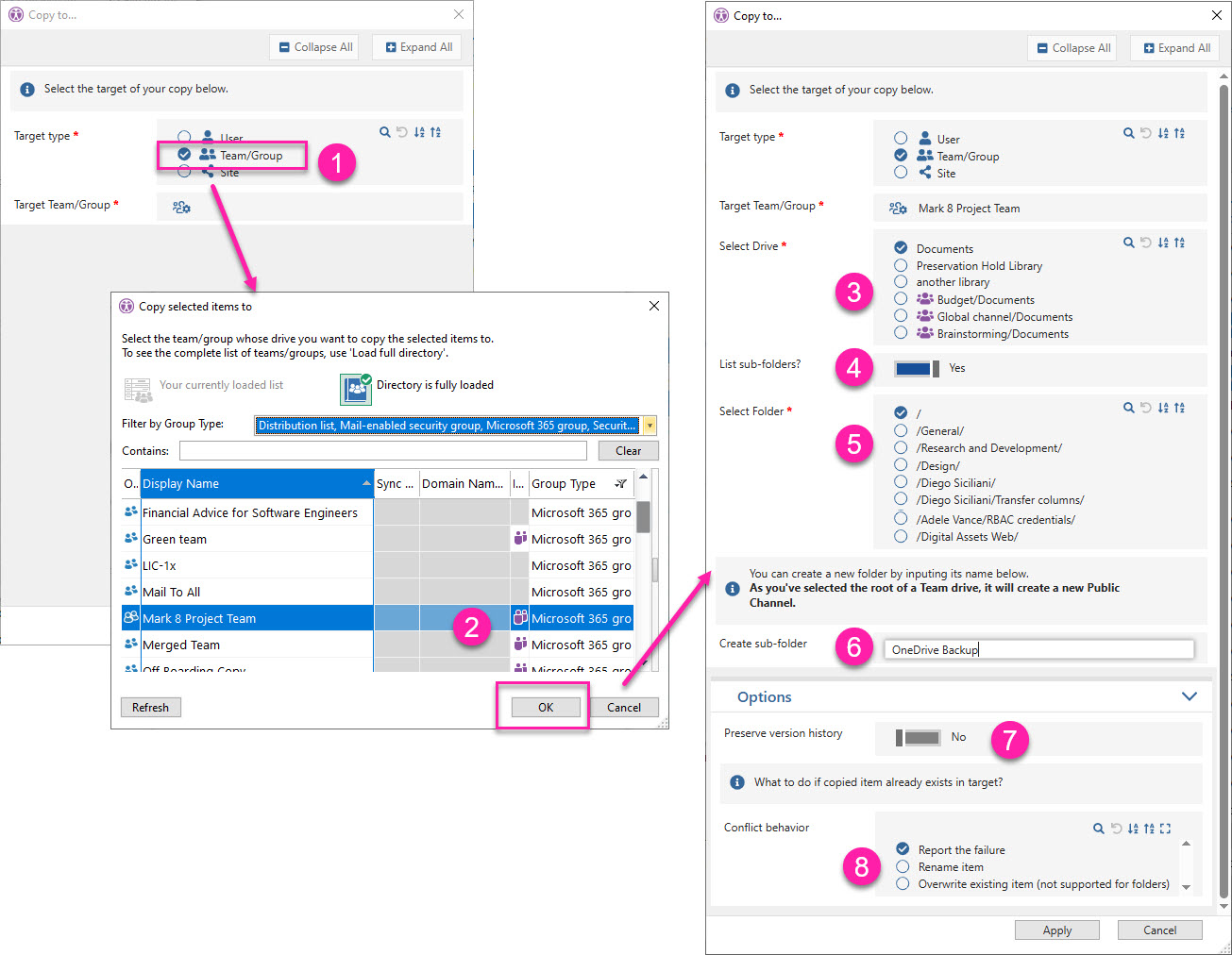
Select the Team channel or group document library that will receive the offboarded users’ files, choose the folder structure, and specify how to handle file versions and conflicts.
See step-by-step instructions
-
Select Team/Group as the target type.
-
Choose a group or Team from the directory whose site document library will be used as the destination, then click OK.
-
Select the target drive.
-
If this group site has more than the default document library, all available libraries are listed.
-
If it’s a team, all its private and shared channel sites are also listed (marked with the Teams icon).
-
-
Set Select specific subfolder to Yes if you want to target a particular subfolder. These subfolders will then appear in the folder list with their full paths.
-
Select the destination folder path.
-
To create a new destination folder, enter a subfolder name. If you selected a team, a new public channel with that name will be created.
-
If you later choose to store each offboarded user’s files in separate folders (in the step after closing this dialog), a new folder/channel will be created for each user, with the user’s name appended to the folder/channel name you entered here.
-
-
Set Keep all versions to Yes only if you want to preserve the complete version history of all files.
-
Choose how you want sapio365 to handle conflicts when files with the same name already exist in the destination.
Verify copied files
After the job completes, you can verify that all files were copied by comparing the total content size of the offboarded users’ OneDrives with the size of the destination site or OneDrive.
Load only root files for a quick check.
The image below shows a size comparison for two offboarded users whose files were copied to Pradeep’s OneDrive.
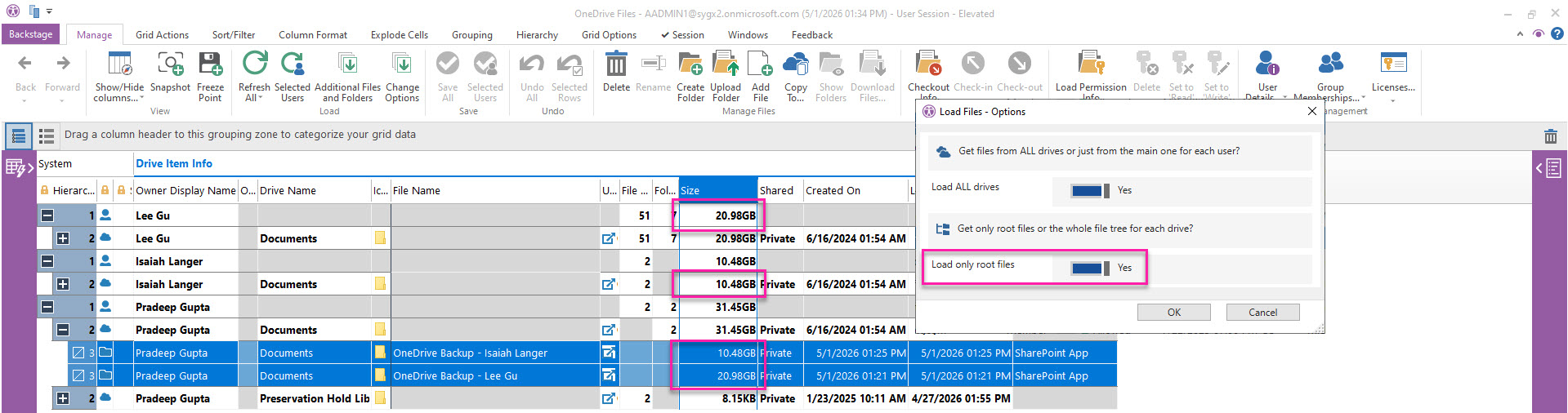
If the destination is a site or team, you can compare this information in separate windows side by side.