
Save time with sapio365 automated Jobs
sapio365 jobs are automated workflows built using sapio365 features, designed to run specific admin tasks for you with minimal manual effort. These include jobs created by the sapio365 team for common scenarios.
Available jobs
Some are report-only jobs, while others also perform actions that update or change data. You can quickly see the type of each job by checking the icon next to its name in the job list.
Expand to see the latest list of available jobs
Run the jobs below.
Some jobs apply only to the users you select while others analyze the total number of user accounts.
When you run a job, sapio365 always presents you with options first and gives you the opportunity to cancel before proceeding.
However, some jobs may begin an initial processing step before the options dialog appears, in order to gather the information needed for those options.
|
|
Scope |
Users - Job |
Description |
|---|---|---|---|
|
|
Select |
List owned Groups for selected users |
Identify and list Groups and Teams owned for each user you select. |
|
🖊️ |
Select |
USER ONBOARDING |
Create new user accounts based on your selection of users as template. Set the same group memberships, ownerships, roles, mailbox access. If creating on-premises, choose the Organizational Unit (OU). |
|
🖊️ |
Select |
Offboard users you select with options to remove access, memberships, licenses, etc. Set mail forwarding, managers, mail access, and retain OneDrive files and more. |
|
|
🖊️ |
Select |
Set selected users SAME AS... |
Update selected users based on users you choose to use as a template. Select to copy their attributes, their assigned licenses, the groups they are members or owners of, their assigned admin roles, delegates that have Full Access to their mailbox, and their Full Access rights to others' mailboxes. |
|
🖊️ |
Select |
Add manager info for selected users |
This Job cross-references information about the manager of selected users and displays it in grid Comments. |
|
🖊️ |
Select |
This job retrieves the User Information List for each selected OneDrive site and allows you to remove users from each Site Collection. You can also add or remove users and security groups from each OneDrive site’s Site Collection Administrators list, set a new primary Site Collection Administrator, check if a OneDrive site is locked, and unlock it if needed. |
|
|
🖊️ |
Select |
Remove selected users from license-assigning groups |
This Job will show the groups related to the grouped-based license the selected users and will set theses group memberships to be removed. You just need to validate the removal. |
|
🖊️ |
Select |
Change User Mail Domain |
This Job will change the domain of the current email address of the selected users. This will not modify the UserName. |
|
🖊️ |
Select |
Add an alias/proxy address based on current email |
This Job will add a new email address to the aliases list in Microsoft 365 for selected user accounts (cloud and synced) based on their current Microsoft 365 email with the domain of your choice. This will not modify their Username nor change their primary email address. |
|
🖊️ |
Select |
Remove an email from alias/proxy address |
This Job will remove an email from the aliases set in Microsoft 365. This will not modify the UserName or change the email of the selected users. |
|
🖊️ |
Select |
Move selected to another on-prem Organizational Unit (OU) |
Change the Organizational Unit (OU) of on-premises or synced user accounts you select to another OU. You can move accounts to an existing OU, or to a new one created at the root level. |
|
🖊️ |
Select |
Overwrite on-prem proxy addresses with cloud aliases |
This Job will overwrite the list of proxy addresses in the local AD by the alias list set in Microsoft 365 of selected user accounts (synced). This will not modify their Username nor change their primary email address. |
|
🖊️ |
Select |
Edit custom on-premises attributes |
Update on-premises user attributes using custom PowerShell scripts. This job allows you to modify attributes that are not exposed in the standard UI for both synced and on-premises users. |
|
🖊️ |
Select |
Disable users with outdated sign-ins |
This job reviews each user’s last sign-in date and, if applicable, their last on-premises logon date based on the number of days you specify. You can choose to disable these accounts either in the cloud or on-premises. For on-premises environments, you can also move the affected accounts to another organizational unit (OU). |
|
🖊️ |
Select |
Set userType ‘member’ for selected users without a type |
This job updates the userType property in Entra to ‘member’ for selected user accounts. It applies only to accounts whose userType is not already set to ‘member’ or ‘guest’. |
|
🖊️ |
Select |
Add selected as owners to ALL groups |
Add selected users as owners to ALL the groups in your tenant. Applicable groups types: Teams, Microsoft 365 groups or security groups. |
|
🖊️ |
Select |
Add to or Remove from Groups |
Add to groups or remove from groups to selected users, without the need to open the group membership modules. |
|
🖊️ |
Select |
This job uses PowerShell to restore recoverable calendar events. For a single user, it lists all recoverable events you can restore. For multiple users, it searches each calendar for one matching event you can restore per user. |
|
|
|
ALL |
Find all users unable to use Teams |
List users for whom sign-in is blocked, no Teams license is assigned, or their Teams service is disabled. |
|
|
Select |
Find mailboxes that selected users can access |
List mailboxes for which the users you select have mailbox permissions. From there, you can remove or modify those permissions, or add new delegates. |
|
|
ALL |
Find users with external email forwarding inbox rules |
List users and their inbox rules forwarding mail to external addresses. |
|
|
Select |
Get Date of Last Email Sent and/or Received |
Get the date of the last email sent and/or received for the selected users. |
|
|
ALL |
Group-Based Licensing Analysis |
This Job will provide two information. It will filter and tag users that have group-based licenses and licenses assigned directly. And it will tag any user having duplicates licenses assigned. |
|
|
ALL |
Trace email |
Search ALL mailboxes for a string in the name of the sender, recipient or subject in the latest messages. |
|
|
ALL |
Users with duplicate files |
List users who have duplicate OneDrive files. |
|
|
ALL |
Users with duplicate plans |
Search for users with licenses that have overlapping service plans. |
|
|
ALL |
Users with empty OneDrive accounts |
Show from selected users those without any documents in their OneDrive. |
|
|
ALL |
Users with no calendar events |
List all users without calendar events. |
|
|
ALL |
Groups with guest members |
List groups/Teams with members who are guests (external). |
|
🖊️ |
Select |
eDiscovery Content Search on users' mailboxes or OneDrive |
This job lets you create and run a PowerShell-based eDiscovery Content Search on mailboxes or OneDrive files, across your tenant or limited to the selected users. Only users of type 'Member' can be searched. |
|
|
Select |
List Teams of selected users |
List all the Teams each selected user is a member of. |
|
🖊️ |
Exports |
Export content of all selected users |
Select users and download their OneDrive files to your local machine. This job also exports Excel or XML reports on their group memberships, roles, assigned licenses, personal contacts, messages and inbox rules, and OneDrive file information. |
|
🖊️ |
Exports |
Save current selections of Users |
Save the current selection of Users in a CSV file to be used as a quick selection in other Jobs. |
Some Jobs require saving changes along the process flow and may not offer a preview of updated values. Ex. Job ‘USER OFFBOARDING’.
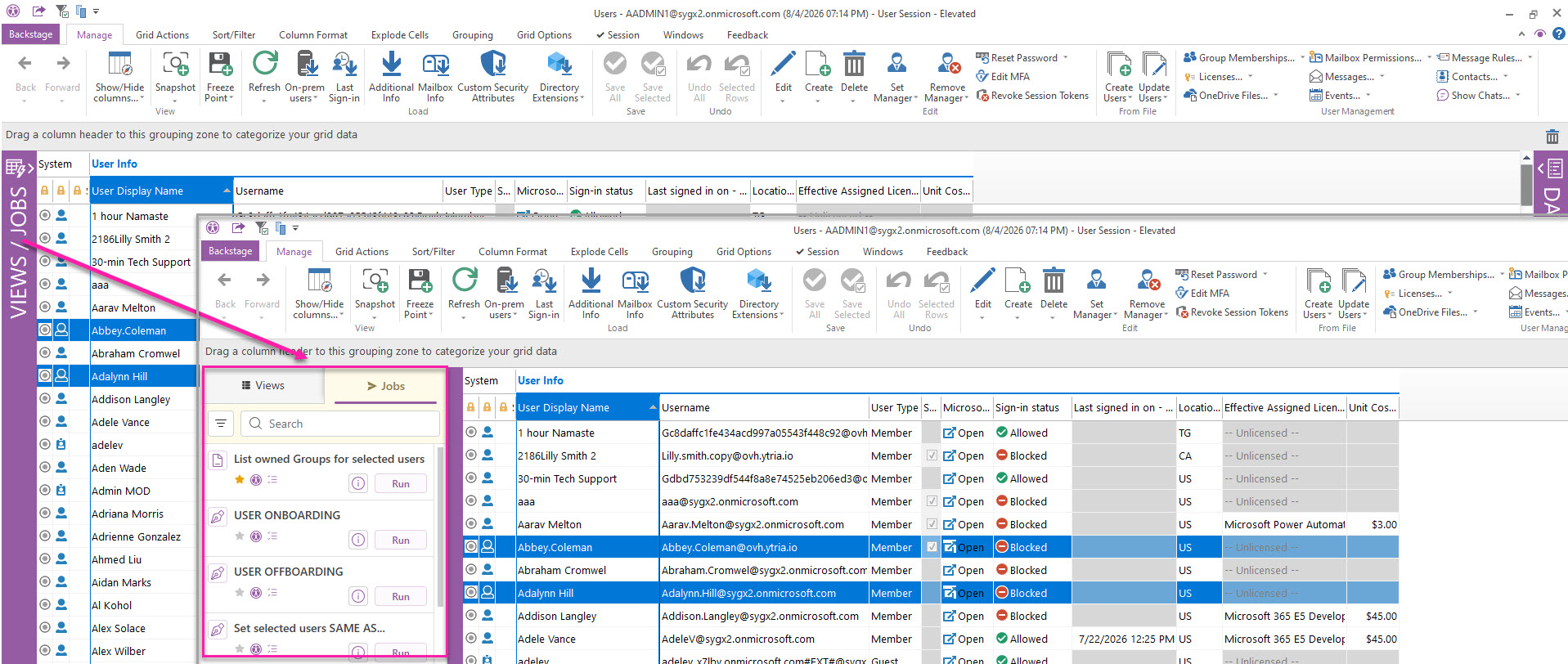
Jobs section explained
-
Type in the search box to find jobs by keyword.
-
Run the job or click on the
icon to view the job’s description before you execute it. From the description view, you can:
-
See the scope and type of the job as well as its keywords.
-
Mark it as a favorite so that it shows at the top of your list.
-
-
Click Manage Jobs to see them listed in a backstage grid where you can:
-
Show/Hide a job in the front panel.
-
Set/unset as favorite.
-
Export the job as an xml file.
-
Import a custom job.
-
Create and save a preset that you can run from the backstage only.
-
-
Suggest a Job that you’d like to see here and that could benefit other admins.