This job is available in the Usersview.
This job uses PowerShell to find recoverable calendar events and restore them. For a single selected user, it lists all recoverable events so you can choose which ones to restore. If multiple users are selected, it instead searches each user’s calendar for a single matching event (based on your filters) that you can restore for each user.
A detailed list of recoverable calendar events can only be retrieved if a single user is selected.
You can use date and subject filters to narrow the recoverable calendar events.
Filters are required if more than one user is selected
When recovering events for multiple users, the potential volume is too large to manage, so you must use date and subject filters to narrow the results and ensure that only a single event is matched per user.
✅ Be as precise as possible when defining these filters.
If more than one event matches the filters for a given user, that user is skipped. The job only searches for one matching event per user’s calendar. Its details will not be listed but you will be asked to confirm recovering that event in the users' calendars.
Job Requirements
The current session credentials must belong to an Exchange admin role group that has the Mailbox Import Export permission.
So if you’re running this job in a regular User session, you must be a member of a role group that contains this permission, such as Organization Management or Discovery Management, or by having the role assigned directly to your user account.
Elevated session * sapio365 RBAC role session * App session
If you’re running this job in an app-based session that is set to use certificate-based authentication to connect to Exchange Online PowerShell, you’ll need to assign that Exchange admin role group to the service principal associated to the registered sapio365 application. You will only need to do this once.
How to add the Exchange admin role group with the Mailbox Import Export permission
Since adding a service principal to this role group is not possible in the Entra portal, you can use a sapio365 job that uses PowerShell to do it.
-
Identify the service principal associated to your sapio365 application.
-
Select it in the Service Principals module.
-
Run the job Assign Exchange or Purview admin role job. Click here for detailed steps.
How to run this job on a single user
From the dashboard, look up a user or open the Users module:
-
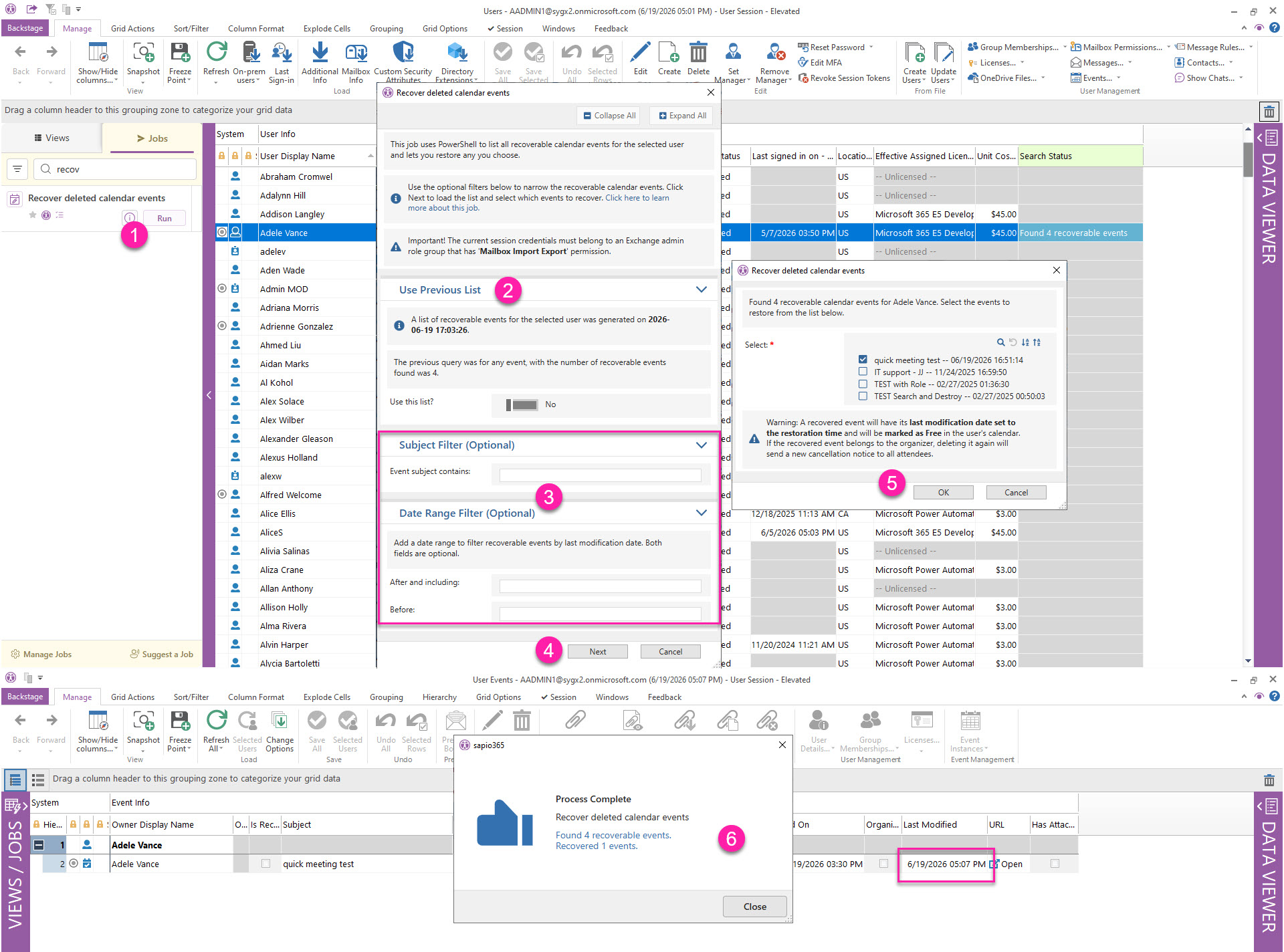
Select a user and run the job from the left-side Jobs panel.
A detailed list of recoverable calendar events can only be retrieved if a single user is selected.
-
Use Previous List is available if you have run this job for this user before. It lets you select from the previously generated list instead of running a new query.
-
Use optional filters to reduce the list of recoverable calendar events found.
-
Subject Filter: Enter a text string to match the event’s name. This is case insensitive.
-
Date Range Filter: Enter a date range to filter recoverable events by last modification date. Both fields are optional.
-
-
Click Next. The query’s summary will be shown in the grid under the Search Status column. Detailed events will be listed in the next dialog.
If no events were found, you may want to run the job again without filters or different ones.
-
Select the events you want to restore to the user’s calendar and click OK.
-
The restored events will be opened in the Event module under the user.
Once recovered, the calendar events will have their last modification date set to the restoration time and will be marked as Free in the user’s calendar.
If the recovered event belongs to the organizer, deleting it again will send a new cancellation notice to all attendees.
How to run this job on multiple users
From the dashboard, open the Users module:
-
Select users and run the job from the left-side Jobs panel.
-
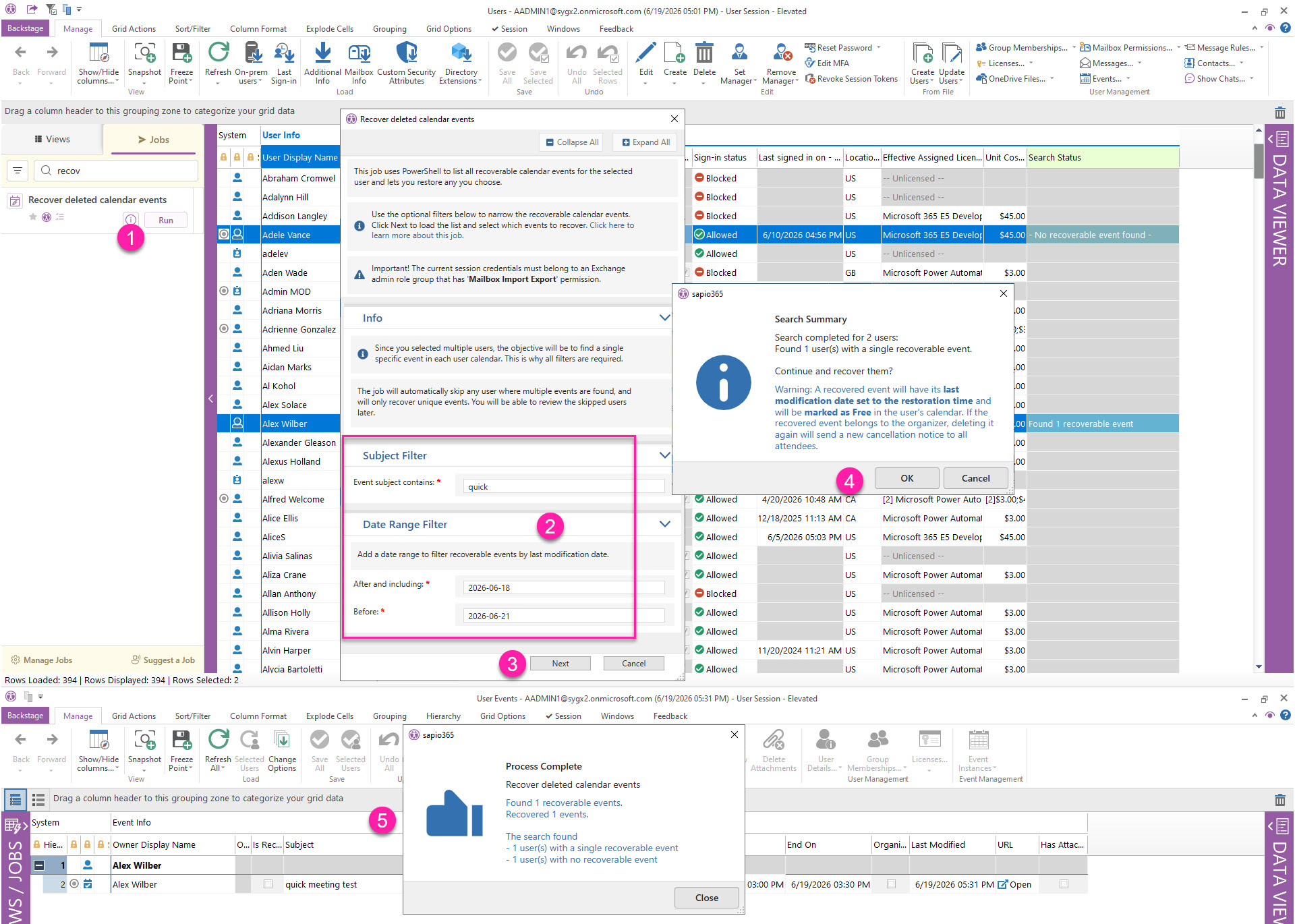
Set mandatory filters to search for a single recoverable calendar event. Click Next.
-
Subject Filter: Enter a text string to match the event’s name. This is case insensitive.
-
Date Range Filter: Enter a date range to find a recoverable event by its last modification date.
-
-
Click Next. The query’s summary will be shown in the grid under the Search Status column for each user.
If no events were found for a user, it may be because more than one event matched the filters for that user. Run the job for that user only, without filters, to see the full list of recoverable events.
-
Click OK to restore found events to each user’s calendar if applicable.
-
The restored event will be opened in the Event module for each user.
Once recovered, the calendar event will have its last modification date set to the restoration time and will be marked as Free in the user’s calendar.
If the recovered event belongs to the organizer, deleting it again will send a new cancellation notice to all attendees.