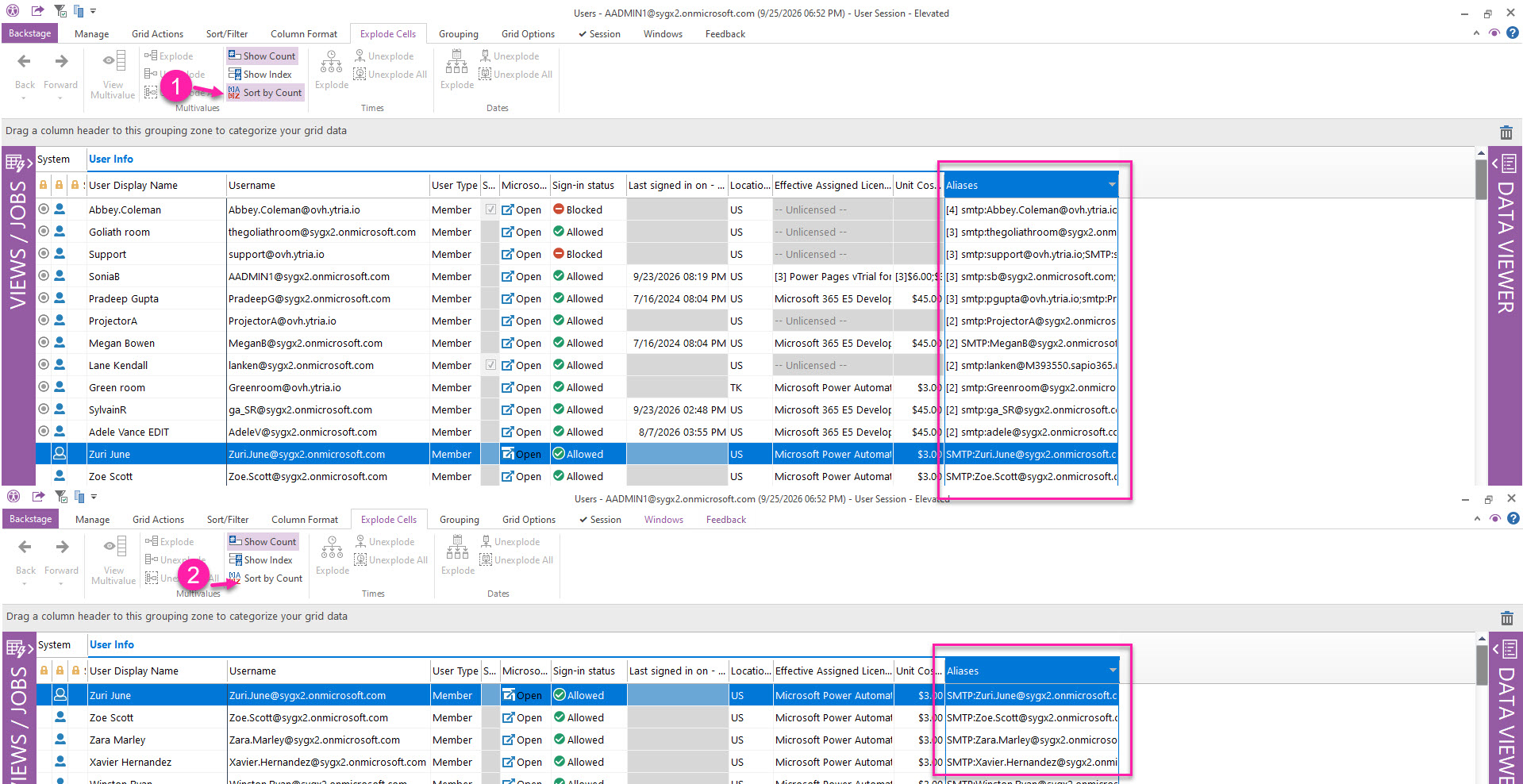
Some GridView columns cells may display values preceded by a number in brackets. This number indicates how many values the attribute contains for that entry.
Value Filters show individual multivalues
When you apply a value filter to a column containing multivalue cells, the filter list shows each value separately. If a cell remains unexploded in the grid, selecting one of its values in the filter matches the entire cell, similar to a contains filter.
To show only rows for a specific value, first explode the multivalue cells that contain it, then apply the value filter.
Rows containing multivalue cells are identified by a circle icon 
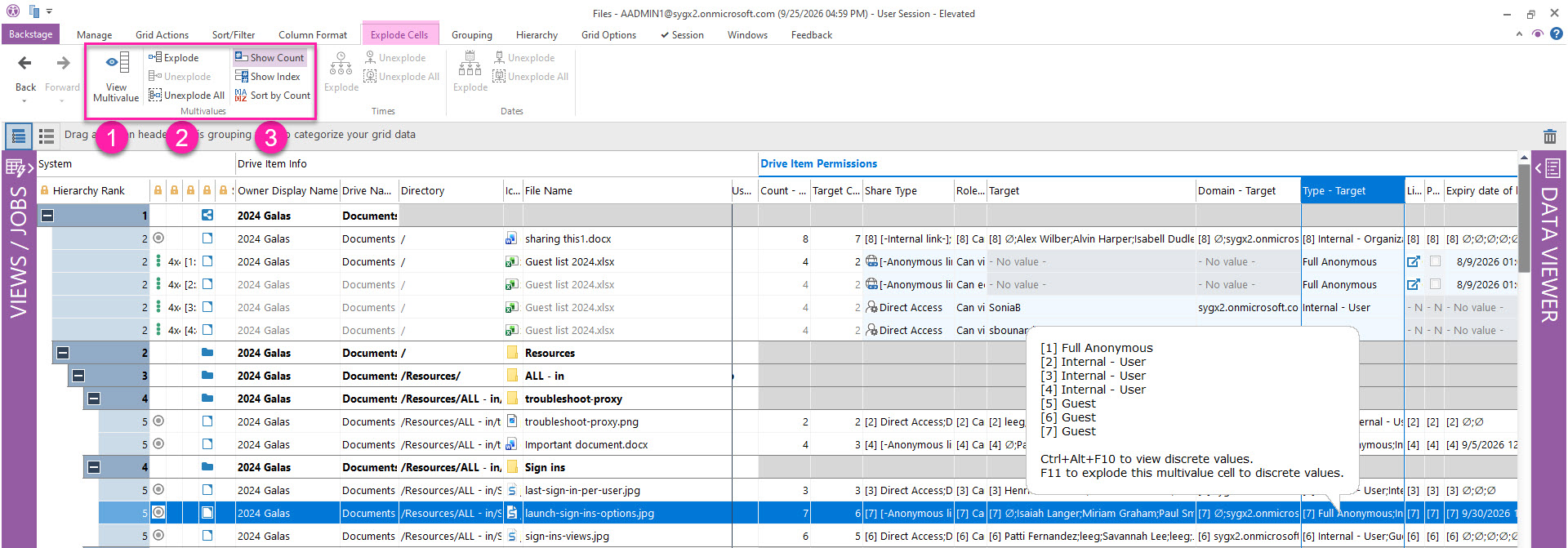
1. View Multivalue
Use View Multivalue to open the values in a selected multivalue cell in a separate mini grid, rather than expanding them in the current grid. This allows you to review and work with the values without changing your current grid view.
View Multivalue is available only when you select a single multivalue cell.
For more information, see View Multivalue.
2. Explode or Unexplode Multivalues
Use this section to expand multivalue cells into separate rows or restore them to their original, unexpanded state.
Explode
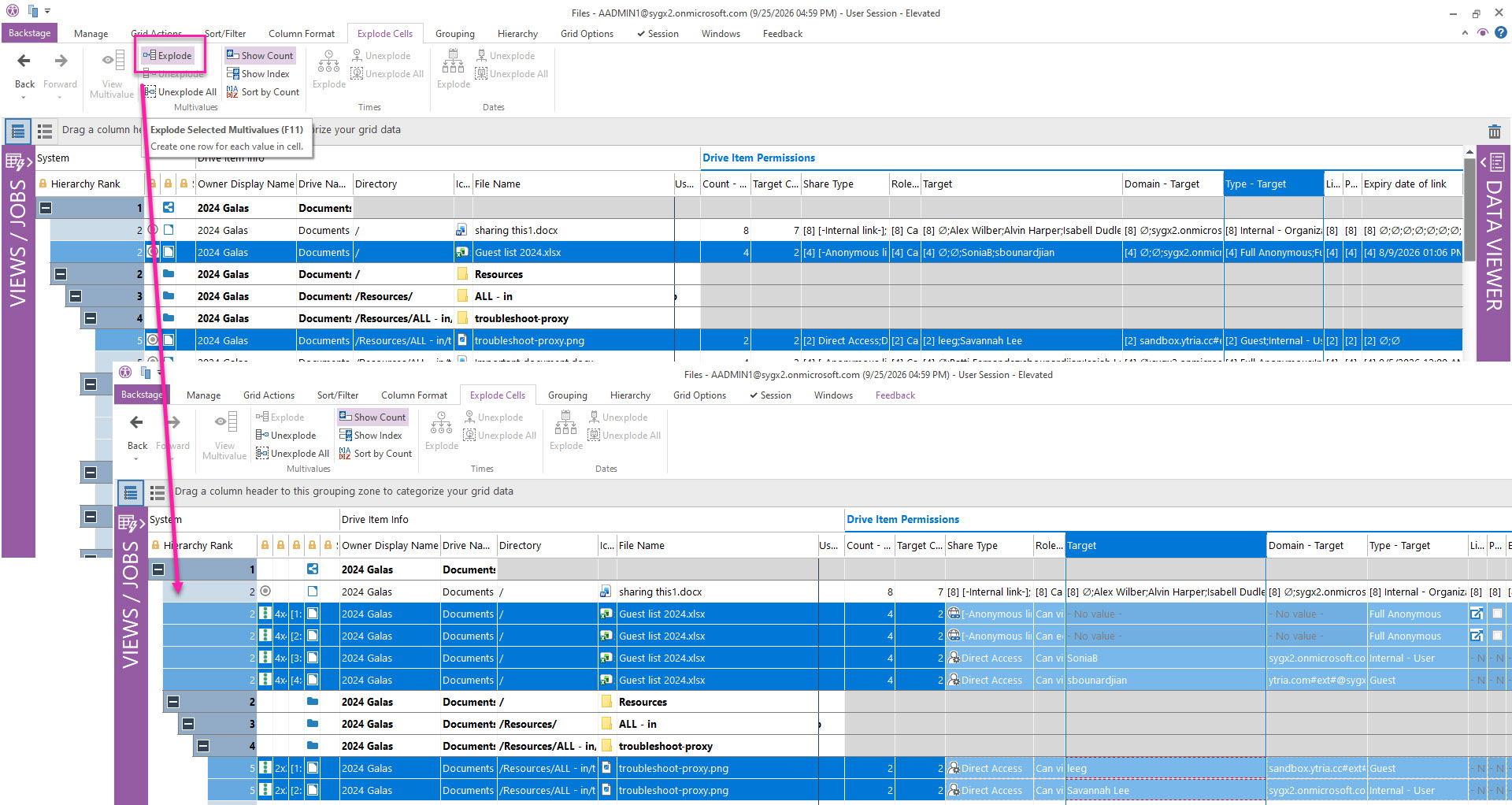
Select multivalue cells, then click Explode to display each value in a separate row.
Multivalue Column Families
When you explode a cell that belongs to a related property family, sapio365 also explodes the associated cells. This happens when the original property is parsed into multiple components.
Why the cells you select to explode matter
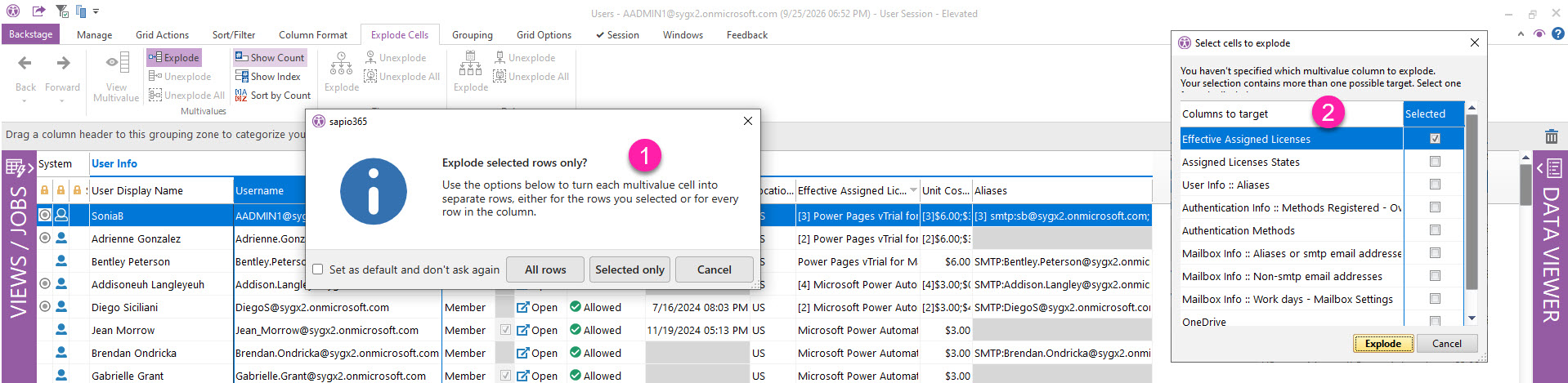
Depending on what you select, clicking Explode may ask for more information:
-
If you select just 1 row, you’ll be asked if you want explode only the selected row, or every row (for example, to do some filtering).
-
If your selection is a non-multivalue cell or column (ex. Username), and if there are more than 1 multivalue type columns loaded (even if hidden), you’ll be asked to select the multivalue value column to explode.
Unexplode parsed multivalues
You have to options to restore exploded values:
-
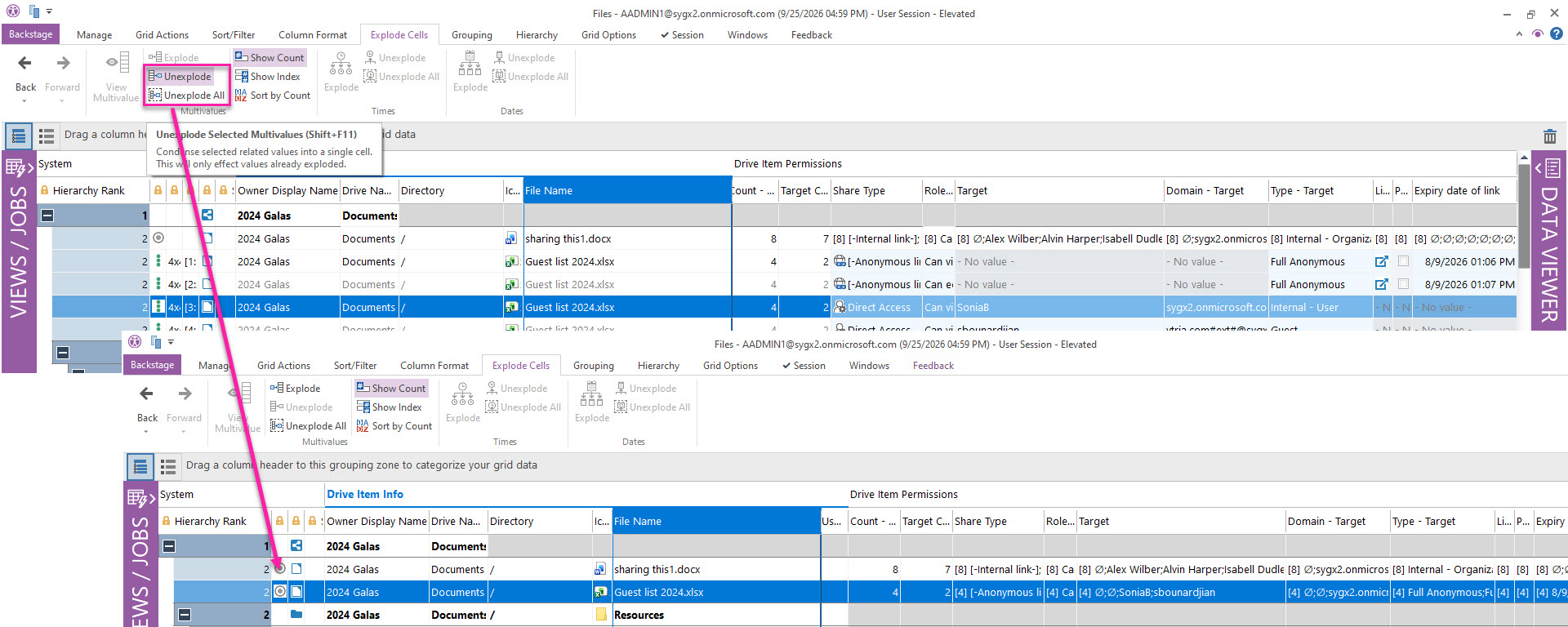
Unexplode: Select any exploded component, then click Unexplode to restore the related cells to their original, unexpanded state.
-
Unexplode All: Click Unexplode All to restore every exploded cell in the current view, regardless of your selection.
3. Show Multivalue Count, Index, or Sort by Count
Use these options to control how multivalue cells are displayed and sorted in the grid.
Show Count
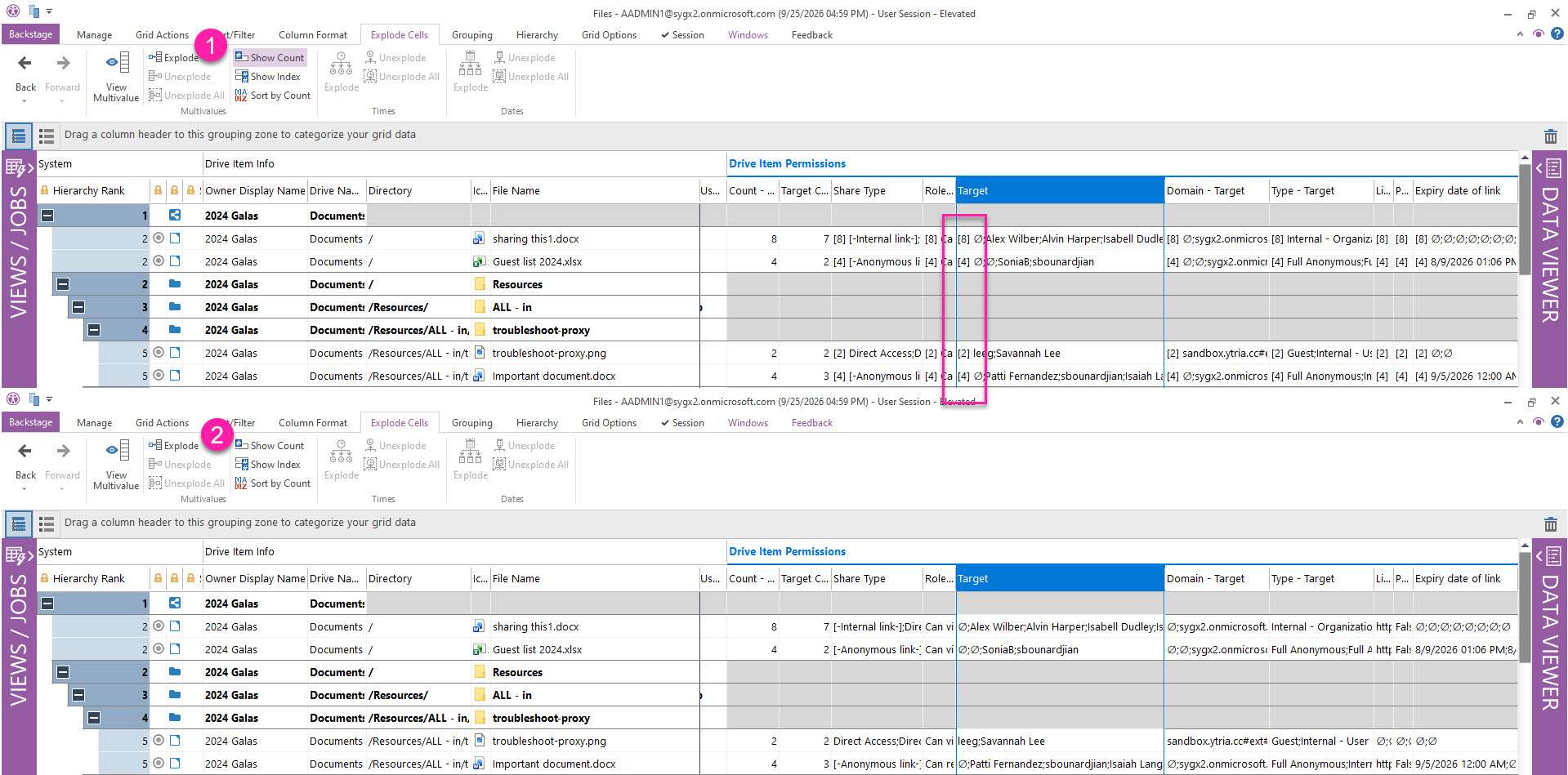
Enable Show Count to display the number of values as a prefix in each unexploded multivalue cell.
-
For example, when enabled, a cell containing three values appears as:
[3] item1; item2; item3 -
Disable Show Count to hide the count and display only the values:
item1; item2; item3
Show Index
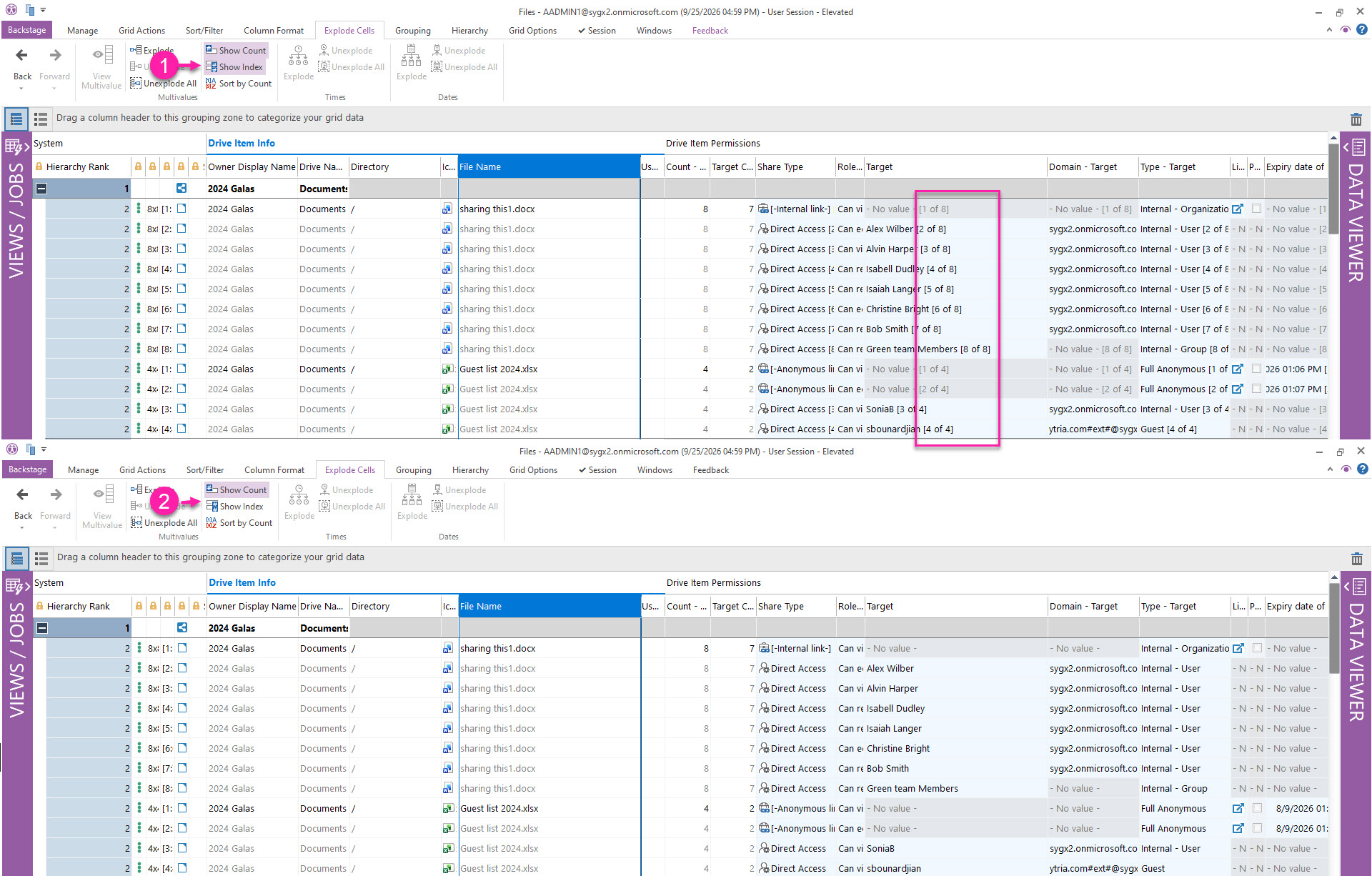
Enable Show Index to display each value’s position and the total number of values as a suffix in exploded multivalue cells.
-
For example, an exploded cell containing the second value out of three appears as:
item2 [2 of 3] -
Disable Show Index to hide this information:
item2
Sort by Count
Enable Sort by Count to include the number of values in each multivalue cell when sorting a column.
-
For example, if a column is sorted from Z to A, sapio365 first sorts cells by multivalue count, from highest to lowest. Cells with the same number of values are then sorted alphanumerically from Z to A.
-
Disable Sort by Count and the row sorting will treat the multivalues as strings.