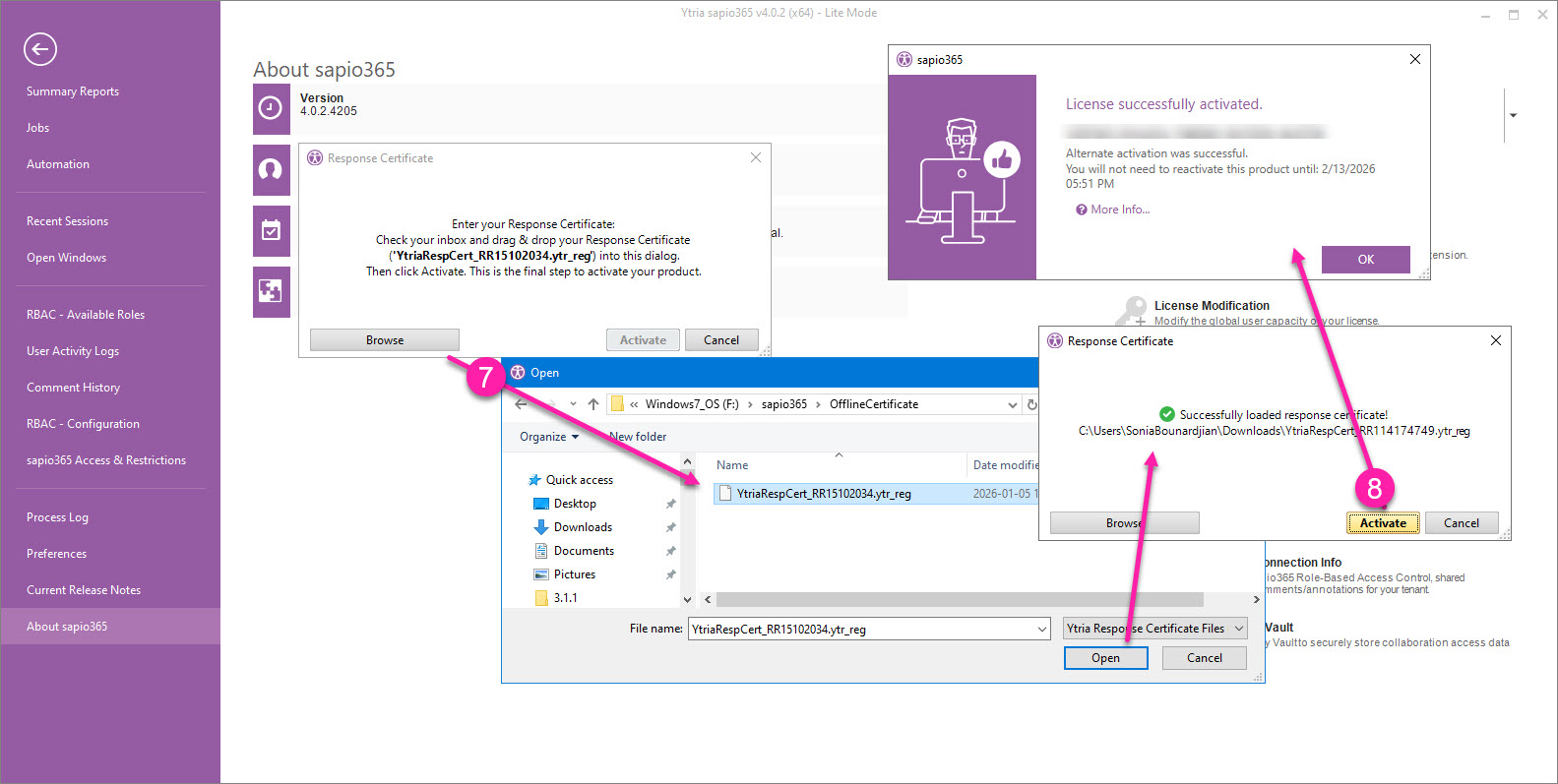
The alternate activation option is available as a workaround when you cannot activate your new sapio365 license using the standard registration process, which normally automatically renews the lease on your behalf in the background. Because it changes this behavior, this option can significantly affect how you use sapio365.
Impact of the alternate sapio365 license activation option
-
You must have access to an internet browser on the machine where sapio365 is installed.
-
You must manually activate your sapio365 license every 30 days to renew the software lease. This involves the use of challenge/response certificates.
-
MSP licenses are not supported.
-
You must reactivate your sapio365 license for any changes to the license to take effect on your machine (collaboration, increasing user capacity, etc).
How to activate sapio365 using the alternate method
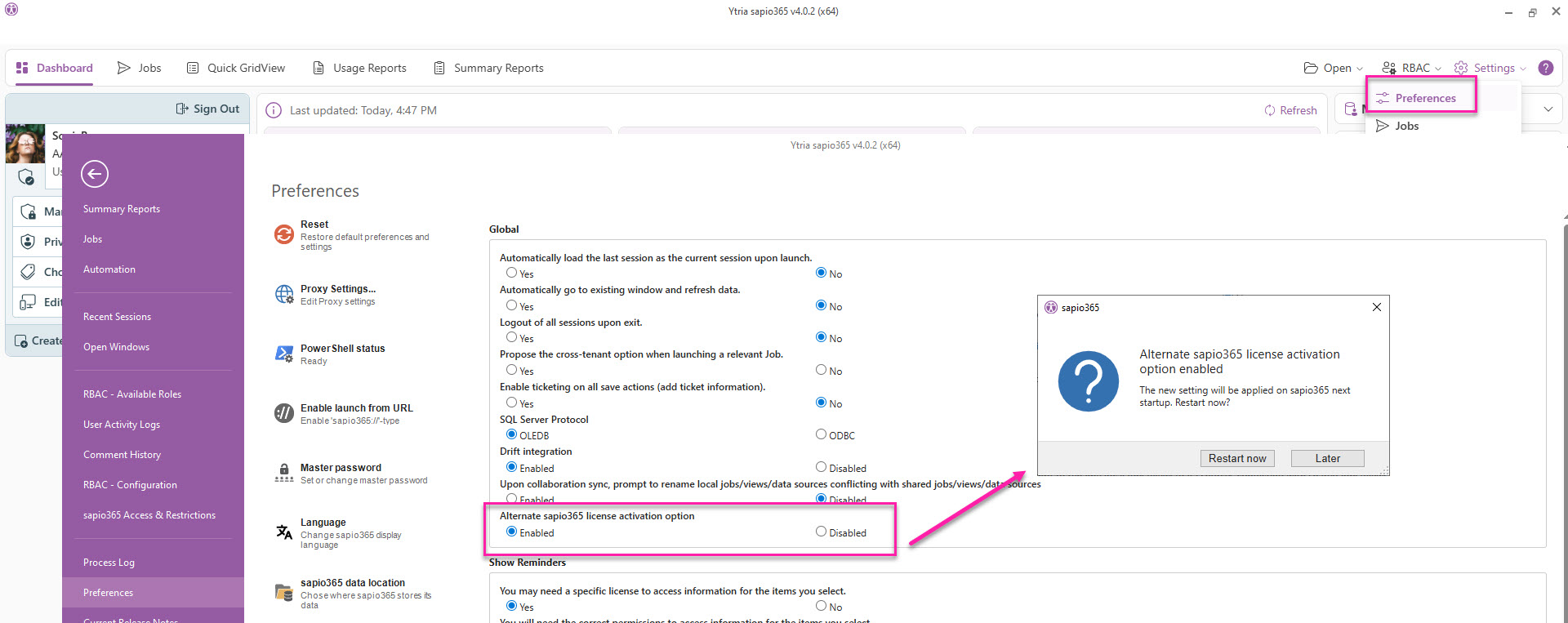
1 - In Preferences, enable the alternate activation option to see it as a choice when activating your sapio365 license. You’ll need to restart sapio365.
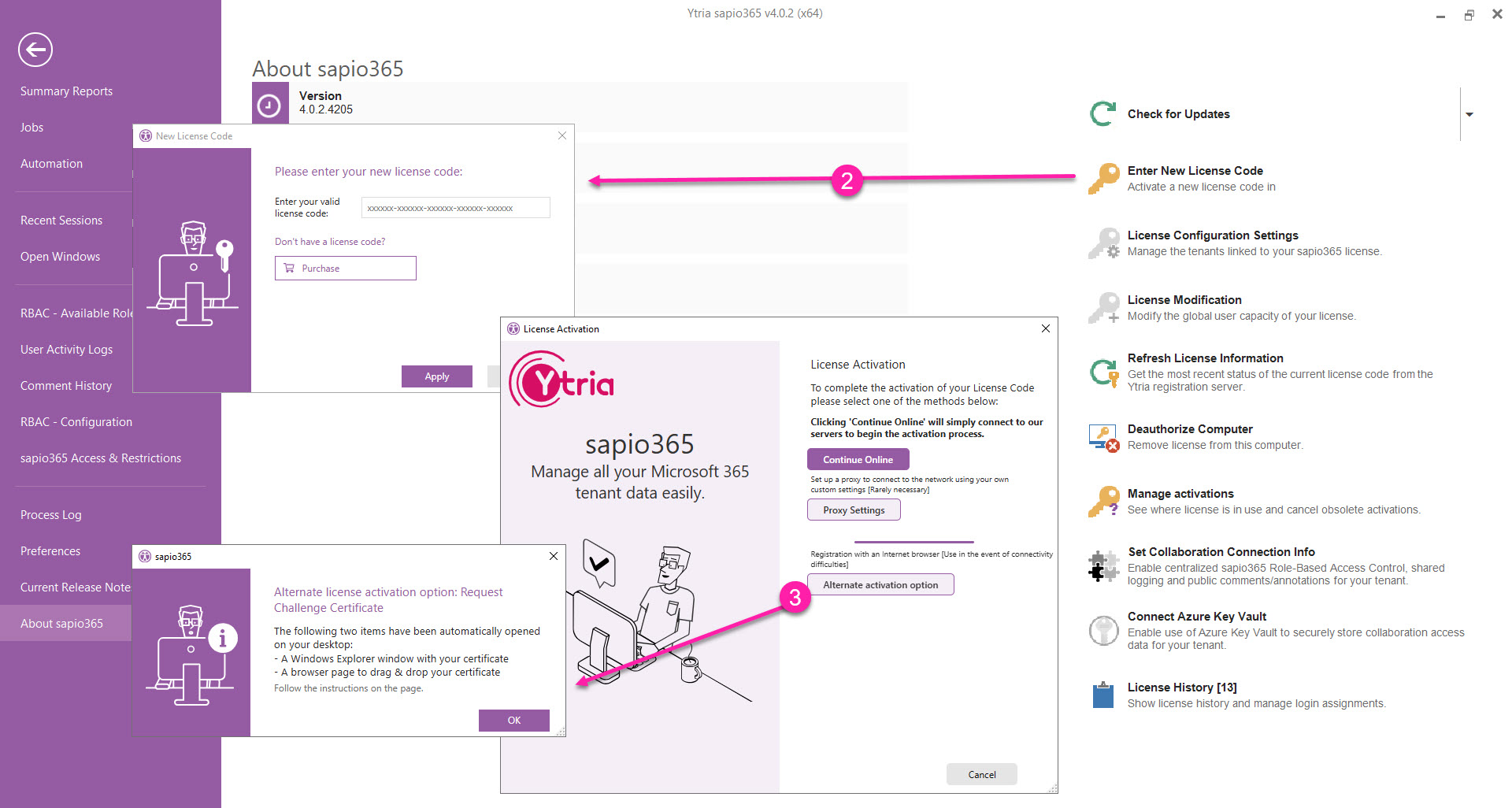
2 - Re-enter your sapio365 license code.
3 - Click Register with browser. This will automatically open the following:
-
The location of the automatically created challenge certificate in Windows Explorer.
-
The instructions page in your browser. You’ll need to upload the challenge certificate to obtain the response certificate.
-
The next sapio365 dialog where you can upload your response certificate.
⬇️ Expand the section below to see details for each step.
Detailed steps for offline registration
-
In Preferences, enable offline registration. You’ll need to restart sapio365.
-
Re-enter your sapio365 license code in About sapio365.
-
Click Alternate activation option. Then click OK in the next dialog to see:
-
The location of the automatically created challenge certificate in Windows File Explorer.
-
The instructions page opened in your browser.
-
The sapio365 dialog where you can upload your response certificate.
-
-
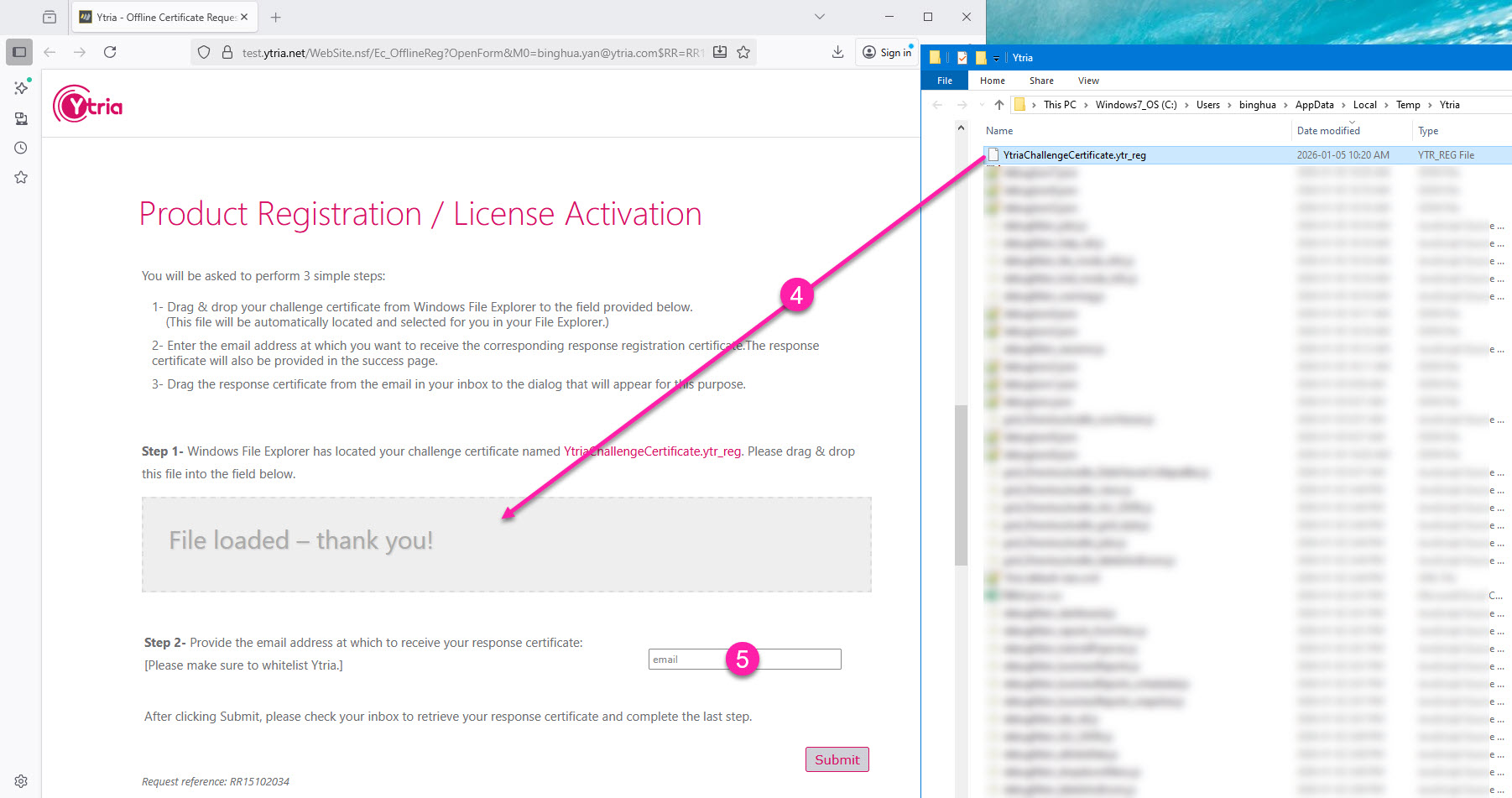
From Windows File Explorer, drag & drop your challenge certificate onto the webpage.
-
Enter a valid email where a copy of the response certificate will be sent and click Submit.
-
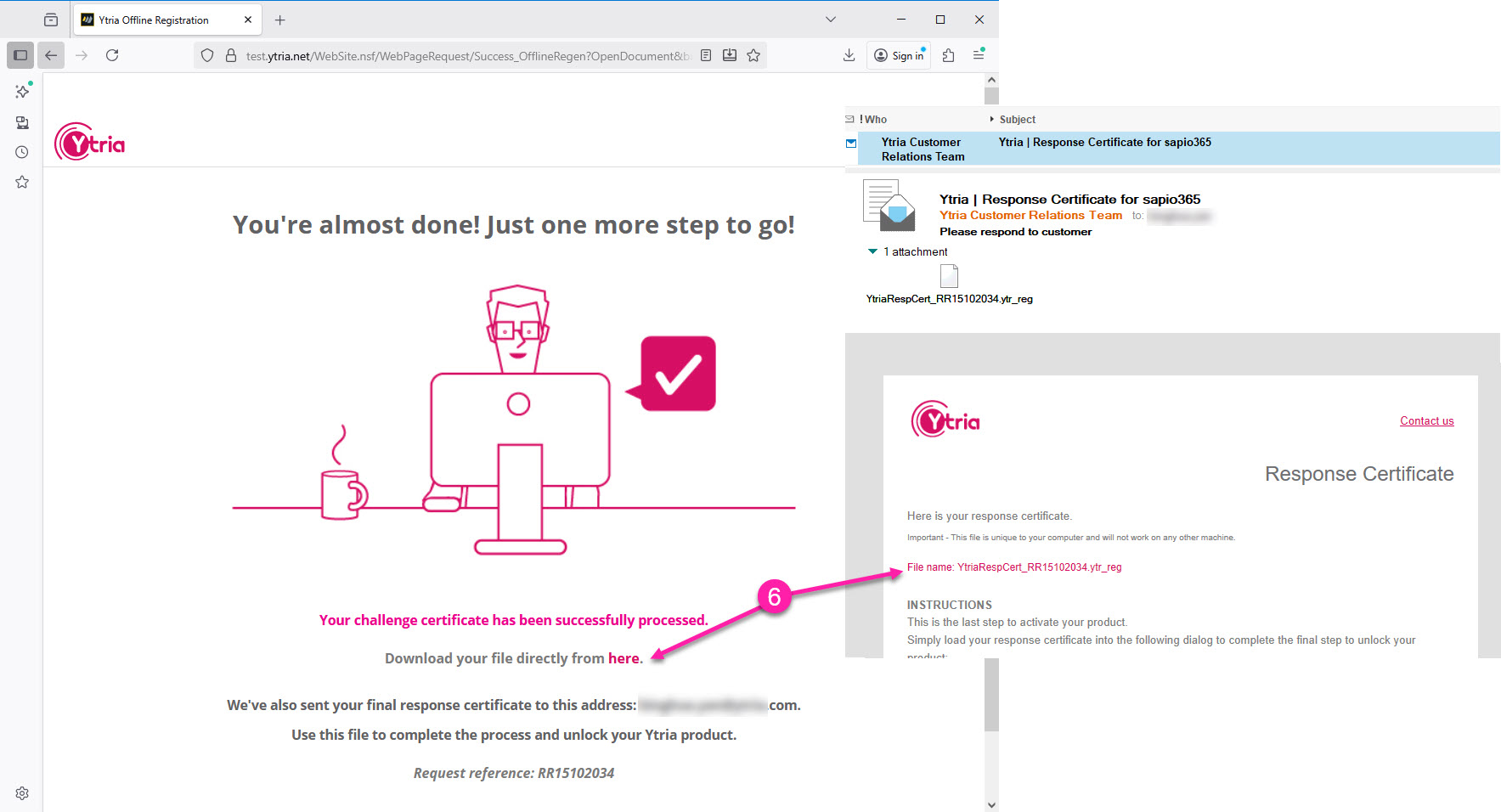
You can then download the response certificate from the next page or from the email in your inbox.
There can only be one “active” certificate request at a time.
A unique request reference is generated. The final response certificate file will be named using this reference. And this reference will be shown in the dialog where you have to drag and drop the file (step #7).
-
Go back to the open dialog in sapio365 and click Browse to upload that response certificate you just downloaded.
-
Once you’ve uploaded the file, click the enabled Activate button to activate your sapio365 license. You’ll see that your license has been successfully activated using the alternate activation option.