
At times, the sapio365 support team may ask you to send a trace file to help identify the cause of an error and resolve the issue. You can easily generate and send this file directly from sapio365, ideally right after the problem occurs.
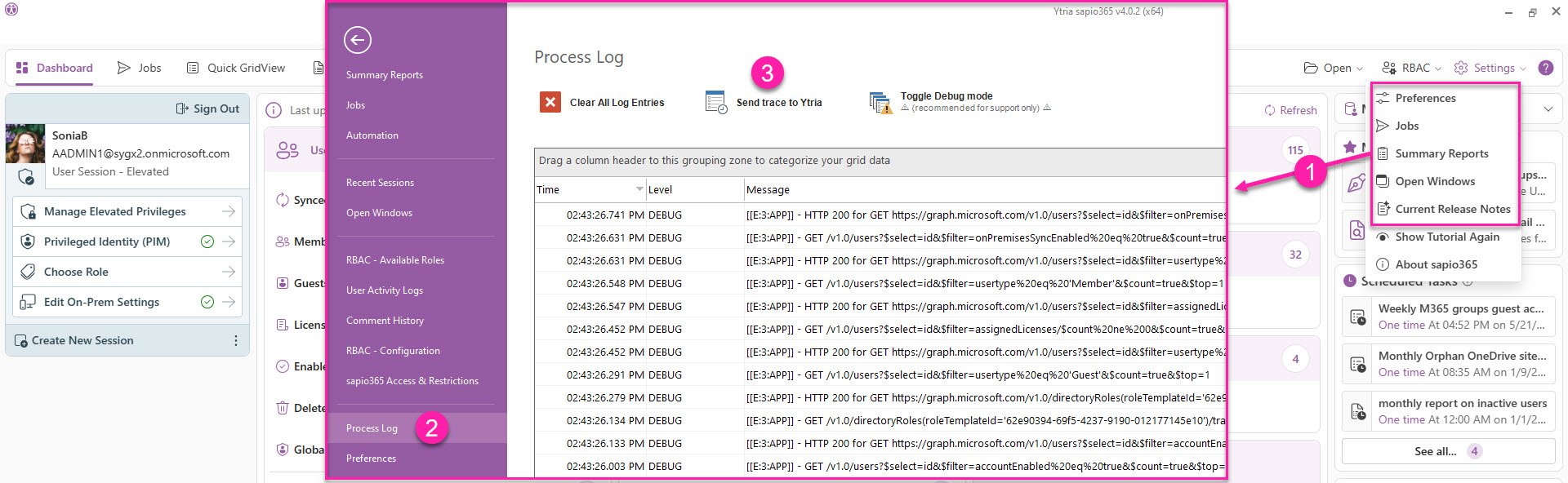
From the main dashboard
-
Click on any of the submenu options under Settings to go to the backstage.
-
Click Process Logs.
-
Click Send trace to Ytria.
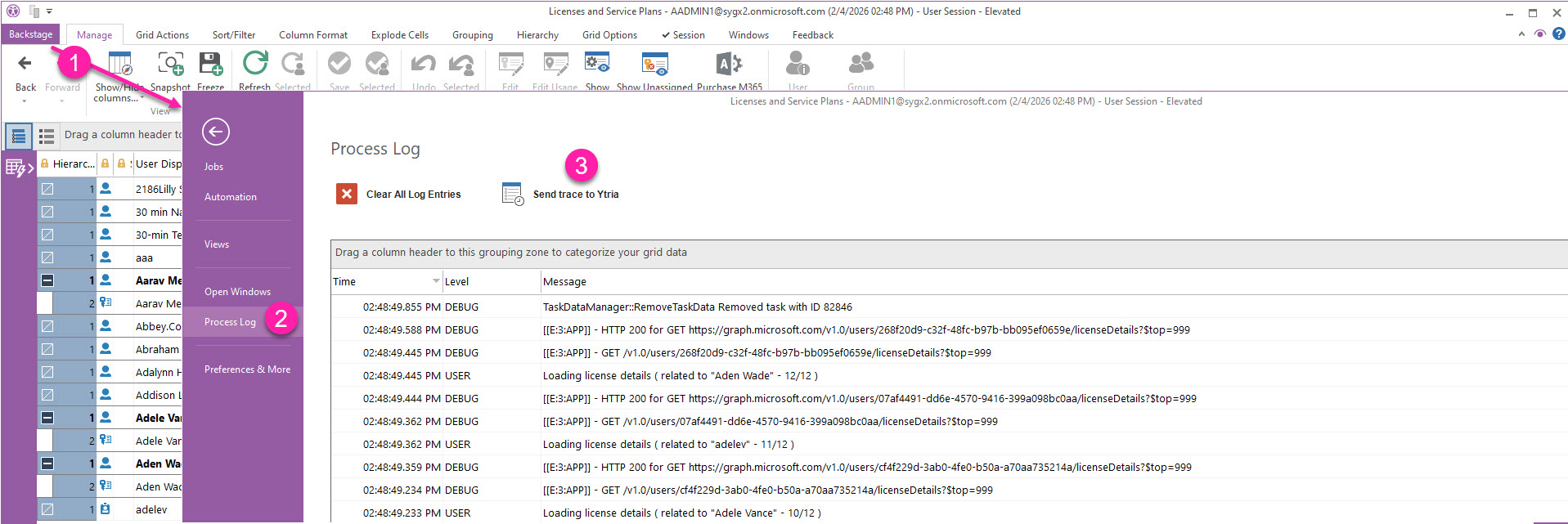
From any grid
-
Click Backstage.
-
Click Process Logs.
-
Click Send trace to Ytria.
From File Explorer
You can also email us your trace files to support@ytria.io with a description of your issue.
-
Type %localappdata% in File Explorer.
-
Click the Ytria folder.
-
Select the most recent log files sapio365Trace.log.
