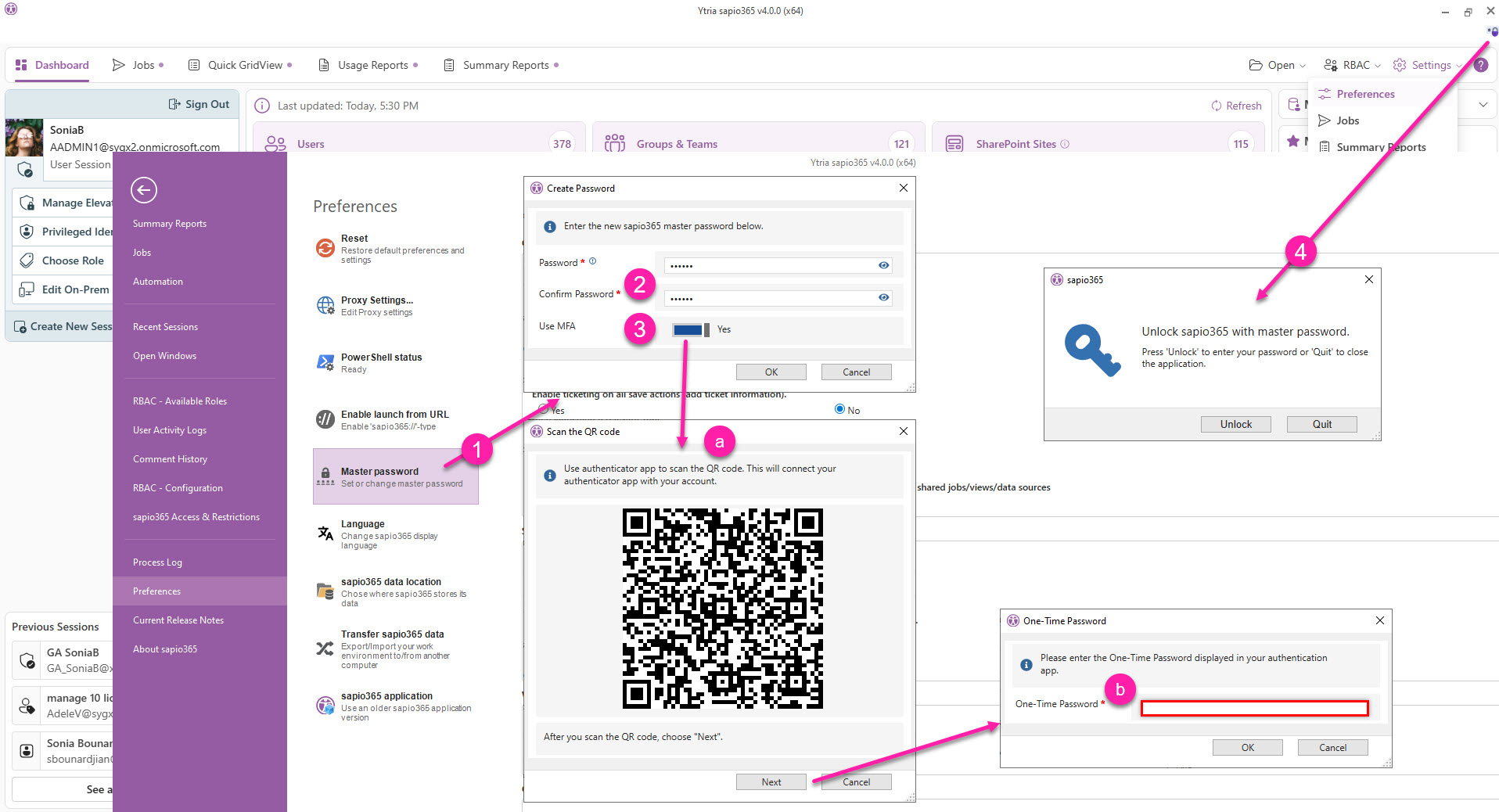
To lock sapio365, you must set a master password. See the steps in the image that follows.
-
Go to Preferences and click on ‘Master password’.
-
Enter a password and confirm it by entering it a second time.
Password must contain only ASCII characters.
Keep your password somewhere safe. This password applies to ALL your sapio365 sessions for this installation. If you lose your password, you will have to recreate ALL your sessions!
Your password will be masked but you can view it by clicking on the eye icon.
-
(Optional) Apply MFA using an authenticator app.
-
Scan the QR code in your app. ‘Ytria sapio365’ will be added to your list of accounts.
-
You’ll be asked to test it by entering the one-time password from the authenticator app.
-
-
Once you click on OK, the dialog will close and the button will turn purple to indicate that the lock is enabled, and a small lock icon will be displayed at the top right corner of every sapio365 window or view.
Click on the small lock icon to lock sapio365. A dialog will appear and can only be closed by unlocking with the master password or by quitting the application.