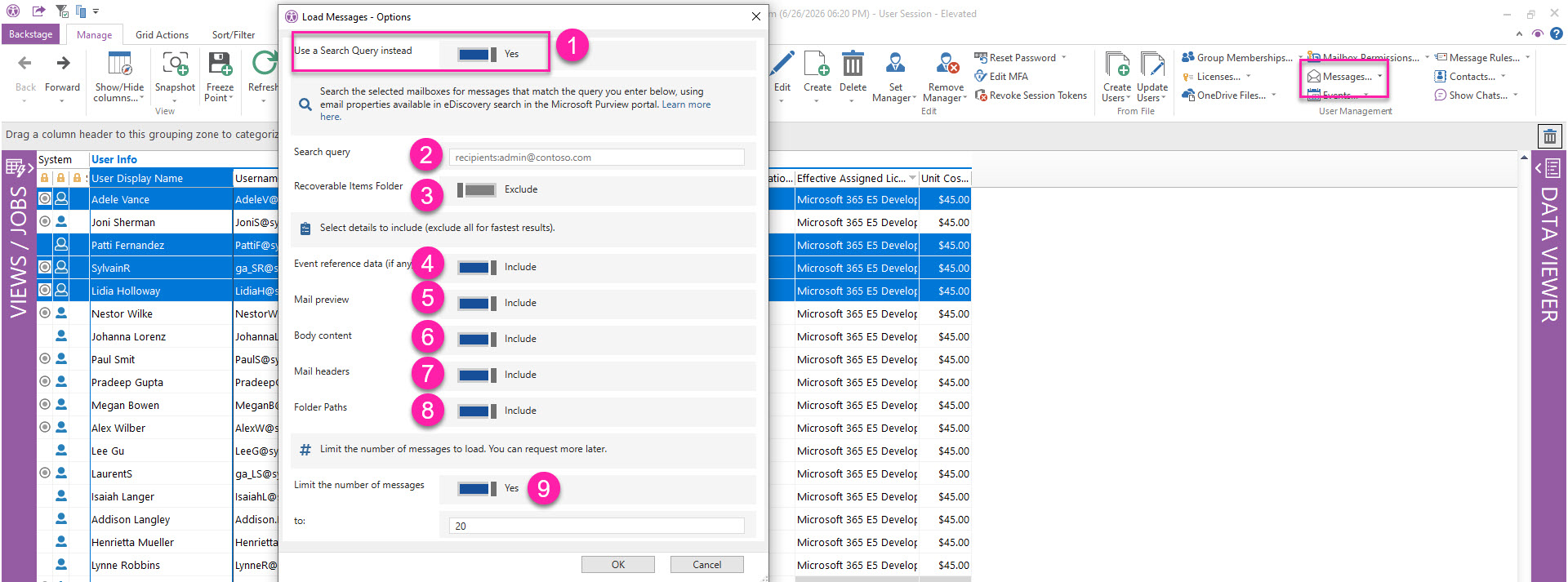
If you’re already familiar with Microsoft Purview eDiscovery search syntax, you can use a Search Query to load messages that match your criteria from the mailboxes you selected.
Message loading options
Create a query based on email message properties that can be searched with eDiscovery search tools in the Microsoft Purview portal.
The more information you choose to load, the longer it may take to load your data.
|
Option |
Description |
|
|---|---|---|
|
1 |
Use a Search Query instead |
Set this to No to switch to loading messages using standard options. |
|
2 |
Search Query |
Enter a query based on searchable properties. If you enter only a keyword, the search looks for it in all message fields, including subject and body, which can return more results than using field-specific conditions. |
|
3 |
Recoverable Items Folder |
Include messages in Recoverable Items subfolders Deletions, Purges, Versions, DiscoveryHolds and SubstrateHolds. The option to limit the number of messages (#10) is not available when the Recoverable Items Folder option is set to Yes. |
|
4 |
Event reference data |
Include properties that relate to calendar events for certain message types (responses, invitations, etc). |
|
5 |
Mail preview |
Add message content in the grid under 'Mail Preview' column. |
|
6 |
Body content |
Include body content properties and allow preview in message viewer using the ‘Preview Body’ button. |
|
7 |
Mail headers |
Include mail header data. |
|
8 |
Folder paths |
Load the name of the folder where the message resides. |
|
9 |
Limit the number of messages |
Load only a specific number of recently created messages. |