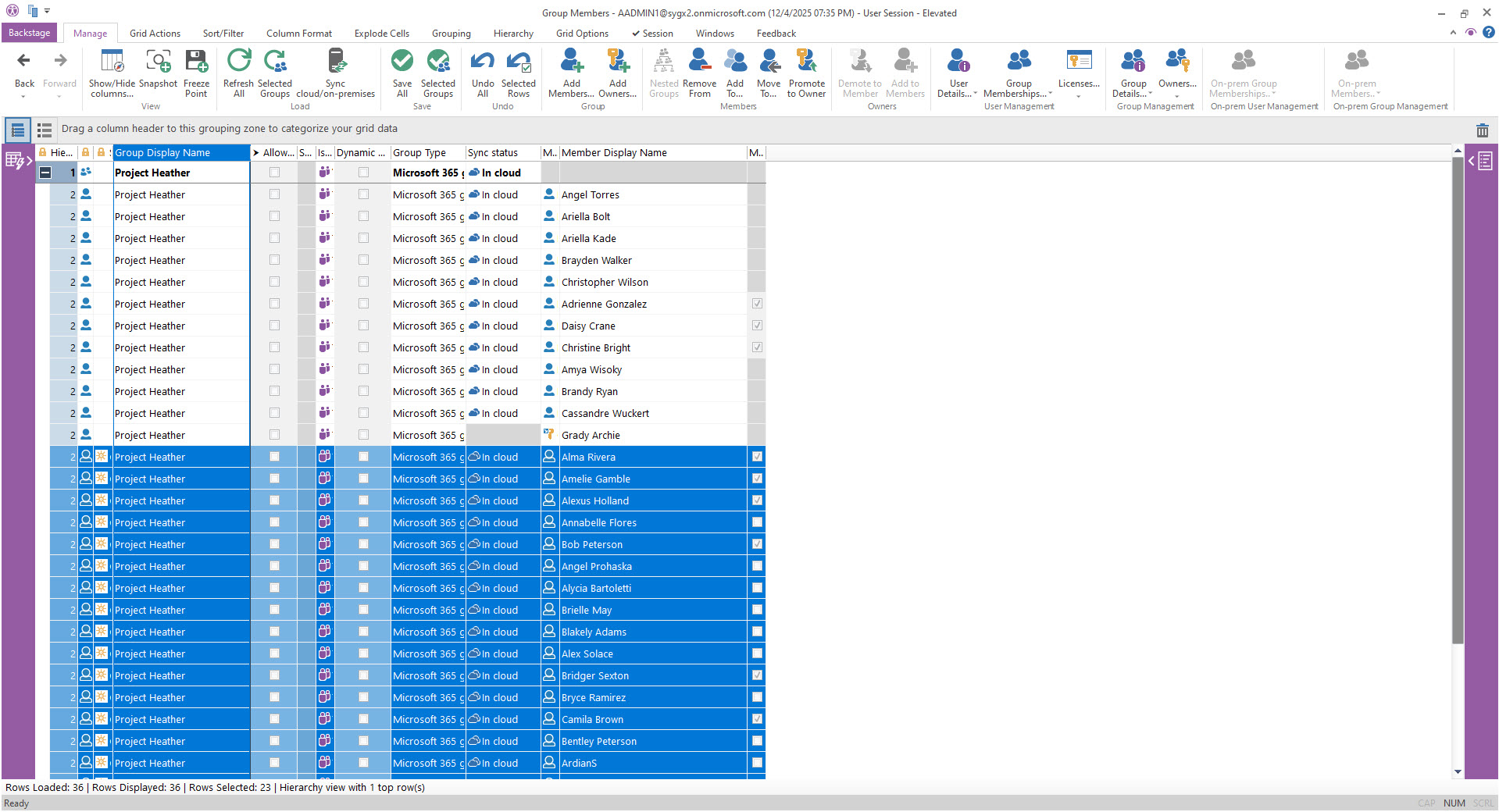
The Select from File feature is available in every grid and works similarly to the Filter from File option. It’s also accessible in certain directory selection dialogs, allowing you to select entries directly from an Excel or CSV file.
Successfully map your data to the grid
Ensure that the property—or properties—used for mapping exists in both the file and the target grid.
When working with unique objects such as users, use a unique identifier as your mapping key, such as:
-
Username
-
Email
-
GUID
Grid selection example: Select 25 users from an Excel file
This is an example where you have a specific list of objects to work with and want to focus only on those entries in the grid. For a cleaner view that simply hides everything else, use Filter from File instead.
-
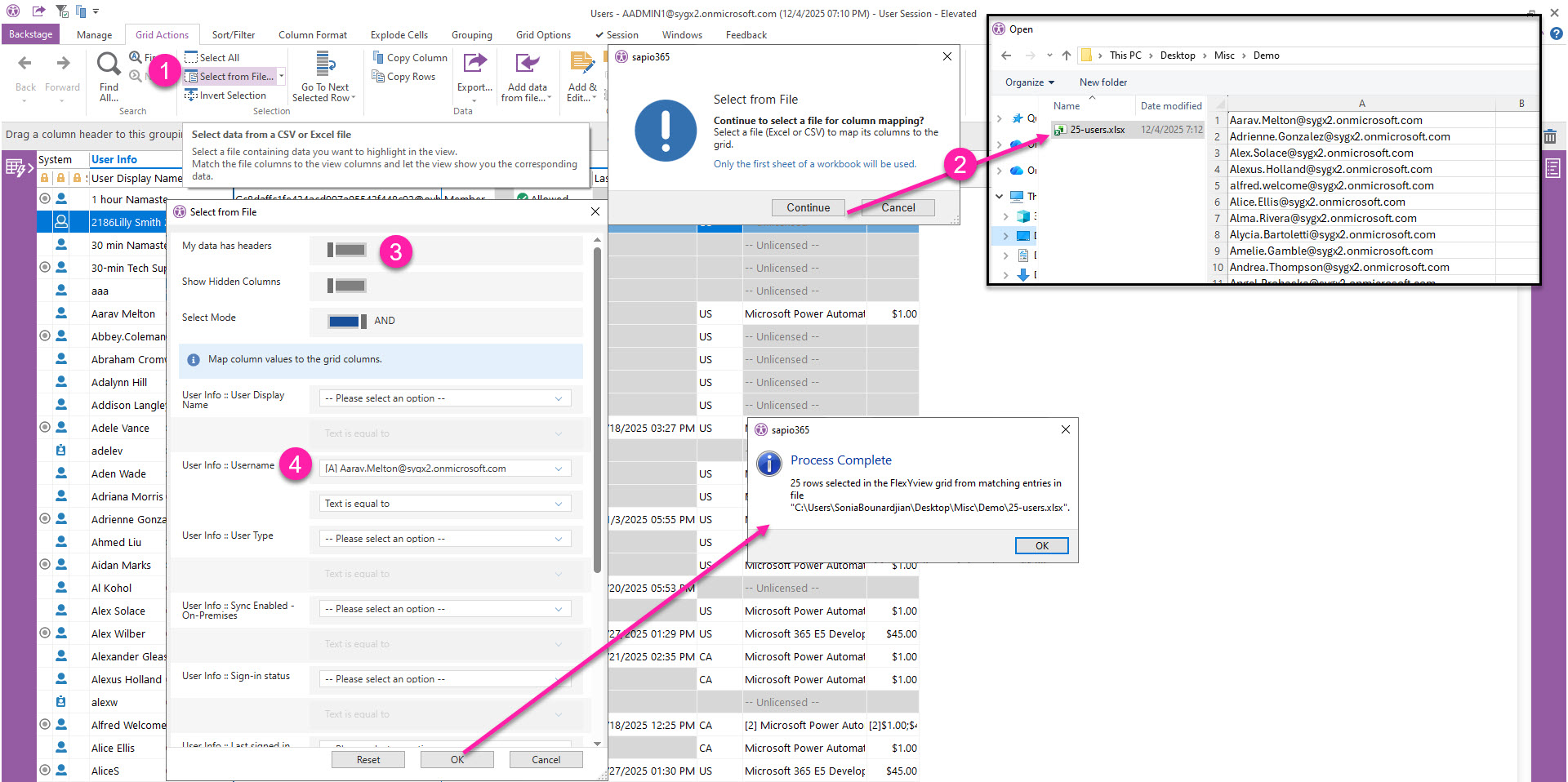
In the Grid Actions tab, click Select from File.
-
Select the file. Note if has column headers.
-
Toggle options if necessary.
-
Select the grid column you want to map - in this case it’s Username - and select the corresponding Excel column value. Click OK.
The result
-
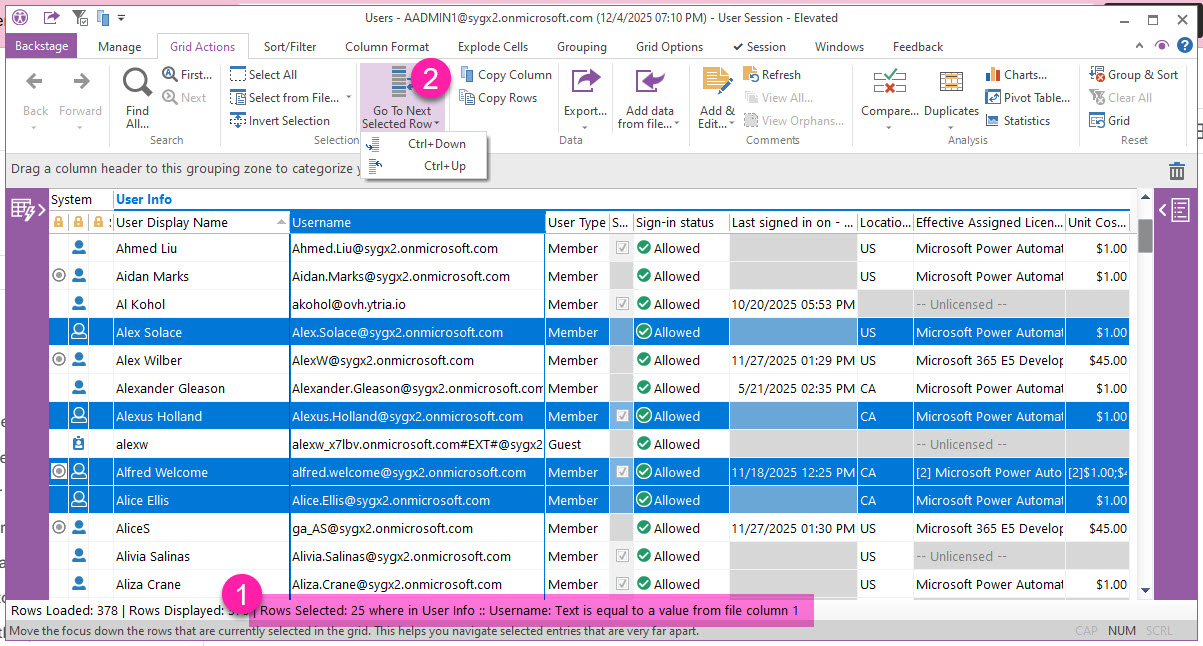
At the bottom of the grid, you can see that 25 users have been selected.
-
In the Grid Actions tab, use the Go to Next Selected Row options to move between selected rows without losing your selection.
Directory selection example: Add 25 users (from an Excel file) to a group
This example shows how to select large numbers of objects from a directory in a dialog, such as when adding new members or owners to groups or Teams channels, or when assigning new groups to users.
-
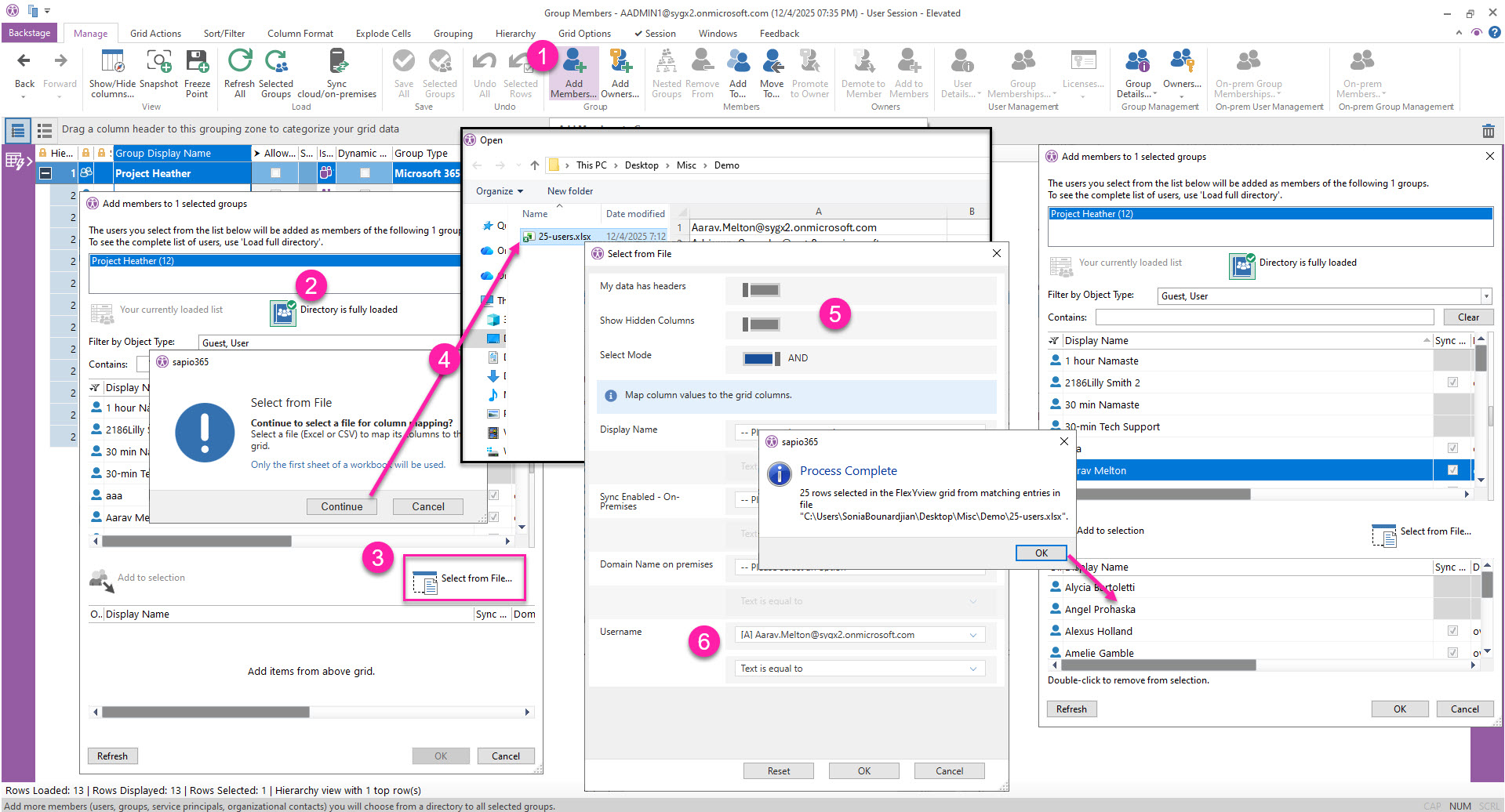
Select groups and click Add members.
-
In the dialog, click the icon to load the full directory.
-
Click Select from File.
-
Select the file. Take note if it has headers.
-
Toggle options if necessary.
Show Hidden Columns -> map to GUID
Only basic object properties are displayed in a directory grid, and object IDs are hidden by default. To view and use the object ID field for mapping, enable Show Hidden Columns.
-
Map Username in the grid to the Excel column value or header. Click OK to see the members added to the selection bucket. Click OK to apply preview in the grid.
The result
Users who were not already members have been added as new rows under the group for you to review and save.