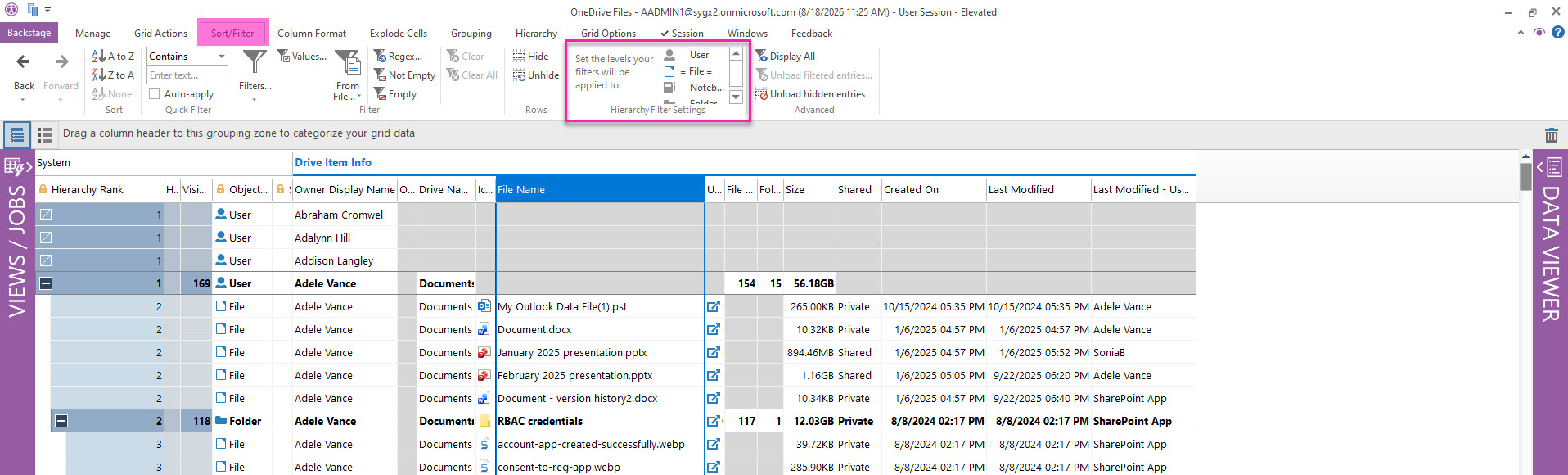
Some GridViews are hierarchical by default due to the nature of the data it presents like sites and subsites, files and folders and licenses and service plans.
When this is the case, you have the option to flatten the view to the smallest object to create a simpler view.
A hierarchical view applies to submodules where data is categorized by the previously selected objects (for example, users) of the originating module or where there is an arborescence or folder-like structure (like in Email Messages or Files).
Here are some examples where the GridView is hierarchical by default (not exhaustive):
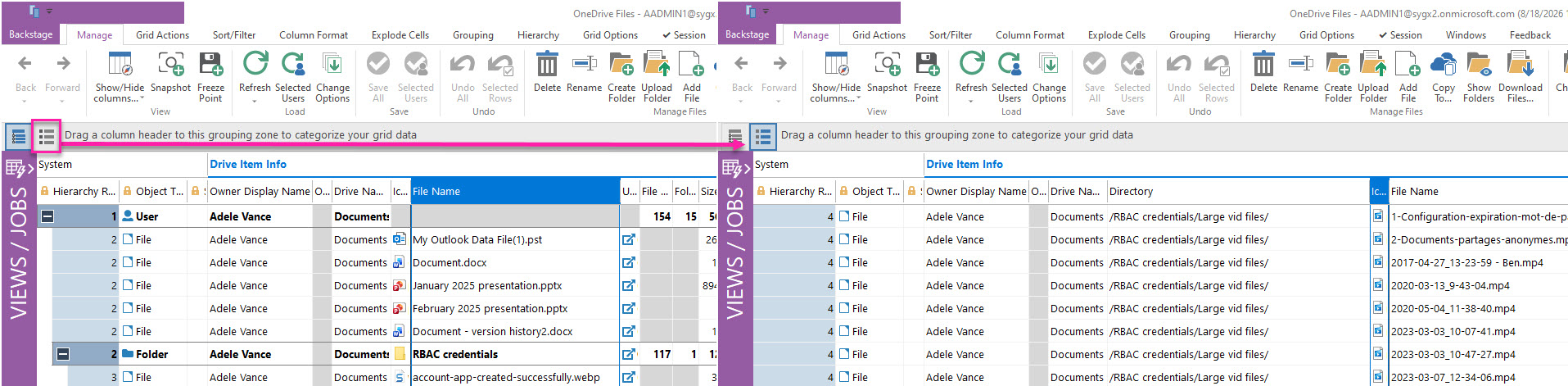
How to toggle between a Hierarchy and Flat View
Click the buttons at the top left of the grid to switch to a:
-

-

Hierarchy View Options
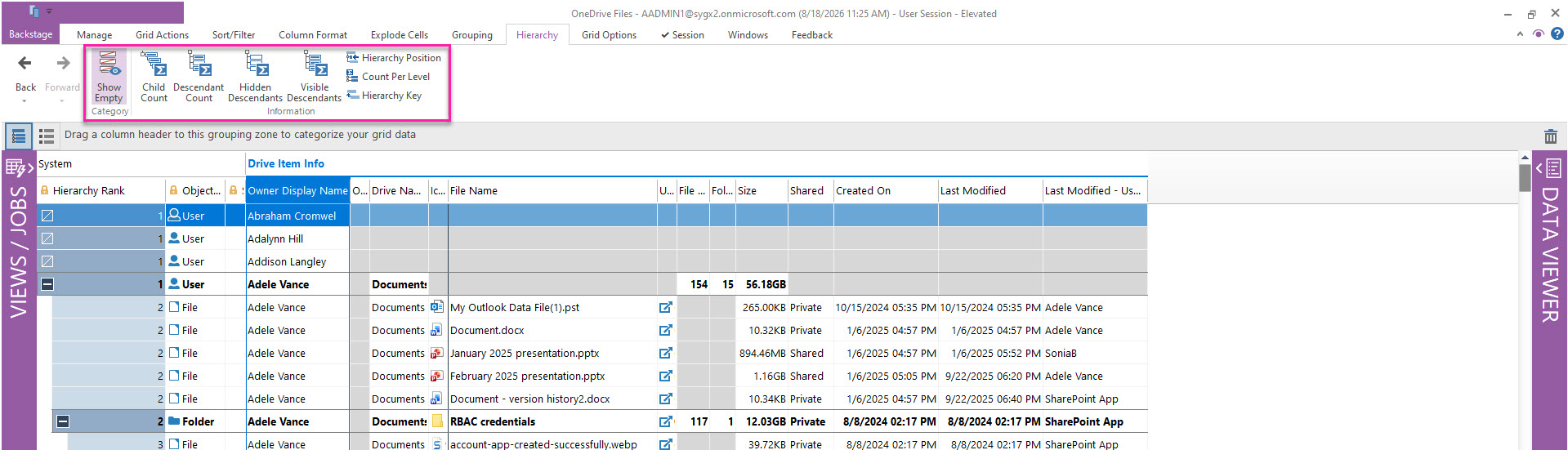
When the GridView is in Hierarchy mode, the Hierarchy tab provides buttons for showing or hiding hierarchical information in the view.
|
Button |
Description |
|---|---|
|
Show Empty |
Show/Hide hierarchy parents who have no final child. Turn this off to hide empty rows. |
|
Child Count |
Display a column in the grid that indicates the total number of directly related entries each parent category contains. Not affected by filters. |
|
Descendant Count |
Display a column in the grid that indicates the total number of items each parent category contains. Not affected by filters. |
|
Hidden Descendants |
Display a column in the grid that indicates the total number of rows currently set to ‘Hidden’ within each category. Automatically enabled when a filter is applied. |
|
Visible Descendants |
Display a column in the grid that indicates the total number of rows currently NOT set to ‘Hidden’ within each category. Automatically enabled when a filter is applied. |
|
Hierarchy Position |
Add a column to the grid that indicates the level and sub-level of each row in the grid. For example: the first item will be 1, but all sub-items will be 1.1, 1.2, 1.3, etc. |
|
Count Per Level |
Add a column to the grid that indicates the total number of rows on that level.
|
|
Hierarchy Key |
Add a column to the grid that displays the Unique ID on which this hierarchy is based. |
Applying Filters in a Hierarchy View
By default, filters in a Hierarchy view apply only to the lowest-level object in the hierarchy.
To apply filters to other object types, select the relevant objects in the Hierarchy Filter section of the Sort/Filters tab. A listed object’s icon appears blue when filters can be applied to rows representing that object type.